

Folder permissions
When your organization uses the Shared Library to distribute evaluations, folder permissions let you control who can access and manage specific folders. This is particularly useful for large organizations where different departments maintain their own sets of evaluations and not everyone needs to see everything.
Opening the permissions dialog
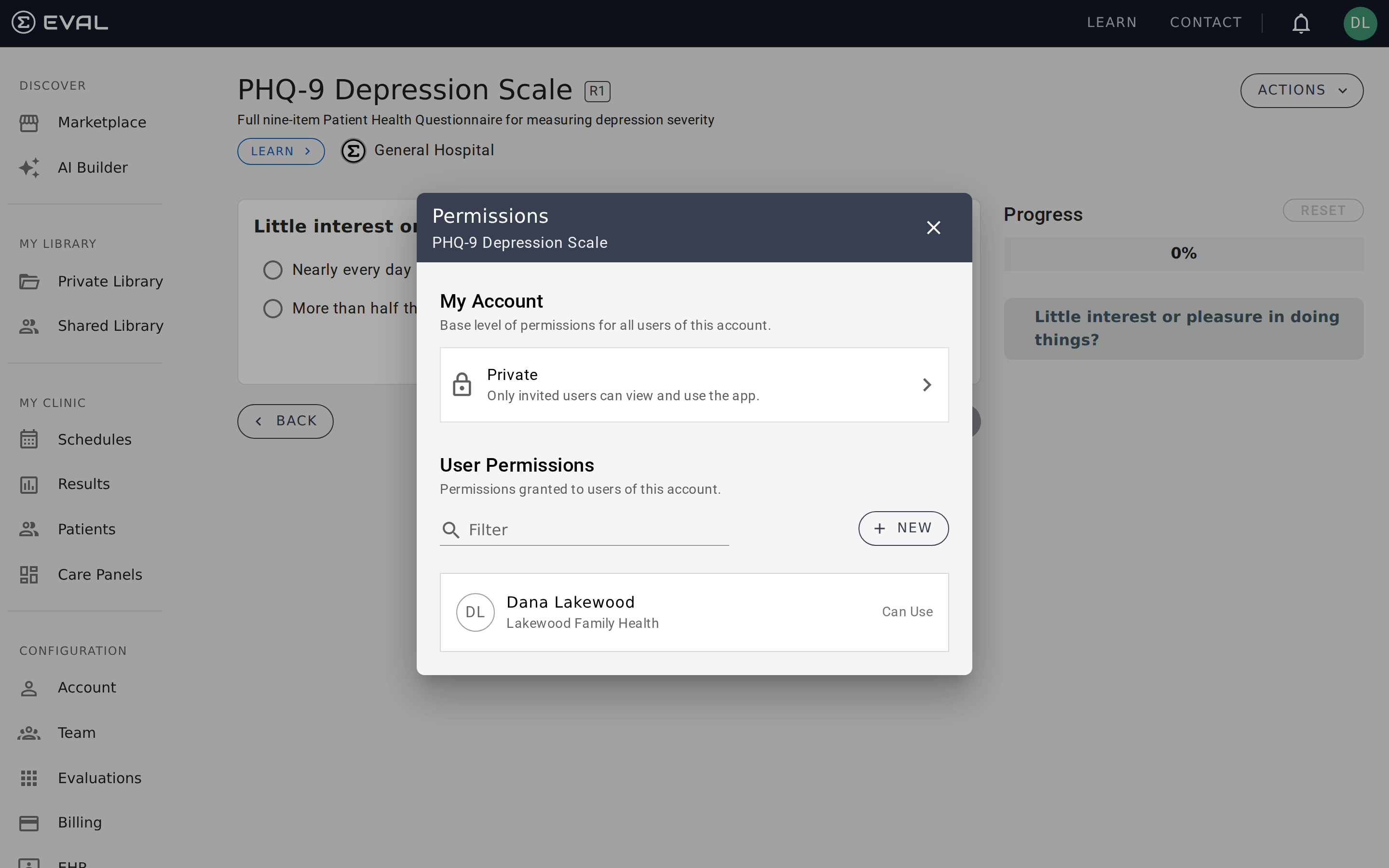
Navigate to a Shared Library folder you own or have edit access to, click the ⋯ menu, and select Folder Permissions. The dialog shows the current visibility setting and a list of users with individual permissions.
Folder visibility
At the top of the permissions dialog, the My Account section shows the folder's current visibility level. Click it to change between two options:
Account Users makes the folder visible to everyone in your organization. All team members can browse the folder and use the evaluations inside, though they can't modify the folder itself unless they have an explicit edit permission.
Private restricts the folder to only users you've explicitly added to the permissions list. Team members who aren't listed won't see the folder or its contents in their Shared Library view.
If the parent folder is set to Private, subfolders inherit that setting and can't be changed to Account Users. This prevents a situation where a subfolder is visible but its parent isn't, which would create a confusing navigation experience.
User roles
Individual user permissions supplement the folder's visibility setting. When you add a user to a folder, you assign one of two roles:
Can Use grants read-only access — the user can browse the folder and open evaluations inside it, but can't create, edit, or move content. This is the right role for practitioners who need to run the evaluations in the folder but shouldn't manage its organization.
Can Edit grants full management access — the user can create and edit evaluations in the folder, create subfolders, move evaluations in and out, and manage the folder's permissions. Assign this to colleagues who are co-managing a department's evaluation library.
For Private folders, user permissions are the only way to grant access. For Account Users folders, adding explicit permissions lets you elevate specific people to the Can Edit role while everyone else retains implicit read access.
Managing users
Adding a user
Click New in the User Permissions section of the dialog. An autocomplete search field lets you find people in your organization by name or email. Select a user, choose their role (Can Edit or Can Use), and save. The permission takes effect immediately.
Changing a role
Click any user in the permissions list to open their details. Change the role dropdown and save to update their access level.
Removing a user
From the user's detail view, click Delete at the bottom of the form. A confirmation dialog asks you to verify before removing the permission. For Private folders, removing a user revokes their access entirely. For Account Users folders, they retain the baseline organization access but lose any elevated role.
How permissions interact with evaluations
Folder permissions control access to the folder and its organization — they don't override the individual evaluation permissions set on each evaluation. An evaluation inside a Private folder is hidden from users who don't have folder access, but if someone has a direct link or their own permission on the evaluation, they can still access the evaluation itself outside the folder context.
Think of folders as organizational containers with their own access control layer, sitting on top of the evaluation-level permissions you're already familiar with.
Common permission patterns
Department libraries — Create a top-level folder for each department and set it to Account Users. Add department leads with Can Edit access so they can manage the folder's contents. Everyone else in the organization can browse and use the evaluations inside.
Work-in-progress folders — Use a Private folder for evaluations that are still being developed or reviewed. Add only the development team with Can Edit access. Once the evaluations are published and validated, move them to an Account Users folder so the rest of the organization can access them.
Research study folders — For multi-site research studies, create a Private folder and add only the study team members. This keeps study-specific assessments isolated from the organization's clinical tools while still allowing all team members to collaborate within the same folder structure.
Getting started
Folders
Organize evaluations into folders and subfolders in your EVAL Library — create, rename, nest, move evaluations between folders, and navigate with breadcrumbs.
Builder
Create clinical evaluations with a visual, no-code editor — organize sections, add questions, define scoring formulas, and publish for clinical use.