

Library overview
Your Library is where you manage the evaluations you work with. It's split into two views — Private Library for your personal collection and Shared Library for everything available across your organization — giving you a single place to find, organize, and launch evaluations.
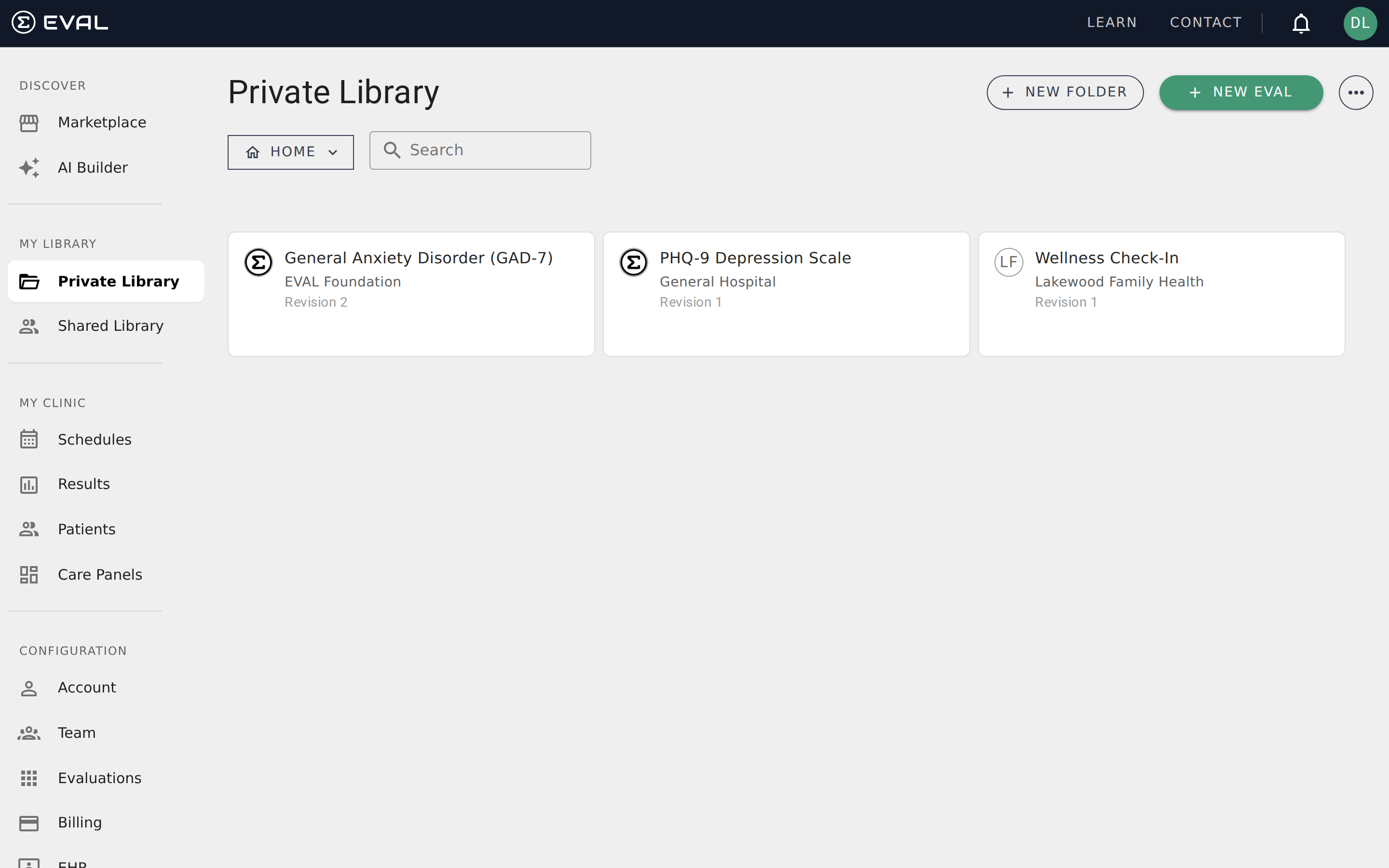
Private Library vs. Shared Library
The sidebar offers two entry points into your Library, each showing a different scope:
Private Library contains evaluations you've created, been invited to collaborate on, or added from the Marketplace. This is your personal workspace — only you see these evaluations unless you've shared them. Pending invitations from other users appear at the top of your Private Library, letting you accept or decline access to evaluations others have shared with you.
Shared Library shows all evaluations published at the organization level. If your organization has set an evaluation's visibility to Account, it appears here for everyone on the team. This view is useful when you need to find a tool that a colleague built or that your organization has adopted as a standard assessment.
Browsing and searching
Evaluations appear as cards in a three-column grid, each showing the evaluation's name, the publishing organization, and the current revision number. Deprecated evaluations are marked with a visible badge so you can quickly spot outdated versions.
Use the Search field above the cards to filter by name. Search applies to both folders and evaluations simultaneously — as you type, the grid updates to show only matching items. If you use folders to organize your evaluations, they appear as labeled cards above the evaluation grid.
Click any evaluation card to open it in the Player, where you can answer questions and view results. To edit an evaluation instead, open it and switch to the Builder from the Actions menu.
Organizing with folders
Both library views support folders for grouping related evaluations. Create a folder for each program, department, or study, and nest subfolders for finer organization. Folders appear as labeled cards above your evaluations, and clicking one opens it to show its contents.
When you need to reorganize, the Move to Folder action in the ⋯ menu lets you select evaluations and move them to a different folder in a two-step process. In the Shared Library, folders also support permission settings that control who can view and edit their contents — useful for large organizations where different teams maintain their own evaluation collections.
Creating new evaluations
Click New Eval in the top-right corner to start building a new evaluation. This takes you directly to the Builder with the EVAL AI dialog open, ready to help you scaffold your evaluation from a description. You can also start from scratch by closing the AI dialog and filling in the General tab manually.
Accepting invitations
When a colleague shares an evaluation with you, an invitation card appears at the top of your Private Library. Each invitation shows the evaluation name and the sharing organization, with Accept and Decline buttons. Accepting an invitation adds the evaluation to your Private Library; declining removes the invitation without granting access.
Getting started
Evaluation preview
Review an evaluation's summary, literature references, revision history, and tags before adding it to your EVAL Library from the Marketplace.
Folders
Organize evaluations into folders and subfolders in your EVAL Library — create, rename, nest, move evaluations between folders, and navigate with breadcrumbs.