

Evaluation permissions
Permissions determine who can access your evaluations and what they can do with them. EVAL combines organization-wide visibility settings with individual user roles, giving you precise control over access — from broad availability to tightly restricted collaboration.
Visibility settings
Every evaluation has a visibility level that sets the baseline for who can discover and access it. You initially set visibility in the Builder's General tab and can adjust it later through the Permissions dialog.
Two visibility levels are managed through Permissions:
- Account — Everyone in your organization can find and use the evaluation. This is the standard setting for clinical tools used within a practice or health system. Individual users don't need to be added — membership in the organization grants access.
- Private — Only users you explicitly add to the permissions list can access the evaluation. Use this for works in progress, sensitive assessments, or tools restricted to specific team members.
The third visibility level, Public, makes the evaluation available to all EVAL users and lists it in the Marketplace. Public visibility is configured in the Builder's General tab rather than the Permissions dialog, since publishing to the Marketplace is a more significant decision than adjusting team access.
Roles
When you add individual users to an evaluation, you assign one of three roles that determine their level of access:
The roles build on each other — higher roles include everything from lower roles, plus additional capabilities.
Can Use is the baseline role. Users with this role can open the evaluation in the Player, answer questions, and view results. They cannot see the Builder, modify content, or change settings. This is the right role for practitioners who need to run the evaluation but shouldn't modify it.
Can Edit adds the ability to open the evaluation in the Builder, modify content, publish new revisions, and manage most settings. Assign this role to colleagues who are co-developing or maintaining the evaluation with you.
Owner has full control, including the ability to manage permissions — adding and removing users, changing roles, and adjusting visibility. The person who creates an evaluation is automatically its Owner.
Managing the permissions dialog
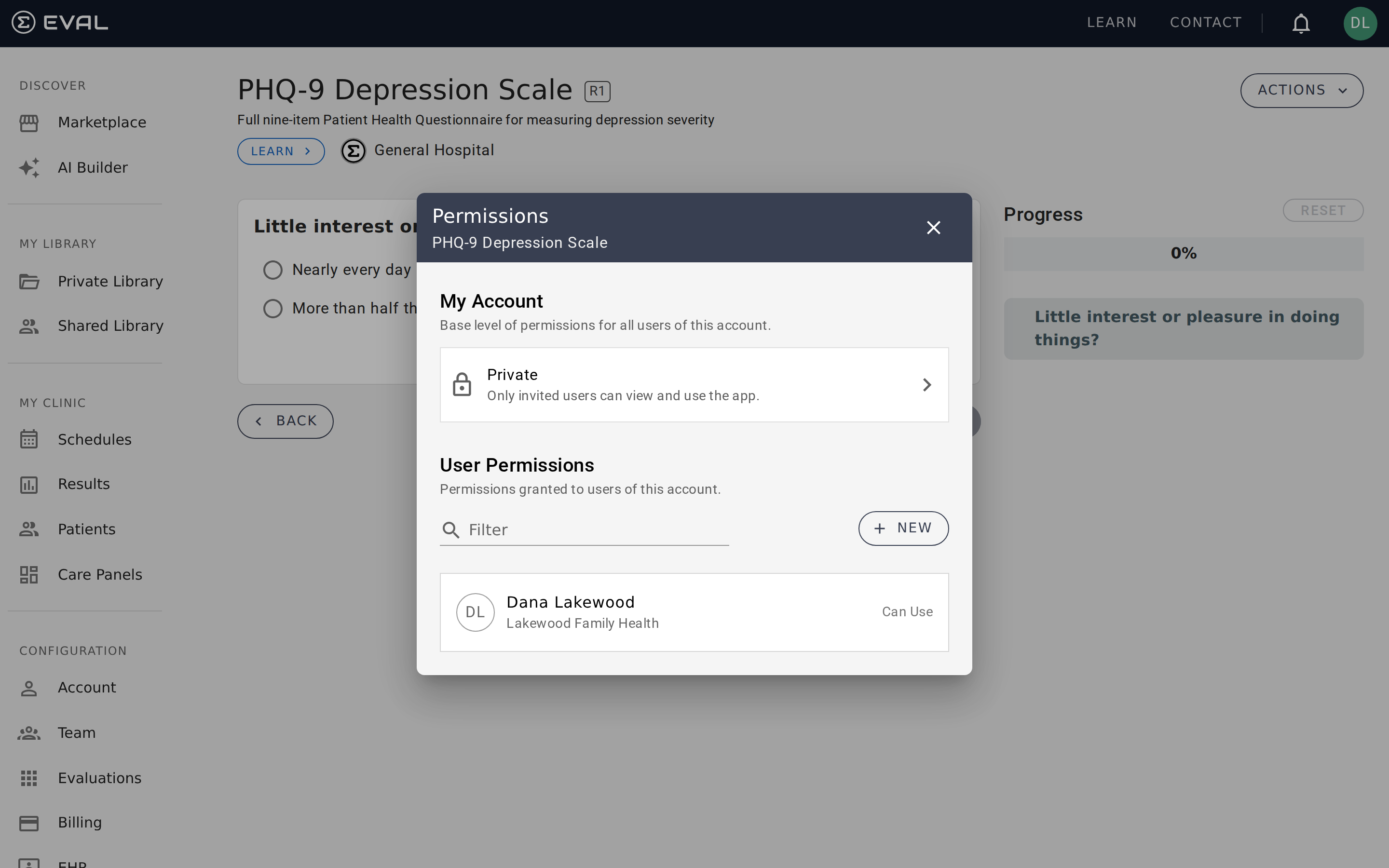
Open the Permissions dialog from the Actions menu on any evaluation where you have Owner access. The dialog shows the current visibility setting at the top and a list of users with their assigned roles below.
Adding users
To invite a new user, use the search field at the top of the user list. Search by name or email to find people in your organization, then select a role to assign. The user receives an invitation and gains access once they accept.
For Private evaluations, adding users is the only way to grant access — there's no organization-wide fallback. For Account evaluations, you typically only need to add users who require elevated permissions (Can Edit or Owner).
Changing roles
Click on any user's current role to change it. The dropdown shows all available roles. Role changes take effect immediately — if you elevate someone from Can Use to Can Edit, they can open the Builder right away.
Removing users
Remove a user from the permissions list to revoke their individual access. For Account-visibility evaluations, this only removes their elevated role — they retain the baseline organization access. For Private evaluations, removing a user means they lose all access to the evaluation.
Common permission patterns
Different teams use permissions in different ways depending on their workflow:
Single-author evaluations — One person builds and maintains the evaluation. They're the Owner with Private or Account visibility. No additional users need specific roles since everyone in the organization can use Account-visibility evaluations by default.
Collaborative development — A small team works together on an evaluation. The lead is the Owner, and each contributor has Can Edit access. Use Private visibility during development so only the team sees the work in progress, then switch to Account when it's ready.
Organization-wide tools — Standard assessments used across departments. Set visibility to Account so everyone can use them. Add department leads as Can Edit so they can update content when clinical guidelines change, without needing to involve the original author.
Getting started
Evaluation revisions
Track evaluation version history, view published and draft revisions, deprecate outdated versions, and clone evaluations as starting points for new ones.
Actions and sharing
Share evaluations via links and QR codes, clone evaluations, report content, and access all management actions from the Actions menu.