

Schedule overview
The Schedules page gives you a single view of every scheduled assessment across your entire organization. Instead of opening each Care Panel to check on individual schedules, you can see which assessments are due today, which are overdue, and which are coming up — all from one place with real-time status updates.
You'll find Schedules in the sidebar under My Clinic.
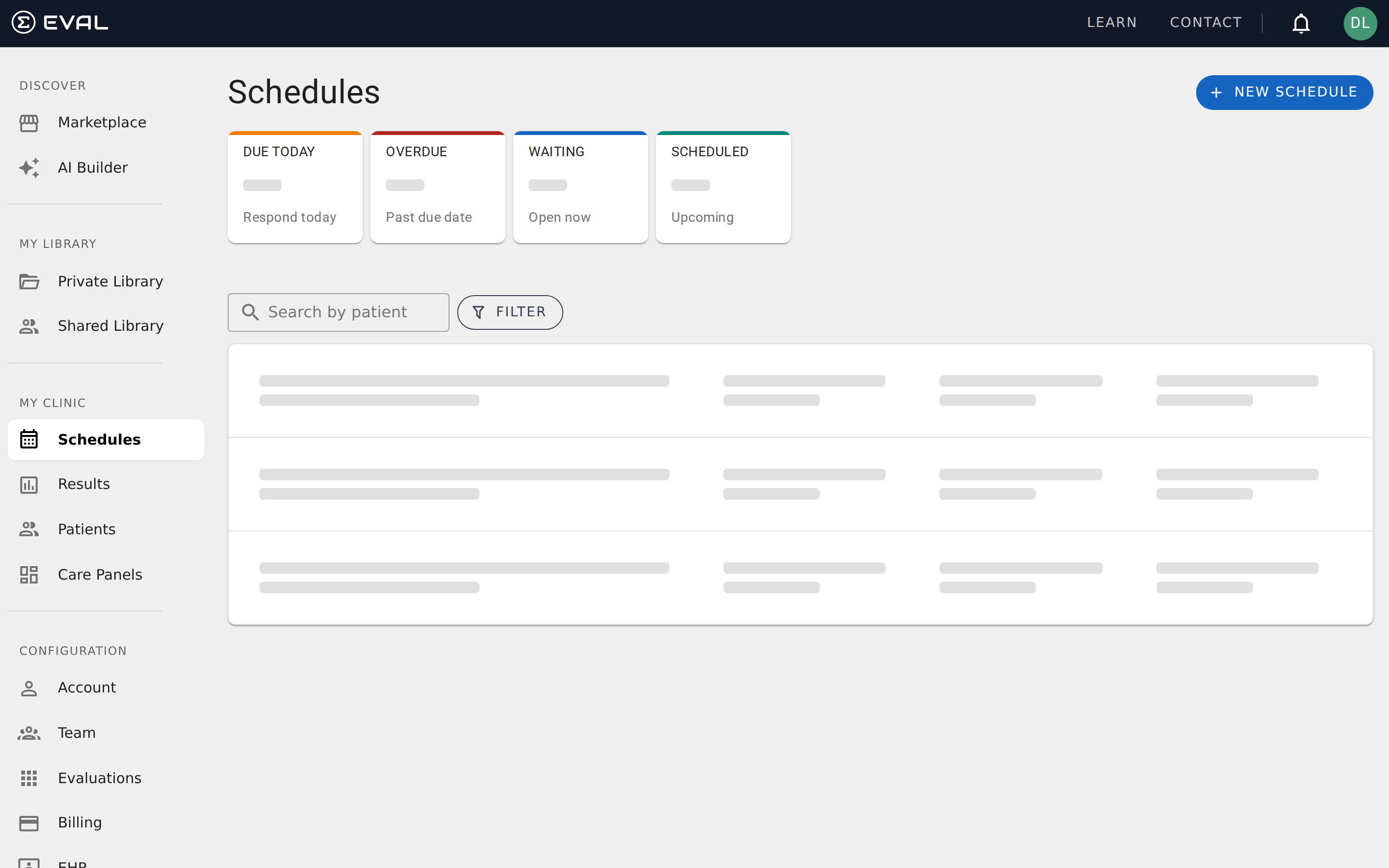
At-a-glance status
Four summary cards at the top of the page show the current state of your scheduling workload:
Due Today counts schedules where the next assessment is expected today. These are patients who should be completing an evaluation right now.
Overdue counts schedules where the due date has passed without a response. These need your attention — the patient may not have received the notification, or they may need a reminder.
Waiting counts active schedules that are open and ready for the patient to fill out. The assessment window is currently open.
Scheduled counts active schedules with future due dates. These are upcoming assessments that haven't reached their next window yet.
These counts update in real time as patients submit results, so you always have an accurate picture without refreshing the page.
The schedule list
Below the summary cards, each schedule appears as a row showing the key details you need to triage your workload:
- Next — when the next assessment is due
- Patient — who the schedule is for, with their date of birth
- Evaluation — which assessment is being sent
- Received — how many results have been submitted versus how many were expected today (e.g., "1 / 2" means one of two daily submissions has come in)
- Total — the cumulative number of results collected across the entire schedule
- Ends — when the schedule stops: a specific date, after a certain number of results, or "Never" for ongoing schedules
Click any row to navigate to that patient's chart, pre-filtered to the scheduled evaluation's results. From there you can review submitted results, edit the schedule, or follow up with the patient.
Searching and filtering
A search bar at the top of the page lets you find schedules by patient name. Type any part of the patient's first or last name and the list filters automatically.
For more targeted views, open the Filter drawer to narrow the list by:
- Status — show only Active, Overdue, Completed, or Canceled schedules
- Date range — limit to schedules due within a specific timeframe
- Evaluation — focus on a particular assessment across all patients
Creating a schedule
Click + New Schedule to set up a new assessment schedule. The dialog walks you through a multi-step process:
Select a patient
Search for an existing patient, or create a new one if they're not in the system yet.
Choose an evaluation
Pick which assessment to schedule from your Library. You'll see all evaluations available to your account.
Configure the schedule
Set the frequency, repetition pattern, end conditions, communication method, and optional patient instructions. See Creating and managing schedules for full details on every option.
Real-time updates
The Schedules page uses live server-sent events (SSE) to keep your view current. When a patient completes an assessment, the status counts and schedule list update automatically — no need to refresh. This is especially valuable for clinic coordinators monitoring multiple patients throughout the day.
Getting started
Patient portal connections
Invite patients and caregivers to access the Patient Portal, manage connection permissions, and track invitation status.
Creating and managing schedules
Configure assessment frequency, repetition patterns, end conditions, and patient communication for scheduled evaluations in EVAL.