

Scheduling assessments
How scheduling works
A schedule ties an evaluation to a patient with a frequency and a communication method. Once set up, the system automatically sends the patient a link to complete the evaluation at the intervals you've configured. Results flow back into the panel as they're submitted — no manual follow-up needed.
This is the core of any ongoing monitoring program. Whether you're tracking weekly PHQ-9 scores, daily pain assessments, or monthly follow-up surveys, schedules handle the repetitive work of sending and tracking.
The schedule view
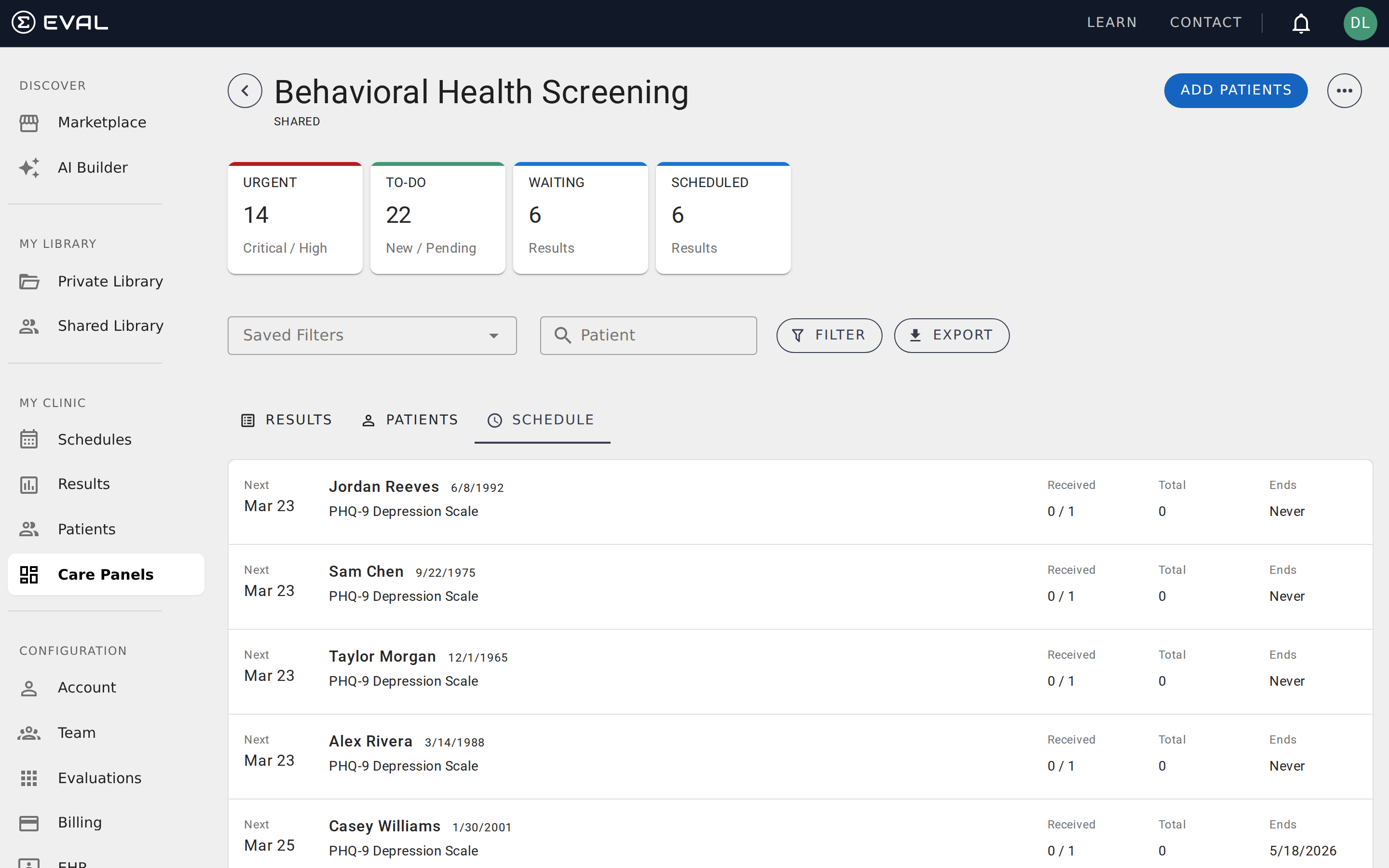
The Schedule tab shows all active and upcoming schedules for patients in the panel. Each row displays:
- Next — When the next assessment is due
- Patient — Who the schedule is for
- Evaluation — Which evaluation is being sent
- Received — How many results have been submitted versus how many were expected (e.g., "2 / 3" means two of three expected submissions have been received)
- Total — The cumulative number of results received across the entire schedule
- Ends — When the schedule stops (a date, after a number of results, or "Never")
Click any schedule row to view or edit its details.
Setting up a schedule
To create a new schedule, navigate to a patient's chart from the Patients tab, then set up a schedule from within their chart. You'll configure four things: the evaluation, the frequency, the end conditions, and the communication method.
Frequency and repetition
Scheduling uses a two-part model: how many times per day and how often that day repeats.
The daily frequency options are:
- Once daily
- Twice daily
- Three times daily
- Four times daily
- As needed (the patient can complete it whenever they want)
The repeat interval controls how often the scheduled day recurs:
- Never — a one-time assessment
- Every N days — repeat on a fixed day interval
- Every N weeks — repeat on specific days of the week (select which days)
- Every N months — repeat monthly
- Every N years — repeat yearly
End conditions
Every schedule needs an end condition:
- Never — the schedule runs indefinitely. Best for ongoing clinical monitoring where you want continuous tracking.
- On a specific date — the schedule stops on the date you choose. Best for research studies with a defined protocol timeline.
- After a number of results — the schedule stops after the patient has submitted a specific number of results. Best for fixed-count protocols like "complete 12 weekly assessments."
Patient instructions
Each schedule includes a free-text instructions field that the patient sees in their portal alongside the evaluation. Use this to provide context — for example, "Please complete this assessment before your morning medication" or "Rate your symptoms based on the past 7 days."
Keep instructions brief and clear. Patients see this text every time the assessment appears in their portal.
Communication method
When you set up a schedule, choose how the patient receives their assessment reminders:
- Email — Sends a link to the patient's email address on file
- Text (SMS) — Sends a link via text message to their mobile number
- Phone — A manual flag indicating that you'll follow up with the patient by phone. EVAL does not make automated phone calls — this option marks the schedule so your team knows to call the patient directly.
- WhatsApp — Sends a link via WhatsApp to their mobile number
You can enter a different email or phone number for the schedule if the patient's primary contact information isn't the best way to reach them for assessments.
Editing a schedule
You can modify a schedule after it's been created. Click any schedule row in the Schedule tab to open its details, then make your changes. You can update:
- The frequency and repeat interval
- The end condition (date, result count, or never)
- The communication method and contact information
- Patient instructions
- The start date
When you save changes, the system recalculates upcoming assessment dates based on your new settings. Any pending assessments that haven't been completed are updated to reflect the new schedule.
Missed assessments
If a patient doesn't complete a scheduled assessment, the schedule does not automatically advance to the next period. The missed assessment remains in a waiting state until you take action.
You have two options for handling missed assessments:
- Skip — Marks the current assessment as skipped and advances the schedule to the next period. Use this when you want to move on without waiting for the patient to respond.
- Cancel — Stops the schedule entirely. Historical results are preserved, but no further assessments will be sent.
Archiving and deleting
If you need to stop a schedule, you have two options:
- Archive — Stops future notifications but preserves the schedule's history. The schedule remains visible in the Schedules tab with an archived status. Use this when you want to pause monitoring but might resume later.
- Delete — Permanently removes the schedule. Historical results from the schedule are preserved in the patient's chart, but the schedule configuration is gone.
How the schedule engine works
Behind the interface, the scheduling engine manages date calculation, reminder delivery, and completion tracking automatically.
Assessment windows
Each schedule period defines three timestamps: a start date (when the assessment becomes available), a due date (end of the start day), and an end date (the day before the next scheduled occurrence). The "Received" column tracks completions within the current window against the daily frequency — "1 / 2" means one of two expected daily completions has been received.
Date calculation
The engine uses a self-correcting algorithm that always calculates forward from the original start date. If the system is temporarily unavailable, it won't skip occurrences — it recalculates from the start anchor. For monthly schedules, the engine anchors to the original day of month and respects end-of-month boundaries (January 31 becomes February 28, March 31, etc.).
Schedule completion
A schedule completes automatically when the end date passes, the maximum result count is reached, or (for one-time schedules) the single assessment is completed. When complete, next assessment dates are cleared and a completion timestamp is recorded.
Reminders
EVAL sends reminders through a background scan that periodically finds patients with schedules currently due and dispatches notifications through the configured channel. Reminders follow these rules:
- One reminder per day per patient. Multiple due schedules are grouped into a single communication per contact method.
- Timezone-aware delivery. Reminders are only sent after 6:00 AM in the schedule's configured timezone.
- Active connection required. Reminders are only sent if the patient has an active connection with valid contact information.
What happens when a patient completes an assessment
When a patient submits a completed evaluation for a scheduled assessment, several things happen automatically: the submission is recorded against the current window, the engine recalculates next occurrence dates, and if submitted through the patient portal, the result is copied to the clinician's account so it appears in the care panel.