

Evaluations overview
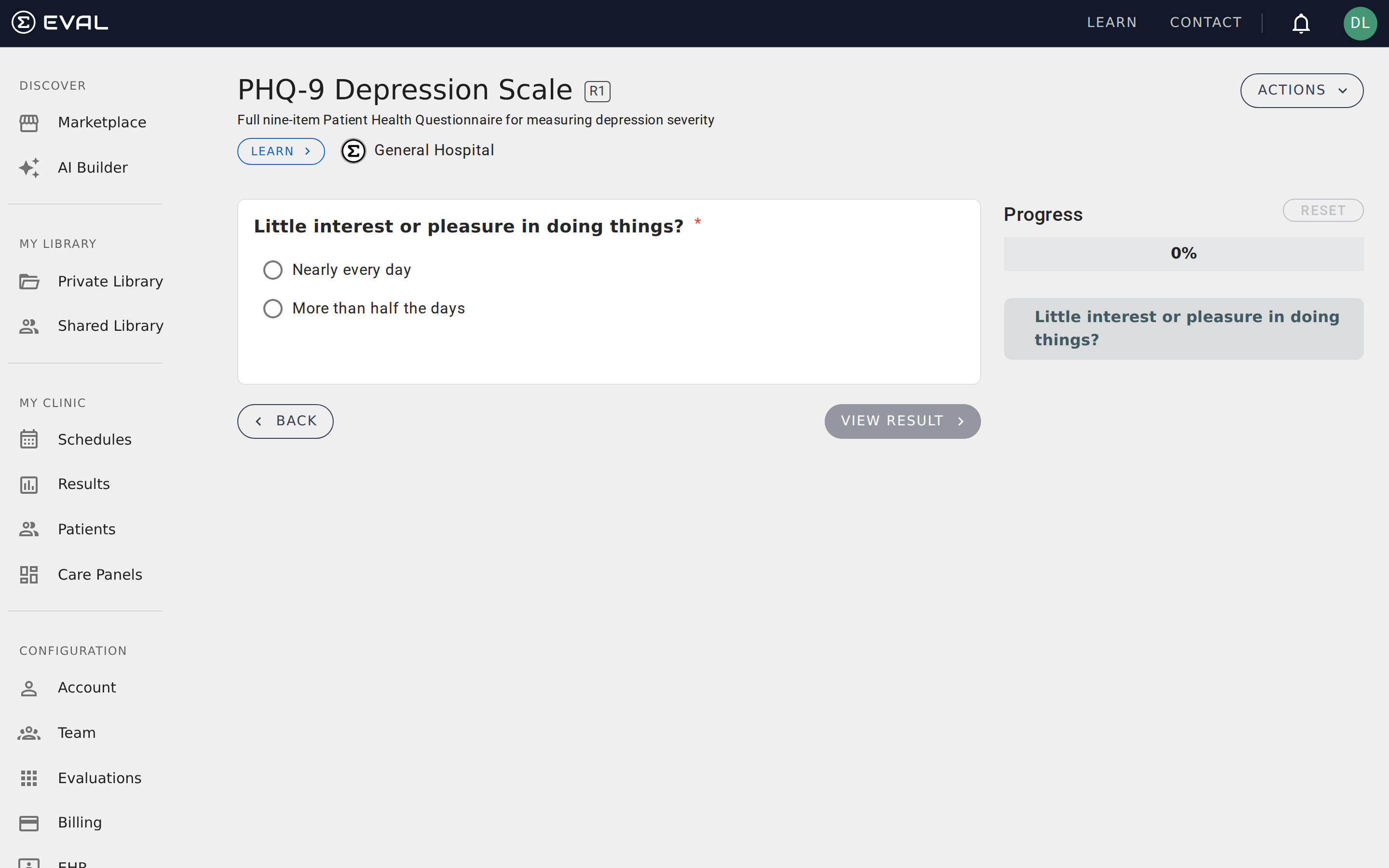
An evaluation is a published instrument that patients and practitioners can interact with. While the Builder is where you create and configure evaluation content, the evaluation itself is where that content comes to life — questions are answered, scores are calculated, and results are displayed.
Every evaluation in EVAL has a unique URL (its slug) that anyone with the right access level can use to open and complete it. Evaluations are versioned through revisions, so you can update content over time while preserving the history of what was published before.
What you can do with evaluations
Evaluations support the full lifecycle from initial use through long-term management:
- Complete evaluations in the Player, answering questions section by section or one at a time, and viewing calculated results at the end
- Review background information on the About page, including clinical context, literature references, and attribution
- Manage revisions to track what's changed over time, deprecate outdated versions, or clone an evaluation as a starting point for a new one
- Control access through visibility settings and user-level permissions that determine who can view, edit, or use your evaluation
- Share and distribute via direct links, QR codes, embeddable buttons, or iframe code for your website
Where you find evaluations
Evaluations appear in several places across EVAL, depending on their visibility and your relationship to them:
- Marketplace — Browse and search all public evaluations published by the EVAL community. This is where you discover new tools, preview them, and add them to your library.
- Library — Your personal collection of evaluations. Includes evaluations you've created, those shared with your organization, and any public evaluations you've added from the Marketplace.
- Charts — When you run an evaluation for a specific patient from their chart, the evaluation opens in the context of that patient's record. Results are automatically saved to the patient's history.
- Care Panels — Scheduled evaluations in Care Panels launch the Player for the assigned patient, with results feeding back into the panel's tracking and reporting.
- Direct links — Any evaluation can be opened via its unique URL, shared through links, QR codes, or embedded on external websites.
Visibility
Every evaluation has one of three visibility levels that determine who can find and access it:
- Public — Listed in the Marketplace and accessible to all EVAL users. Use this for tools you want the broader community to discover and use.
- Account — Visible to everyone in your organization but not listed publicly. Most clinical tools used within a single practice or health system use this setting.
- Private — Only accessible to users you explicitly invite. Use this for work in progress or tools restricted to specific team members.
Evaluations vs. the Builder
The Builder and the evaluation Player are two sides of the same coin. The Builder is your workspace for designing evaluation logic — adding sections, configuring questions, writing formulas, and setting up results. The Player is what your audience sees — a clean, focused interface for completing the evaluation.
Changes you make in the Builder don't affect the live evaluation until you publish a new revision. This separation means you can iterate on improvements without disrupting practitioners or patients who are actively using the current version.
Getting started
Embedded evaluations
Include one evaluation inside another using EVAL App sections, or embed evaluations on external websites with iframe code and auto-resize messaging.
The Player
Complete evaluations in EVAL's Player — navigate sections, answer questions, track your progress, and view calculated results.