

Evaluation revisions
EVAL tracks every published version of an evaluation as a numbered revision. This gives you a complete history of how an evaluation has changed over time — important for clinical tools where practitioners need to know exactly which version produced a particular result.
Understanding revisions
Each time you publish changes in the Builder, EVAL creates a new revision. The previous revision remains accessible, so anyone who used an older version can still reference it. The revision sidebar on the About page shows all revisions with their status:
- In Library — The current active revision that users see when they open the evaluation
- Draft — An unpublished revision with pending changes, visible only to editors
- Deprecated — A revision that's been marked as outdated and should no longer be used for new assessments
The revisions page
For a detailed view, navigate to the Revisions page from the Actions menu. Each revision appears as a card showing its revision number, publication date, and current status. Every card has a Play button to open that specific revision in the Player and a menu with additional actions.
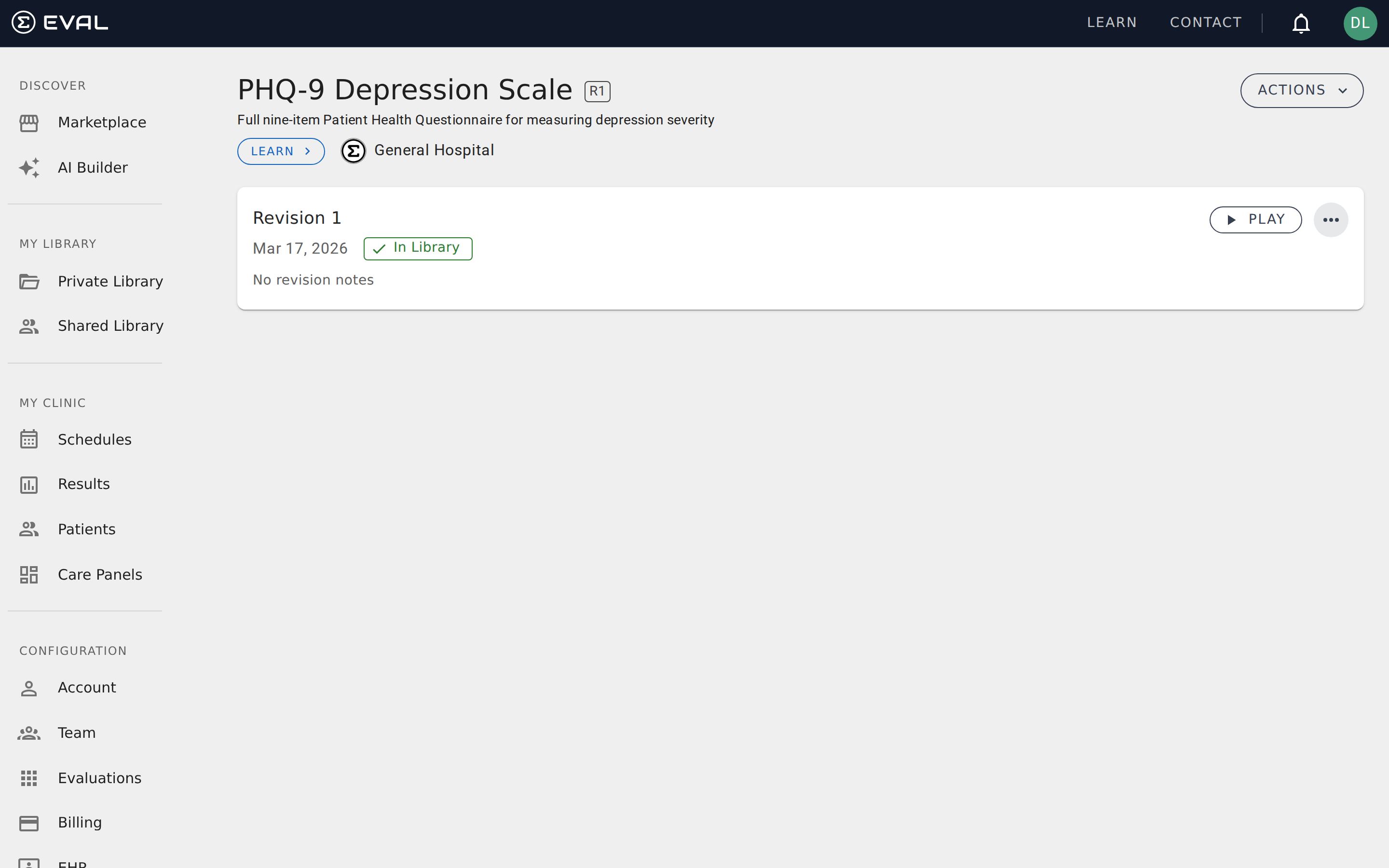
Published revisions offer these menu options:
- Builder — Open this revision in the Builder for reference (in read-only mode unless you create a new draft)
- Copy Link — Copy a direct URL to this specific revision
- Clone — Create an entirely new evaluation starting from this revision's content
- Deprecate — Mark this revision as outdated (see below)
Draft revisions have a slightly different menu — Delete Draft replaces the Deprecate option, letting you discard unpublished changes entirely.
Deprecating a revision
When a revision is outdated — perhaps due to updated clinical guidelines or a scoring error — you can deprecate it rather than deleting it. Deprecation preserves the revision for historical reference while clearly marking it as no longer recommended.
The deprecation dialog asks for two pieces of information:
- Reason — Choose between "Patient Safety" (the revision may produce inaccurate results) or "Use Alternative" (a better version or replacement exists)
- Message — A free-text explanation (up to 1,000 characters) that helps users understand why this revision was deprecated and what they should use instead
If you deprecate a revision by mistake, an Undo Deprecate option appears in the revision's menu, allowing you to restore it to active status.
Cloning an evaluation
The Clone action — available from both the revisions page and the Actions menu — creates a brand-new evaluation that starts with a copy of the selected revision's content. EVAL opens a dialog where you provide a name and URL slug for the new evaluation.
Cloning is useful when you want to adapt an existing tool for a different context — for example, creating a pediatric version of an adult screening instrument, or customizing a public evaluation for your organization's specific workflow.
Related pages
About page
See an evaluation's background on its About page: summary, attribution, supporting literature, and tags, and update that metadata if you have edit access.
Evaluation permissions
Control who can view, edit, and use your evaluations with visibility settings, role-based user access, and team invitations.