

The Player
The Player is where evaluations come to life. When you open an evaluation — whether from the Marketplace, your Library, or a shared link — the Player presents the questions, tracks your progress, and displays calculated results when you're done.
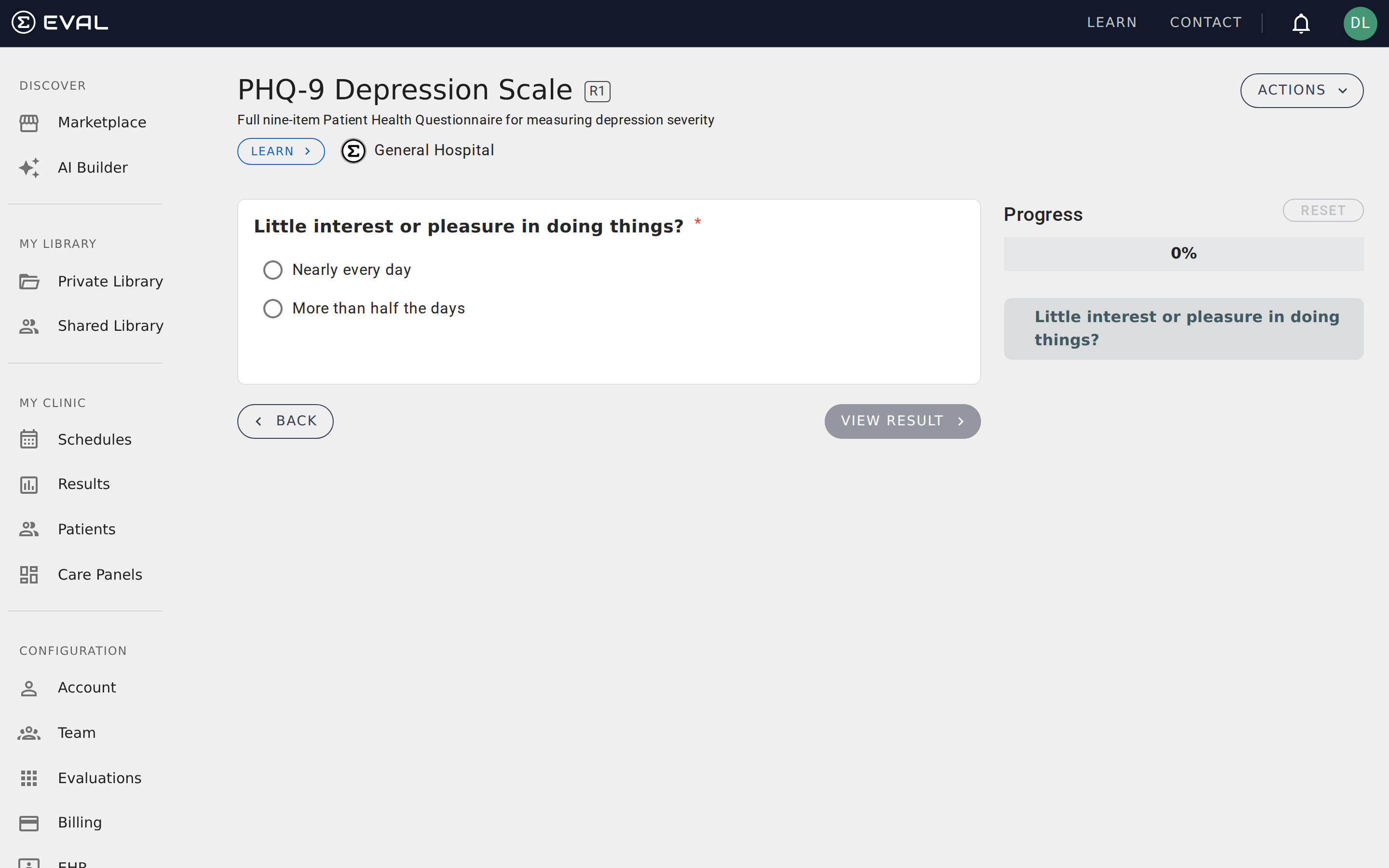
Page layout
The Player organizes content into three areas. The header shows the evaluation's title, revision badge, description, and an Actions dropdown for sharing, cloning, and other management tasks. The organization that published the evaluation is identified with a badge linking to their profile.
The content area takes up most of the screen, displaying the current section's questions. A progress sidebar on the right shows your completion percentage, a section tree for jumping between sections, and a Reset button to start over.
Presentation modes
Evaluations use one of two presentation modes, configured by the builder in the General tab:
Section by section is the most common format. Each section appears as a group of related questions. You answer all questions in a section, then move to the next. This works well for evaluations with logical groupings — like separating demographics from clinical assessment from scoring.
Question by question presents one question at a time across the entire evaluation. This creates a focused, step-by-step experience and is useful for lengthy assessments where presenting everything at once could feel overwhelming. For single-choice questions in this mode, selecting an answer automatically advances to the next question.
Answering questions
Questions appear in the content area with their prompt text, any attached media (images or videos), and the input controls for your response. How you answer depends on the question type:
- Number questions show a text input where you enter a numeric value. Some include unit labels or valid range indicators set by the builder.
- One Choice questions display radio buttons for selecting a single answer from the available options.
- Multiple Choice questions display checkboxes, letting you select any combination of the listed options.
Required questions are marked with an indicator showing how many remain in the current section — for example, "1 required remaining." You must complete all required questions before you can view results, though you can navigate freely between sections at any time.
Navigating between sections
The progress sidebar shows every section as an expandable tree. Click any section name to jump directly to it — you don't have to complete sections in order. The currently active section is highlighted, and sections with completed questions show a visual indicator.
Below the content area, Next and Back buttons let you step through sections sequentially. The progress bar at the top of the sidebar updates as you complete questions, showing your overall percentage.
Viewing results
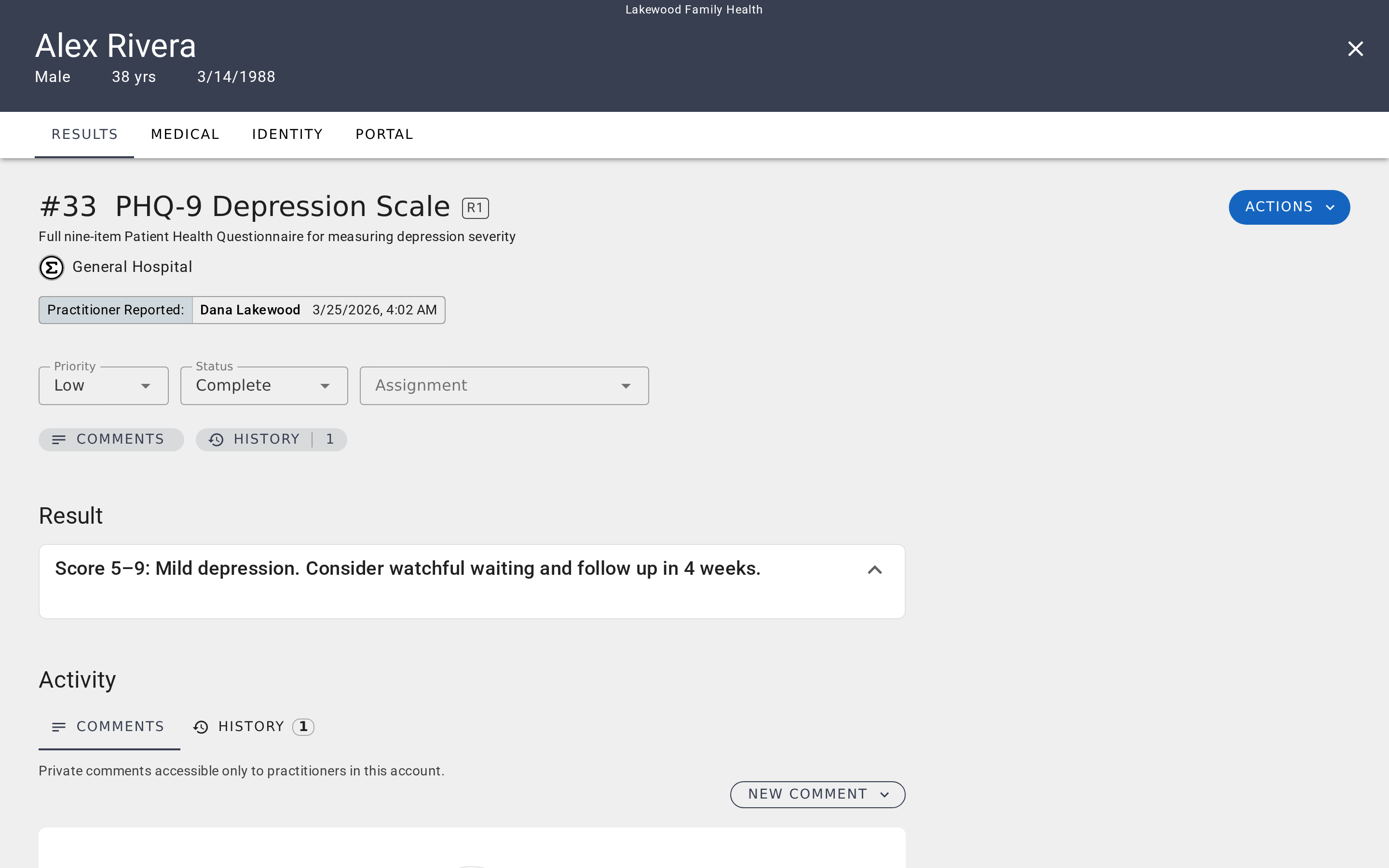
Once you've answered all required questions, the View Result button becomes active. Click it to see the evaluation's calculated output — formula-based scores, interpretive text, risk levels, or whatever the builder configured in the Results tab.
Results appear in the content area, replacing the question view. Each result shows its title and calculated value. Information-type results display educational or interpretive text that doesn't depend on your answers.
Downloading results
After results are calculated, a Download button appears that lets you save a copy:
- PDF generates a formatted document with the evaluation title, your responses, and calculated results — useful for including in patient records or printing for reference.
- Copy Text copies a plain-text summary of the results to your clipboard for quick pasting into notes or messages.
Resetting an evaluation
The Reset button in the progress sidebar clears all your answers and returns the evaluation to its initial state. A confirmation dialog appears before the reset takes effect, since this action can't be undone. Use this when you want to run the same evaluation for a different patient or start fresh after testing.
Getting started
Evaluations
Understand how published evaluations work in EVAL — from playing through questions and viewing results to managing revisions, permissions, and sharing.
About page
See an evaluation's background on its About page: summary, attribution, supporting literature, and tags, and update that metadata if you have edit access.