

General tab
What the General tab does
The General tab is your evaluation's identity card. It holds the title, description, audience setting, and metadata that determine how your evaluation appears in the Library, Marketplace, and when shared with other organizations. You'll typically set these details when first creating an evaluation and revisit them occasionally as requirements evolve.
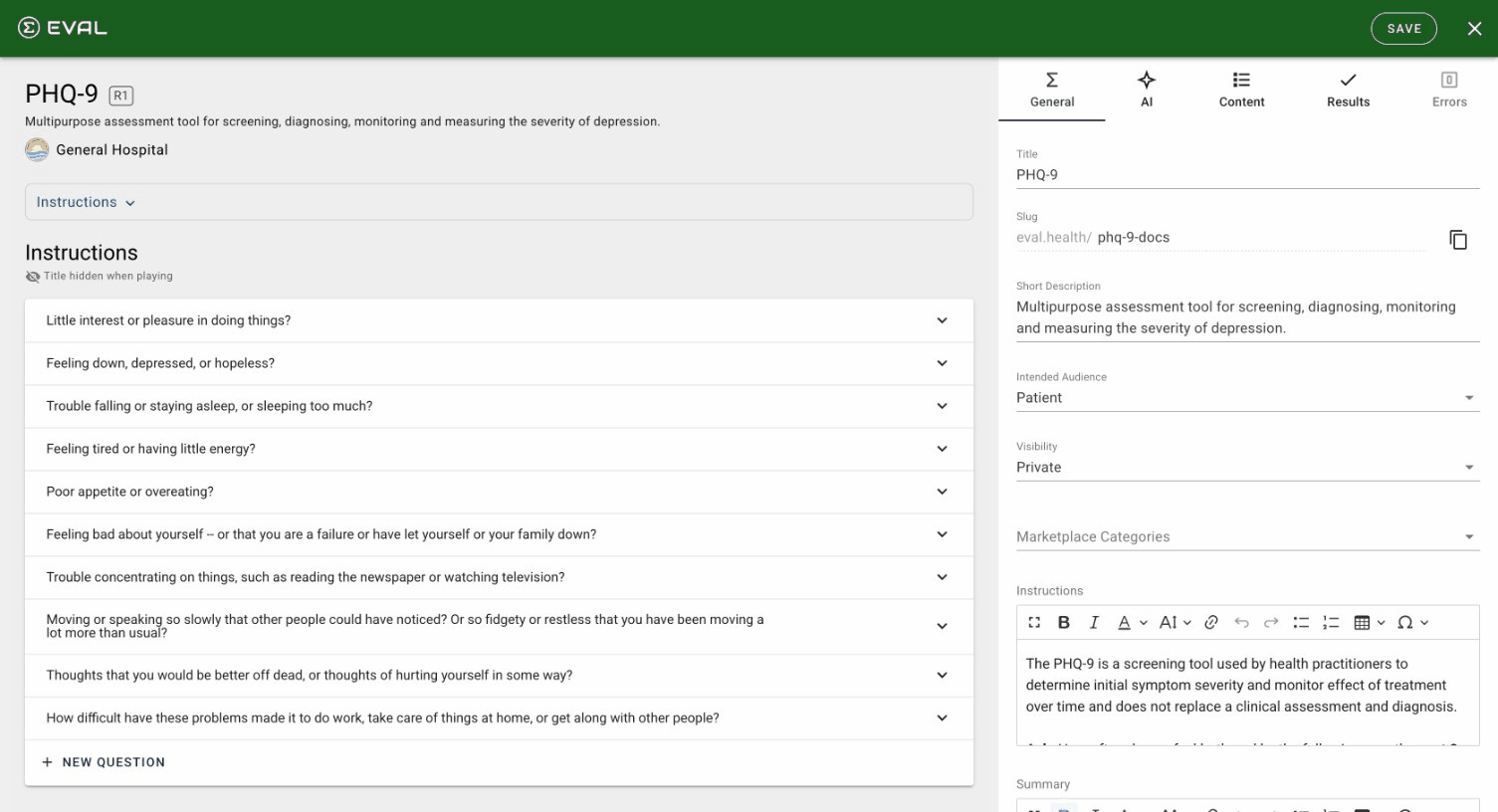
Profile fields
The top section of the General tab contains the core fields that define your evaluation.
Title is the name that appears everywhere — in the Library, Marketplace listings, chart results, and the evaluation header. Choose something descriptive that your team will recognize, like "PHQ-9 Depression Screen" or "Pre-Op Risk Assessment."
Slug is the URL-friendly identifier that becomes part of your evaluation's web address (shown as eval.health/your-slug). When you first create an evaluation, the slug auto-generates from your title — spaces become hyphens and special characters are removed. Only lowercase letters, numbers, and hyphens are allowed.
Short Description is a brief summary (up to 120 characters) that appears on Library cards and Marketplace listings. Think of it as the elevator pitch — one sentence explaining what this evaluation does.
Intended Audience determines who this evaluation is designed for. Choose Practitioner for clinical tools meant for healthcare providers, or Patient for assessments designed to be completed directly by patients. This setting affects how the evaluation is presented and categorized.
Visibility controls who can discover your evaluation. There are three levels:
- Private — Only users you specifically invite can access the evaluation. This is the default for new evaluations.
- Account — Everyone in your organization can see it, plus anyone you specifically invite from other organizations.
- Public — Listed on the EVAL Marketplace for anyone to find. Only available to verified publishers.
Marketplace Categories let you tag your evaluation with clinical categories (like Mental Health, Pain & Function, or Screening Tools) so users can find it when browsing the Marketplace. This field only appears for evaluations you own.
Rich text fields
Three rich text fields provide space for longer content, each with a distinct purpose:
Instructions are guidance for the person administering the evaluation. These might include setup directions, timing notes, or administration protocols. Instructions appear before the evaluation begins and help ensure consistent delivery.
Summary is a detailed description of what the evaluation measures and how it works. This appears on the evaluation's explore page in the Marketplace and in detailed views — think of it as the full description that expands on the short description.
Citation is where you credit the original source of a validated instrument. If your evaluation is based on a published tool (like the PHQ-9 or GAD-7), include the citation here. This field has a 1,000-character limit.
All three fields support rich formatting — bold, italic, lists, links, and more — through a built-in editor that includes a full-screen mode for longer content.
Literature references
The Literature section links your evaluation to published research. Each reference includes a Title, Authors, and URL — enough to identify the source and point users to the full text.
Click New Literature to add a reference. You can add multiple entries and drag them into your preferred order using the handle on each card. Click any existing reference to edit or remove it.
Literature references appear on the evaluation's About page, giving users quick access to the evidence base behind the tool.
Attribution
Attributions credit the people who created or contributed to the evaluation. Click New Attribution to add a contributor. You have two options:
- Link an EVAL user — Search for an existing user on the EVAL platform. Their name, credentials, and title are pulled from their profile automatically.
- Manual entry — Type in a name, title, credentials, and website for someone who doesn't have an EVAL account.
Like literature references, attributions are drag-reorderable and appear on the evaluation's About page.
Danger Zone
At the bottom of the General tab in edit mode, a Danger Zone section provides the option to permanently delete the evaluation. This action cannot be undone — it removes the evaluation, all its revisions, and any associated data. Use this only when you're certain the evaluation is no longer needed.
Getting started
Builder
Create clinical evaluations with a visual, no-code editor — organize sections, add questions, define scoring formulas, and publish for clinical use.
Content tab
Build your evaluation's structure on the Content tab — create sections, add questions, organize topics, and control what's visible with conditional rules.