

Publishing
What publishing does
Publishing makes your evaluation available for clinical use. Before publishing, your evaluation exists as a private draft that only you can see in the Builder. After publishing, practitioners and patients can access it through the Library, Care Panels, schedules, and direct links.
Each time you publish, EVAL creates a new revision — a numbered snapshot of your evaluation at that point in time. This gives you a clear history of changes and ensures that any evaluation in active clinical use remains stable while you work on updates.
Before you publish
EVAL requires all validation errors to be resolved before publishing. If you click Publish with errors remaining, a message asks you to fix them first — the publish dialog won't open until the Errors tab shows zero issues. See Error resolution for help identifying and fixing common errors.
The publish process
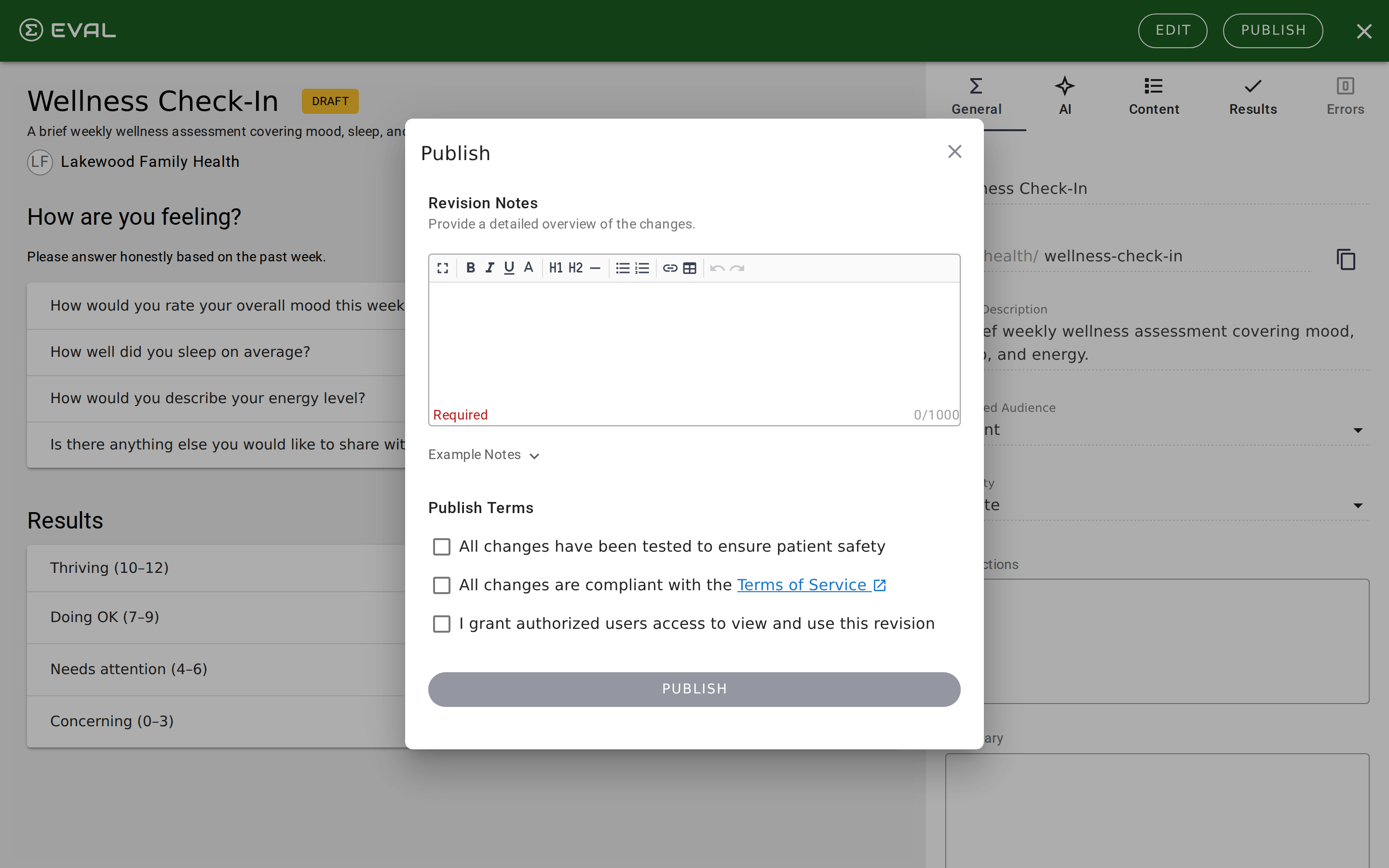
When your evaluation is error-free, click Publish in the Builder's top bar. The publish dialog walks you through four steps:
Revision notes describe what changed in this version. Use the rich text editor to explain the updates — whether it's a first publication, a minor correction, or a major revision. The dialog includes example notes for each scenario to help you write clear, useful revision history. Notes are required and support up to 1,000 characters.
Publish terms are three acknowledgments you must confirm before every publish:
- Patient safety — You've tested all changes to ensure they're safe for patients
- Terms of Service — Your evaluation complies with the EVAL Health Terms of Service
- Member access — You grant authorized users permission to view and use this revision
All three checkboxes must be checked before the Publish button becomes active.
Saving vs. publishing
The Builder has two separate actions for preserving your work:
Save stores your current changes as a draft without making them available to users. Click Save regularly as you work — it preserves your progress so you can come back to it later. The evaluation remains in its current state (draft or previously published revision) and nobody outside the Builder sees your changes.
Publish saves your changes and releases them as a new revision. This is the action that makes your updates visible to practitioners and patients. After publishing, the Builder exits edit mode and you see the published version.
Working with revisions
Each publish creates a new revision with an incrementing number. Your evaluation's revision history provides a record of every published version — useful for auditing changes over time, especially in regulated clinical environments.
When you click Edit on a published evaluation, the Builder creates a new draft revision based on the current published version. You can work on this draft as long as you need — saving it multiple times — without affecting the published revision that practitioners and patients are using. Only when you publish the draft does it become the new active revision.
If you decide to discard your draft changes, use Delete Draft from the Builder's overflow menu. This removes the unpublished draft and returns you to the last published revision.
Deprecating a revision
Outside the Builder, in the evaluation's revision management area, you can deprecate a published revision. Deprecation marks a revision as outdated and provides context about why:
- Patient Safety — The revision has a safety concern that requires replacement
- Use Alternative — A newer or better evaluation should be used instead
Deprecation requires a message explaining the situation and directing users to the appropriate replacement. This protects clinical workflows that depend on your evaluation by giving clear guidance rather than simply removing access.
How revisions work under the hood
Understanding the revision model helps you manage your evaluation's lifecycle confidently.
What a revision captures
When you publish, EVAL takes a complete snapshot of the evaluation at that moment: every section, question, choice, formula, visibility rule, result definition, and media asset. This snapshot is stored as an immutable revision record with a sequential revision number (1, 2, 3, and so on — numbering is per evaluation, not global). The published date, revision notes, and the user who published are all recorded.
Draft isolation
When you click Edit on a published evaluation, the system creates a new draft revision cloned from the current published version. This draft is completely isolated — changes you make to the draft don't affect the published revision that practitioners and patients are actively using. You can save the draft as many times as you need. Only when you publish does the draft become the new active revision.
What happens to existing results
Results that were recorded using a previous revision remain permanently linked to that revision. If a patient completed an evaluation on revision 2 and you later publish revision 3, the patient's historical result still references revision 2's exact questions, scoring formulas, and result definitions. This ensures clinical data integrity — a score calculated under one version of an evaluation is always interpretable using the version it was recorded against.
Deprecation and reinstatement
Deprecating a revision sets a status (Patient Safety or Use Alternative), records a deprecation date, and stores an explanatory message. Deprecated revisions remain accessible — practitioners can still view results collected under them — but EVAL surfaces the deprecation notice to signal that the revision should no longer be used for new evaluations. If circumstances change, a deprecated revision can be reinstated, which clears the deprecation status.
Cloning and licensing
Cloning creates a new evaluation from an existing published revision. If the evaluation has a commercial license and the user isn't the license owner, EVAL checks for an active order before allowing the clone. Free and open-source evaluations can be cloned without restrictions. The clone becomes an independent evaluation with its own revision history starting at revision 1.
Getting started
Visibility rules
Show or hide sections, questions, choices, and results based on earlier answers, using AND/OR conditions or custom formulas to make evaluations adaptive.
Evaluations
Set up an evaluation's metadata in the Builder's Evaluation tab: title, slug, description, presentation format, and visibility before adding content.