

Managing team members
Every person who uses EVAL in your organization needs their own team member account. The Team page lets you create accounts, assign roles that control what each person can access, and manage credentials — all from one place. Each team member gets a unique login that tracks their activity and ensures proper attribution on results, schedules, and evaluations.
Navigate to Team in the CONFIGURATION section of the sidebar to manage your organization's members.
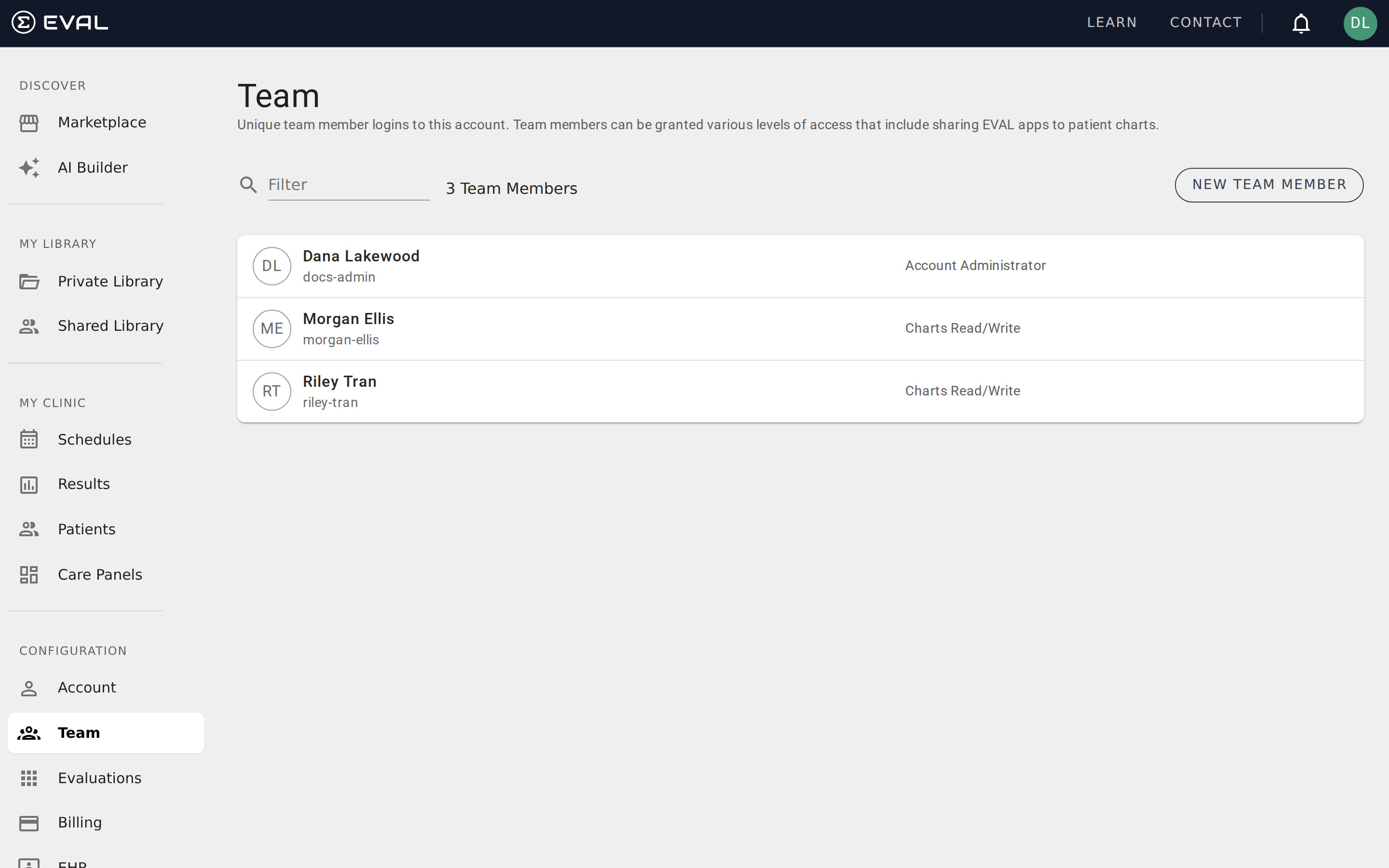
Viewing your team
The Team page shows a list of all team members in your organization. Each row displays the member's name, username, and their assigned roles. A count at the top shows the total number of team members, and a filter bar lets you search by name to quickly find someone.
Click any team member to open their detail page, where you can view and edit their profile, security settings, EHR connections, and library access.
Adding a team member
Click New Team Member to open the creation dialog. You'll provide the following information:
Enter their identity
Fill in the team member's Name (required), Professional Credentials (optional — for displaying clinical titles like "MD" or "LCSW"), and Title (optional — their role within your organization).
Set up their login
Provide an Email address, choose a Username for logging in, and set a Temporary Password. The username must be unique across EVAL and will be checked for availability as you type. The temporary password must meet strength requirements — the member will be prompted to change it on their first login.
Assign roles and privacy
Select a Security Role to control their general access level (such as Account User or Account Administrator). Optionally assign a Charts Role to grant specific access to patient charts. Set the Privacy level to control whether their profile is visible outside the organization.
Save
Click Save to create the account. The new team member can immediately log in with the username and temporary password you provided.
The team member detail page
Clicking a team member from the list opens their detail page, organized into five sections.
Profile
The Profile section shows the member's name, professional credentials, title, email, and privacy setting. Administrators can edit these fields to keep team member information current. If the member uses an external authentication provider (like Google or Apple), their email field is managed by that provider and cannot be changed here.
Security
The Security section controls authentication and access. It contains two key role assignments:
Security Role defines the member's general access level across the platform — what configuration areas they can see, whether they can manage other users, and whether they have billing access. See Roles and permissions for the full breakdown.
Charts Role defines what the member can do with patient charts — whether they can view charts, edit patient information, or have no chart access at all. This role is optional and can be left unset if the member doesn't need chart access.
For locally authenticated users, the Security section also shows their username and allows administrators to set a Temporary Password. When an admin sets a temporary password, the team member is forced to change it on their next login — ensuring that only the member knows their permanent password.
EHR connections
If your organization has an EHR integration, this section shows the team member's connections to electronic health record systems. Each connection displays the EHR system name, version, the member's EHR user ID, and whether the connection is enabled or disabled.
Click New Connection to link the team member to an EHR system. Connections can be edited or removed as staffing or system access changes.
About
The About section provides space for a longer description of the team member — their background, expertise, or areas of focus. This uses a rich text editor and is useful for organizations that want team profiles visible to colleagues.
Library
The Library section shows which evaluations the team member has individual access to, independent of what's available to the entire organization. Each evaluation displays its name, revision number, and the member's access level (Owner, Can Edit, or Can Use). You can filter by name to find specific evaluations and remove access from the dropdown menu on each row.
Deleting a team member
Click Delete on a team member's detail page to remove their account. This action requires confirmation and cannot be undone — the member will lose access to EVAL immediately, and their account cannot be recovered. You cannot delete your own account.