

Billing and subscriptions
The Billing page is where you manage the financial side of your EVAL account — your active subscriptions, payment methods, billing contact, and transaction history. Only Account Administrators can access the Billing section, ensuring that financial decisions are made by authorized personnel.
Navigate to Billing in the CONFIGURATION section of the sidebar.
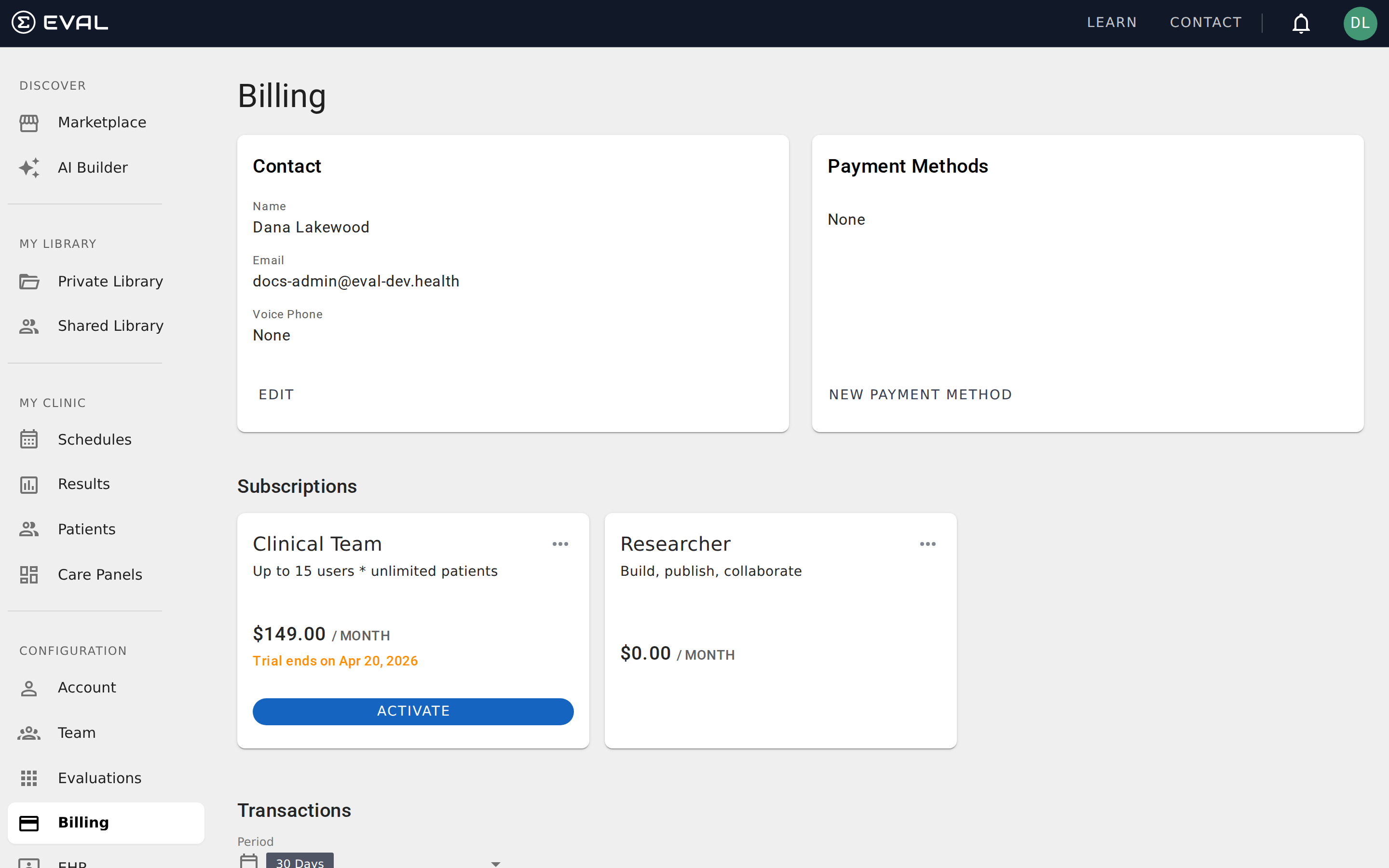
Billing contact
The Contact card stores the name, email, and phone number associated with your billing account. This is the person responsible for financial decisions and payment management — they receive payment confirmations, invoice notifications, renewal reminders, and any billing-related communications from EVAL.
Click Edit to update these details. The billing contact does not need to be the same person as the Account Administrator, though they often are in smaller organizations. In larger organizations, you might set this to your finance department or a dedicated billing administrator.
Payment methods
The Payment Methods card shows the credit cards and bank accounts you've configured for paying subscriptions. Each payment method displays the card type and last four digits, the cardholder's name, and the billing address.
One payment method is marked as Preferred — this is the default used for automatic subscription payments. If a payment method is expiring soon (within 30 days), a warning indicator appears so you can update it before a payment fails. Expired payment methods display a red Expired badge.
Click Edit on any payment method to update its details, or click New Payment Method to add a new card or bank account. You can have multiple payment methods on file, and subscriptions can be assigned to specific payment methods through the subscription menu.
Subscriptions
The Subscriptions section shows your active plans. Each subscription card displays the plan name and description, the per-unit price and billing frequency, the total amount due per billing period, the number of users included, and the next auto-pay date.
From the three-dot menu on each subscription, you can:
- Payment Method — assign a specific payment method to this subscription (available only for paid plans)
- Change Plan — navigate to the pricing page to upgrade or switch your plan
If a subscription is scheduled for cancellation, a red notice shows the cancellation date along with a visual reminder that access will end on that date. Active subscriptions with auto-pay display when the next charge will occur, so you can anticipate upcoming charges.
Compliance agreements
Some subscriptions include compliance agreements. If your plan requires HIPAA Business Associate Agreement (BAA) or GDPR Data Processing Agreement (DPA) acceptance, the subscription card shows the date and name of the person who accepted these terms. These agreements are tied to the subscription — if you change plans, you may need to accept updated compliance terms for the new plan.
Transaction history
The Transactions section provides a complete record of all billing activity. Each transaction shows the date and time, a description of what was charged, the payment method used, and the amount. This gives your finance team a clear audit trail of every charge associated with your EVAL account.
Use the Period dropdown to filter transactions by timeframe — the default view shows the last 30 days, but you can select custom date ranges to review older billing history. The list uses infinite scrolling, loading more transactions as you scroll down.
Transaction records are useful for reconciling EVAL charges against your organization's accounting records, verifying that plan changes were applied correctly, and confirming that payment method switches took effect. If you notice a discrepancy in billing amounts, the transaction history provides the detail needed to investigate.
How subscriptions work behind the scenes
Understanding the subscription model helps you make confident decisions when changing plans or managing compliance.
Subscription tiers
EVAL offers four subscription tiers with a strict priority hierarchy: Enterprise (highest), Clinical Team, Starter, and Researcher (lowest). This priority determines how plan changes are handled — upgrading to a higher tier automatically cancels lower-tier subscriptions, while downgrading follows different rules depending on your current billing state.
Trial periods
When you subscribe to a Starter or Clinical Team plan, EVAL checks whether your account had an active paid subscription in the previous 90 days. If not, billing starts 30 days in the future — giving you a free trial period. If you had a recent paid subscription (even one that was canceled), billing begins immediately with no trial. During the trial, you can switch between Starter and Clinical Team at no cost. Enterprise and Researcher plans do not include trial periods.
Upgrades and downgrades
Upgrading to a higher-tier plan cancels your current subscription immediately. Downgrading to a lower-tier plan is more nuanced: if your current plan is still in its trial period, it's canceled immediately; if you're past the trial and actively paying, the current plan runs until the end of its billing period before the lower-tier plan takes effect. This ensures you get the full value of time you've already paid for.
Billing cycle dates
Subscription billing anchors to the day of the month you subscribed, capped at the 28th. If you subscribe on the 31st of a month, your billing date becomes the 28th to ensure consistent monthly charges across all calendar months.
Compliance agreement tracking
When your subscription requires BAA or DPA acceptance, EVAL records exactly who accepted the terms, their user ID, and the precise timestamp. If you change plans, existing compliance records are updated — the new plan's terms replace the previous acceptance. This creates a clear audit trail showing which agreements are in force and who authorized them.
Who can access billing
The Billing page is restricted to users with the Account Administrator security role. Team members with Account Maintenance or Account User roles cannot see the Billing section in the sidebar. This restriction ensures that financial information — including payment methods, subscription costs, and transaction history — is only visible to authorized personnel.
If your organization needs multiple people to manage billing, assign the Account Administrator role to each person who requires access. For a complete breakdown of what each role can access, see Roles and permissions.