

Roles and permissions
EVAL uses a two-layer role system to control what each team member can do. Every team member is assigned a security role that governs their general platform access, and optionally a charts role that controls their access to patient data. These two roles work together to create the right level of access for each person's responsibilities.
Security roles
The security role determines what areas of EVAL a team member can access beyond the core evaluation tools. EVAL provides three security roles, each building on the one before it.
Account User is the standard role for most team members. Users with this role can access the Marketplace, Library, Care Panels, and all clinical tools (Schedules, Results, Patients). They can create and manage evaluations, run assessments, and review results — everything a clinician or researcher needs for daily work. They cannot access the CONFIGURATION section or manage other team members.
Account Maintenance includes everything an Account User can do, plus visibility into the CONFIGURATION section. Team members with this role can view and manage the Account profile, Team, Evaluations, EHR integrations, API Keys, and Settings. However, they cannot access Billing or perform administrative-only actions like changing another user's security role to Administrator.
Account Administrator has full access to everything in EVAL, including Billing management, full user administration, and the ability to assign any role to any team member. Every organization needs at least one Administrator, and this should be someone responsible for the account's configuration and billing.
Charts roles
The charts role is a separate, optional layer that controls what a team member can do with patient charts. Not every team member needs chart access — an evaluation builder, for example, might only need the Library and Builder, not patient data.
Charts Read/Write gives the team member full access to patient charts. They can view patient records, run evaluations, review results, update patient information, and manage schedules. This is the appropriate role for clinicians, care coordinators, and researchers who work directly with patient data.
Charts Read gives the team member view-only access to patient charts. They can see patient records and review results but cannot create new evaluations, modify patient information, or manage schedules. This is useful for supervisors or quality assurance staff who need to review data without making changes.
No charts role (unassigned) means the team member has no access to patient charts at all. They can still work with evaluations in the Library and Builder, but they won't see any patient-specific data. This is appropriate for evaluation developers who build assessments but don't interact with patient records.
How the two roles work together
The security role and charts role combine to create the team member's complete access profile. Here are the most common combinations:
Clinician or researcher — Account User + Charts Read/Write. Full access to clinical tools and patient data, no administrative access. This is the most common combination for healthcare professionals.
Clinic coordinator or team lead — Account Maintenance + Charts Read/Write. Can manage the team, configure EHR connections, and view account settings, in addition to full clinical access.
Evaluation builder — Account User + no charts role. Can create and manage evaluations in the Library but has no access to patient data. Ideal for staff who develop assessment tools.
Quality assurance reviewer — Account User + Charts Read. Can view patient data and review results but cannot modify records. Useful for compliance or quality oversight.
Organization administrator — Account Administrator + Charts Read/Write. Full access to everything — clinical tools, patient data, billing, and all configuration settings.
Where roles appear
A team member's roles are visible in several places:
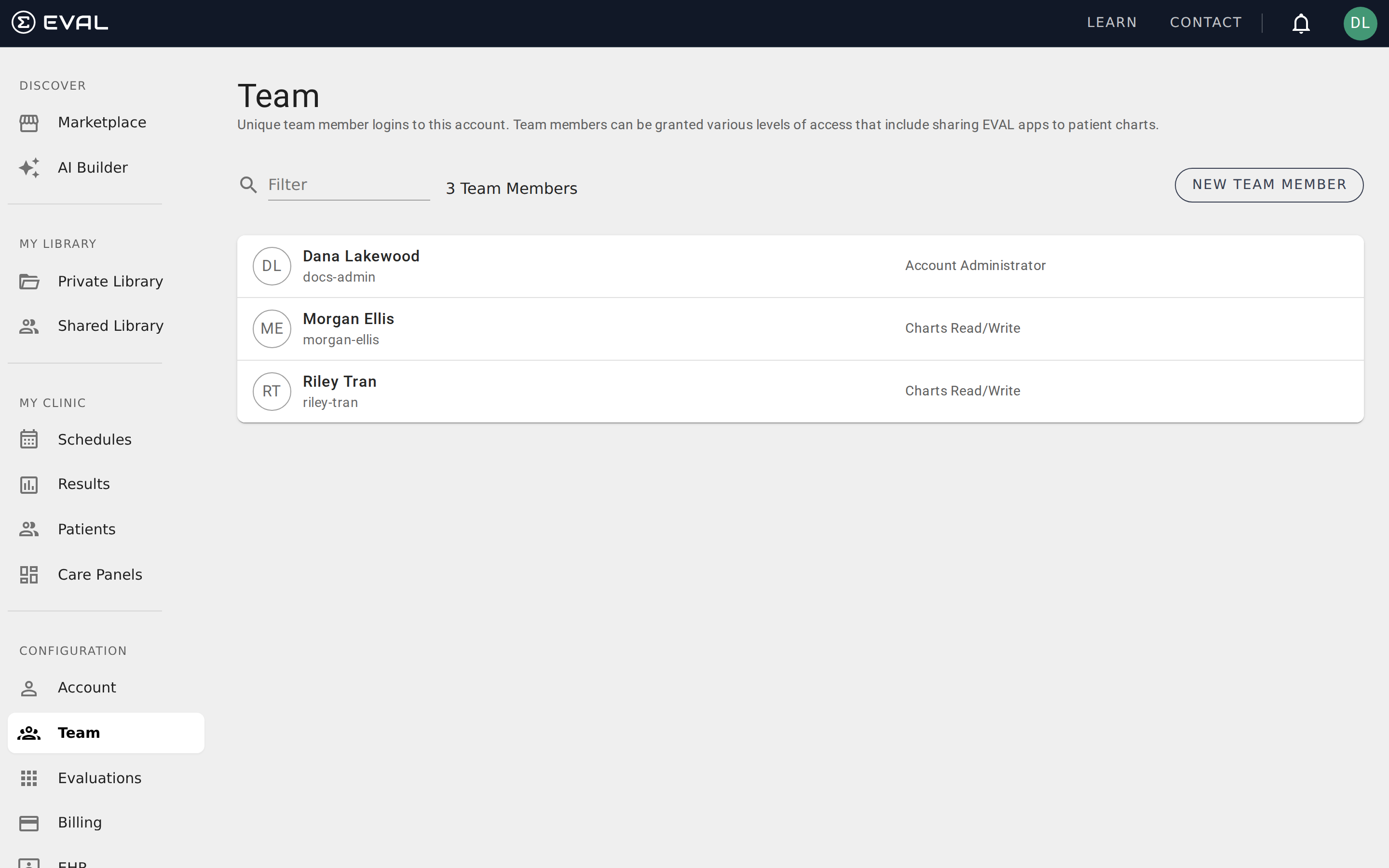
- Team list — the role appears next to each team member's name, making it easy to see the access level across your organization at a glance
- Team member detail page — the Security card shows both the security role and charts role as dropdown selectors
- New Team Member dialog — roles are assigned when creating a new team member
Changing a team member's role
To change someone's role, navigate to their detail page from the Team list and open the Security card. Select the new security role or charts role from the dropdown and save. The change takes effect immediately — the team member will see updated navigation and permissions on their next page load.
Managing team members
Add new team members, assign security and chart roles, manage credentials, and control individual access to evaluations and EHR systems.
Managing evaluations
View all evaluations across your account, manage licensing, configure clinical priorities, and review revision history from the admin view.