

Managing evaluations
The Evaluations section in CONFIGURATION gives administrators a complete inventory of every evaluation in your account — including ones you've built, ones shared with your organization, and ones added from the Marketplace. While the Library is where your team works with evaluations day-to-day, this administrative view provides account-wide oversight with licensing details and clinical priority configuration.
Navigate to Evaluations in the CONFIGURATION section of the sidebar.
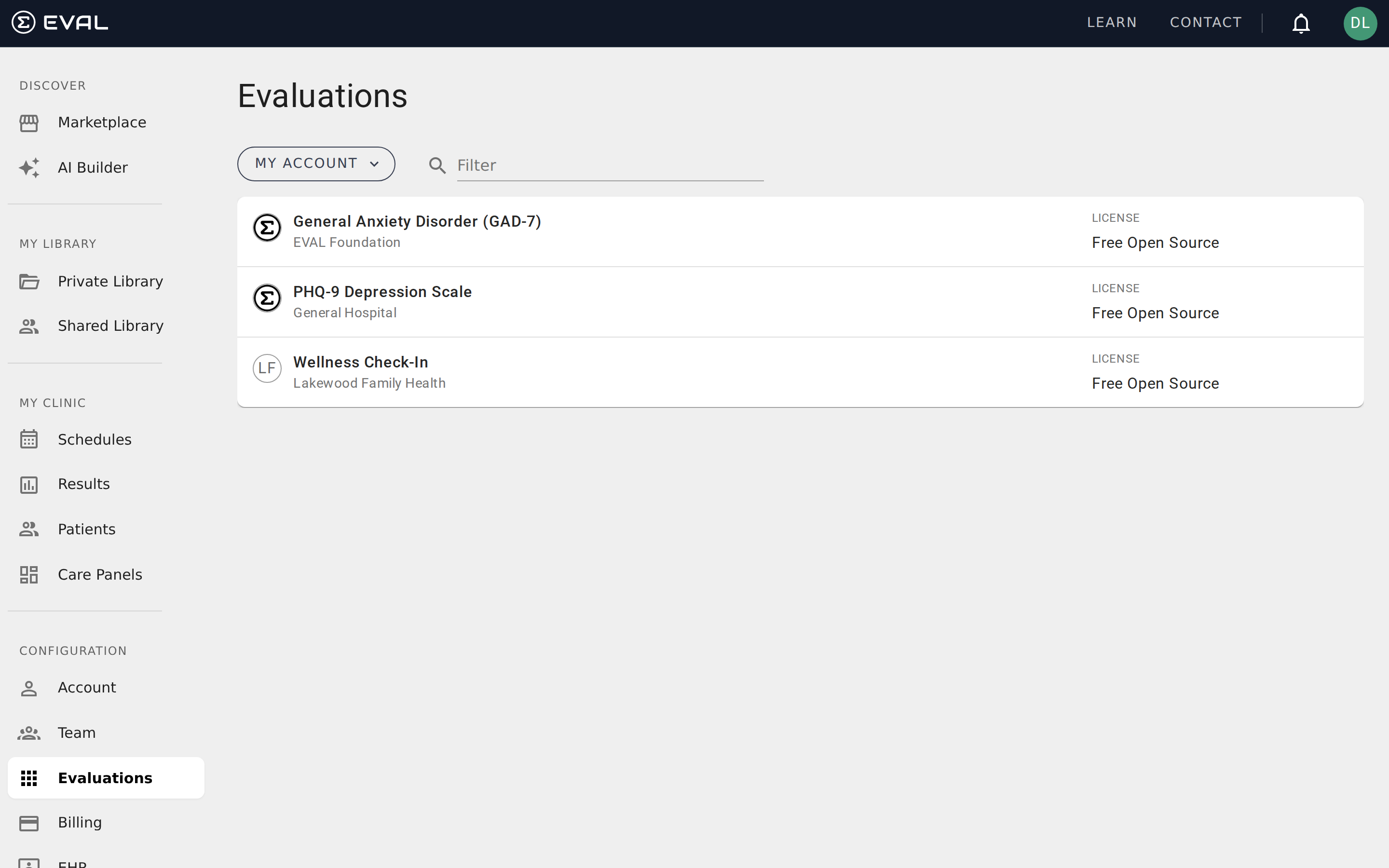
The evaluations list
The list shows every evaluation available to your account, each displaying the evaluation name, the publishing organization, and the license type. Use the filter bar at the top to search evaluations by name — this is especially useful when your account has dozens or hundreds of evaluations from multiple sources.
The dropdown at the top lets you switch between viewing My Account evaluations (only those your organization owns or has added to its Library) and All Evaluations (the complete set including Marketplace evaluations available to you). This distinction helps administrators focus on the evaluations their team actually uses versus everything that's accessible.
Click any evaluation to open its detail page, where you can manage its profile, licensing, clinical priorities, and review its revision history.
Evaluation detail
The detail page for each evaluation is organized into several sections.
Profile
The Profile card shows the evaluation's core metadata: who published it, the target audience (Practitioner or Patient), which revision is in your account library, and two visibility settings.
Global Visibility controls whether the evaluation is discoverable by other organizations in the Marketplace. Set this to Public to share the evaluation broadly, or Private to keep it within your organization.
My Account Visibility controls whether the evaluation appears in your organization's Library for your team members to use. Setting this to Private hides the evaluation from your team's Library view without affecting its global availability.
License
The License card shows who owns the license, the license terms (such as Free Open Source), and pricing information. The Eval Price is what other organizations pay when adding the evaluation to their library, while the Clone Eval Price is the cost to create a private copy. Click View License to see the full license text.
Clinical priority
The Clinical Priority card lets you override the default clinical priority assigned to results from this evaluation. Priorities affect how results appear in the Results page and Care Panel triage views — Critical and Urgent results display prominent red indicators to draw attention.
Each computed result in the evaluation can have its own priority level. For example, a depression screening might set the "Total Score" result to Critical priority when the score exceeds a clinical threshold. The available priority levels are:
- Critical — requires immediate clinical attention
- Urgent — high importance, address promptly
- Moderate — standard follow-up
- Low — can be deferred
Click Edit to change the priority assignments. Changes affect how future results from this evaluation are prioritized across the platform.
Owners
The Owners section lists team members who have Owner-level permission on this evaluation. Owners have full control including editing, publishing, and managing permissions. Click an owner to view their team member profile.
Revisions
The Revisions section shows the evaluation's version history. Each revision displays its name, date, and whether it's currently in your Library (shown with an In Library badge). You can play any revision directly from this view to preview what patients or practitioners will see, and expand View Notes to read the revision changelog.
Revisions provide a clear audit trail of how an evaluation has evolved. When multiple revisions exist, the In Library badge tells you which version your team is currently using — this is the version patients and practitioners will see when completing the evaluation.
Admin view vs. the Library
The Evaluations section in CONFIGURATION and the Library both show evaluations, but they serve different purposes. The Library is your team's working environment — it's where clinicians and researchers find, launch, and manage the evaluations they use daily. The admin Evaluations view is for governance and oversight: managing licenses, setting clinical priorities, controlling visibility, and reviewing what's available across the entire account. Most team members will never need to visit the admin view — it's designed for Account Administrators and Account Maintenance users who manage the organization's evaluation inventory.
Roles and permissions
Understand how security roles and chart roles work together to control what each team member can access across the EVAL platform.
Billing and subscriptions
Manage your subscription plans, payment methods, billing contact information, and view transaction history from the Billing page.