

AI Builder
What the AI Builder does
The AI Builder is EVAL's conversational assistant for creating and modifying clinical evaluations. Instead of manually adding sections, questions, and results one at a time, you describe what you need in plain language and the AI generates the evaluation structure for you — complete with sections, questions, answer choices, scoring formulas, and visibility rules.
You can use the AI Builder in two ways: to create a new evaluation from scratch, or to modify an existing evaluation through the AI tab in the Builder.
Creating a new evaluation with AI
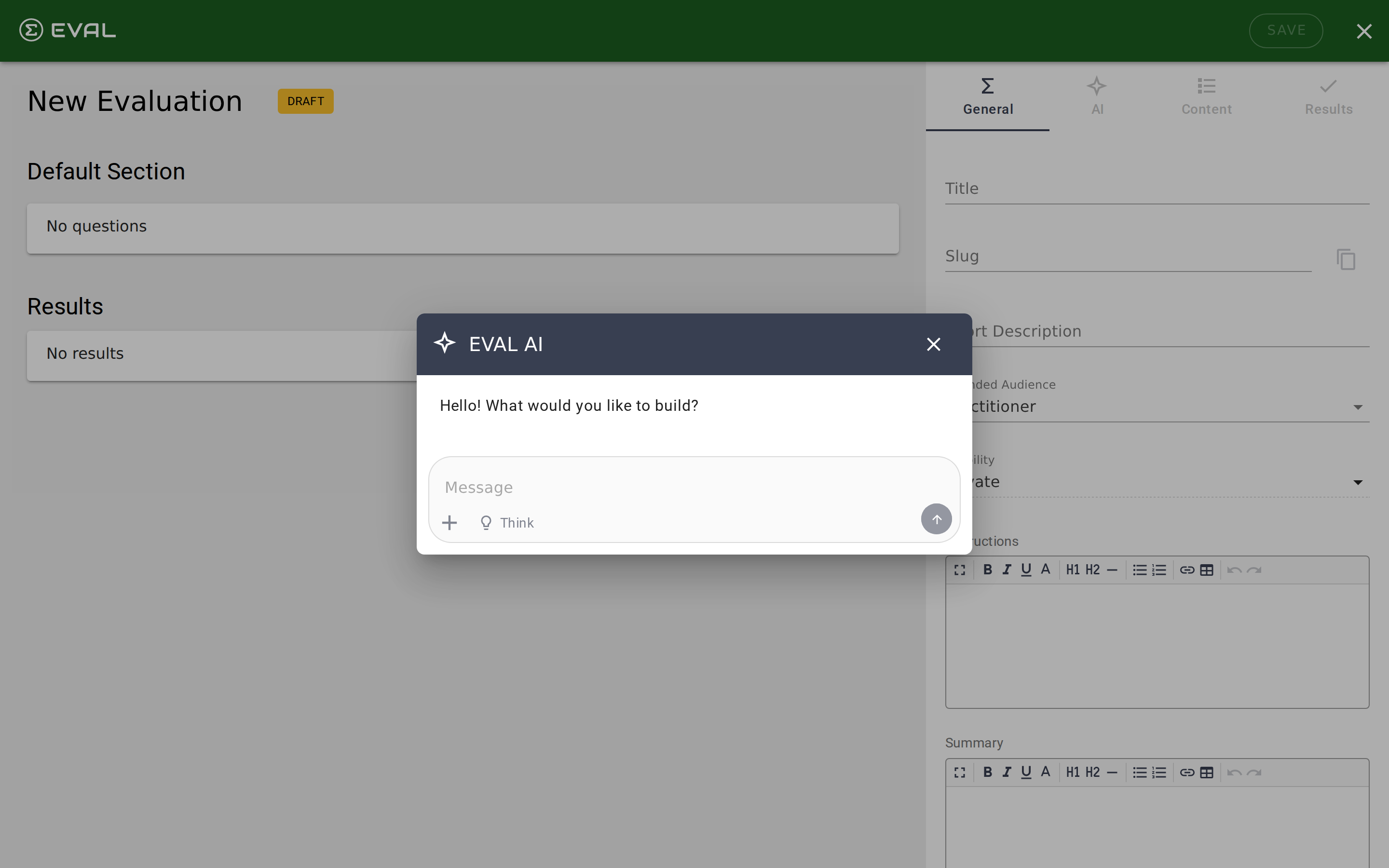
Navigate to AI Builder in the sidebar (under Discover). If you're signed in, EVAL opens the Builder in new-evaluation mode with the EVAL AI dialog. If you're not signed in, you'll see a feature overview page — sign in or create an account to get started.
The EVAL AI dialog greets you with "Hello! What would you like to build?" and a message input where you describe the evaluation you need. Be specific: include the clinical context, the type of questions, the intended audience, and any scoring methodology you want.
After you send your message, the AI analyzes your request and generates the evaluation in the background. You'll see progress messages as it works — the process typically takes two to three minutes for a full evaluation. When finished, the dialog closes and the Builder opens with your new evaluation loaded, showing all the sections, questions, and results the AI created.
From there, review what the AI produced, make any adjustments manually, and publish when you're satisfied.
Using the AI tab in the Builder
For existing evaluations, the AI tab appears alongside General, Content, Results, and Errors in the Builder's detail pane. Click it to open a persistent chat interface where you can ask the AI to modify the evaluation you're currently editing.
The AI tab is available when you have edit or owner permissions on the evaluation. It maintains a conversation history specific to this evaluation — your previous messages and the AI's responses appear when you return to the tab.
You can ask for structural changes ("Add a section about medication history with three questions"), scoring modifications ("Create a formula result that sums the Pain and Function scores"), or content refinements ("Rewrite the description for the mobility section to be more patient-friendly"). The AI updates the evaluation's configuration and metadata in the background, then the Builder refreshes to show the changes.
The chat interface
Both the creation dialog and the AI tab share the same chat interface with three input controls:
Message input — A text field where you type your request. Press Enter to send, or click the send button. Messages are plain text with no formatting support, though the AI's responses may include formatted text like bold headings and bulleted lists.
Attach files (+) — Click the + button to attach files to your message. This lets you upload reference documents that give the AI additional context — for example, a clinical guideline PDF or a paper-based assessment form you want to digitize.
Think mode — Toggle the Think button (lightbulb icon) to enable deeper analysis. When active, the AI spends more time reasoning through your request before responding, which can improve the quality of complex structural or scoring changes.
How AI changes work
When the AI modifies your evaluation, two things can happen simultaneously:
- Configuration updates create or modify the evaluation's sections, questions, answer choices, formulas, visibility rules, and results. These changes run as a background job and may take a minute or two for complex modifications.
- Metadata updates modify the evaluation's title, description, instructions, summary, and intended audience. These apply immediately.
After any AI modification, EVAL automatically re-validates the evaluation to update the Errors tab. Always review the AI's changes before publishing — check that formulas are correct, visibility rules make sense for your clinical workflow, and question wording is clinically appropriate.
Chat history
Your conversation with the AI is saved per evaluation and persists across sessions. When you reopen the Builder and switch to the AI tab, your previous messages appear so you can continue where you left off. The chat shows the most recent messages from your conversation history.
If no previous conversation exists, the AI starts fresh with its welcome greeting.
Getting started
Error resolution
Find and fix validation errors that prevent your evaluation from publishing — from missing fields and broken formulas to invalid rule references.
Embedded evaluations
Include one evaluation inside another using EVAL App sections, or embed evaluations on external websites with iframe code and auto-resize messaging.