

Evaluation preview
Before adding a Marketplace evaluation to your Library, you can review its details to make sure it's the right tool for your clinical program. Every evaluation has an About page that provides the summary, supporting literature, current revision, and tags — giving you enough context to make an informed decision without needing to run the full evaluation first.
Opening an evaluation
Click any evaluation card in the Marketplace to open it. This takes you to the evaluation's Player page, where you can see the title, a brief description, the publishing organization, and the first question. Two elements are specific to Marketplace evaluations:
The Learn button appears below the title in a teal badge. Click it to navigate to the evaluation's About page, where you'll find the full summary, literature, and revision information. This is the same About page available through the Actions menu under About.
The Actions menu in the top-right corner provides all available actions for this evaluation, including sharing, viewing revisions, and — most importantly — adding or removing it from your Library.
The About page
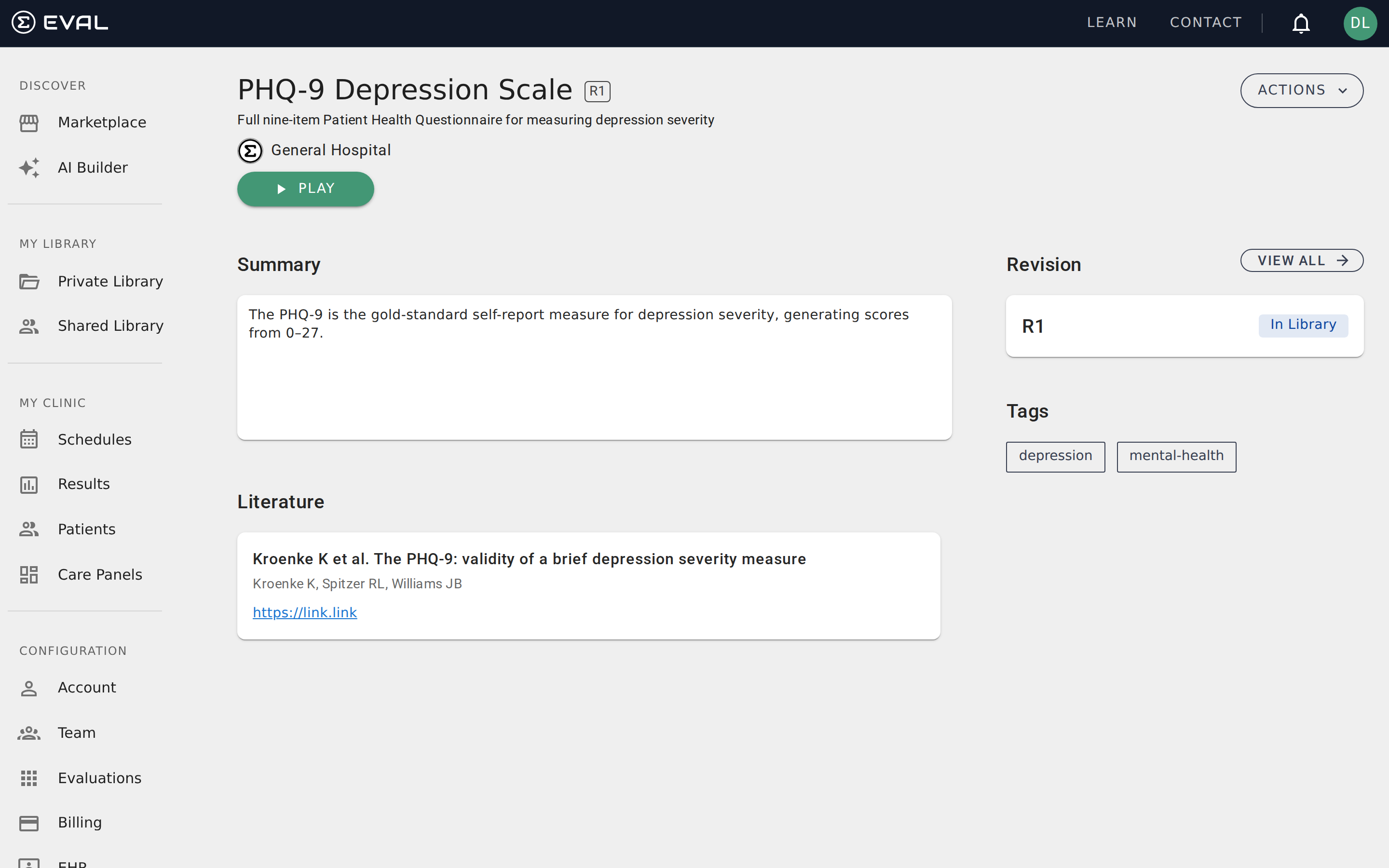
The About page is your primary tool for evaluating whether a Marketplace evaluation fits your needs. It displays:
Summary — A description of the evaluation's purpose, methodology, and intended patient population. Authors write summaries to help other clinicians understand what the tool measures and when to use it.
Literature — References to the clinical literature supporting the evaluation. This might include the original validation study, clinical guidelines that recommend the tool, or research papers describing its psychometric properties. Each reference shows the title, publisher, and a link when available.
Revision — The current published revision number (for example, R1). If the evaluation has been updated since you added it, you can see whether you're on the latest version. An In Library badge appears next to the revision number if you've already added this evaluation. Click View All to see the full revision history.
Tags — Clinical keywords that categorize the evaluation by specialty, condition, or use case. Tags like "depression," "screening," or "pediatric" help you quickly assess relevance and also power Marketplace search results.
Trying before adding
You don't need to add an evaluation to your Library before trying it. From the About page, click Play to open the evaluation in the Player and work through the questions and results. This is useful when you want to see the exact question wording, response options, and scoring before committing to use the tool in your practice.
The Player works identically for Marketplace evaluations as it does for evaluations in your Library — you can answer questions, navigate between sections, and view results. The only difference is that results from a Marketplace preview aren't saved to any patient chart.
Adding to your Library
When you're satisfied that an evaluation is right for your program, add it to your Library from the Actions menu:
- Open the evaluation from the Marketplace (click any evaluation card).
- Click Actions in the top-right corner.
- Select Add to My Library.
The evaluation immediately appears in your Private Library. This creates a reference — not a copy — so you'll always see the latest published revision from the original author. You can then:
- Include the evaluation in Care Panels for patient monitoring
- Schedule it for patients to complete on a recurring basis
- Access it quickly from your Library without returning to the Marketplace
Removing from your Library
If you no longer need an evaluation, open it and select Remove From My Library from the Actions menu. This removes it from your Library view only — the evaluation stays in the Marketplace and any patient results you've already collected remain in your charts. You can always add it back later.
Understanding revisions
Marketplace evaluations use the same revision system as all EVAL evaluations. When an author publishes a new revision, the Marketplace automatically shows the latest version. If you've already added the evaluation to your Library, you'll have access to the updated revision without needing to re-add it.
The About page shows which revision is currently published. If you need to review changes between revisions, click Revisions in the Actions menu to see the full history with per-revision details.