

Search
The Marketplace search bar sits at the top of the page and is the fastest way to find a specific evaluation or explore what's available in a clinical area. Search works across multiple fields simultaneously, so you can type a condition, an organization name, or even a tag to surface relevant results.
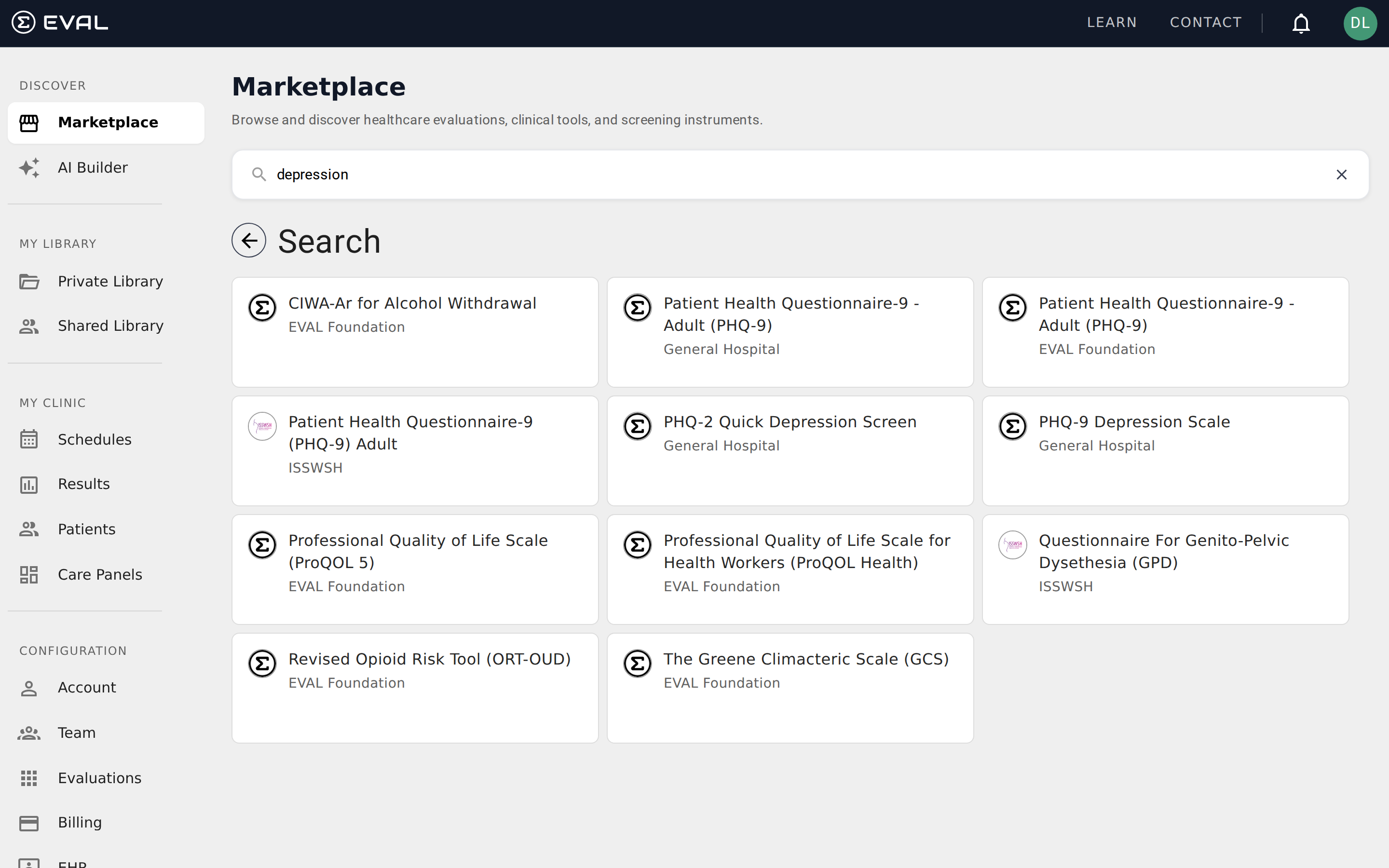
How search works
Type at least three characters into the search bar to start seeing results. The search queries multiple fields at once:
- Evaluation name — matches anywhere in the title
- Description and summary — full-text search across the evaluation's written content
- Tags — matches tag keywords assigned by the evaluation's author
- Organization name — finds evaluations published by a specific organization
- Category name — matches clinical categories
Results appear immediately below the search bar, replacing the collection bands with a flat grid of matching evaluation cards. A Search heading appears with a back arrow — click the arrow or clear the search field (using the ✕ button) to return to the Marketplace home view.
Search results
Results are displayed as evaluation cards in a three-column grid, identical to the cards used in collection bands. Each card shows the evaluation name and publishing organization. Click any card to open the evaluation in the Player where you can try it immediately.
There's no separate results count or sorting control — results appear in the default name-based order. If your search returns too many results, try a more specific term. If it returns too few, broaden your search to a general clinical category.
Searching by organization
If you're looking for evaluations from a specific institution — a research university, a professional society, or a healthcare system — type the organization name into the search bar. Results include evaluations published by any organization whose name matches your query. This is particularly useful when a colleague recommends a tool and you know the publishing institution but not the exact evaluation title.
Organizations that publish to the Marketplace typically use their formal institutional name. For example, searching "Memorial Sloan Kettering" finds evaluations published under that organization's account, while searching "MSK" might not return the same results. If an abbreviation search comes up empty, try the full organization name.
Effective search strategies
Start broad, then narrow. Search for a general clinical term like "pain" to see what's available, then refine with more specific terms like "post-operative pain" or "chronic pain assessment" if the initial results are too broad.
Use clinical terminology. The full-text search checks evaluation summaries and descriptions, which are written by clinicians. Searching for "PHQ" finds the PHQ-9 depression scale even if "PHQ" doesn't appear in the title, because it appears in the evaluation's description.
Try tags when name searches fail. Evaluation authors assign tags like "screening," "pediatric," or "cardiology" to their tools. These tags are included in search, so clinical keywords often surface relevant results even when the evaluation has an unfamiliar brand name.
From search to your Library
When you find an evaluation you want to use regularly, you don't need to search for it every time. Open the evaluation, click the Actions menu, and select Add to My Library. The evaluation appears in your Private Library for quick access alongside your own evaluations.
For a detailed look at what information is available before you add an evaluation — including the summary, literature references, revision history, and tags — see Evaluation preview.