

Embedded evaluations
What embedded evaluations do
Embedded evaluations let you include one evaluation inside another. Instead of recreating shared content — like a standard pain assessment or demographic intake — you embed the existing evaluation as a section within a larger workflow. The embedded evaluation's questions, scoring, and results all run within the parent evaluation.
You can also embed evaluations on external websites using iframe code, letting patients complete assessments directly from your organization's website without navigating to EVAL.
Adding an embedded evaluation to your Builder
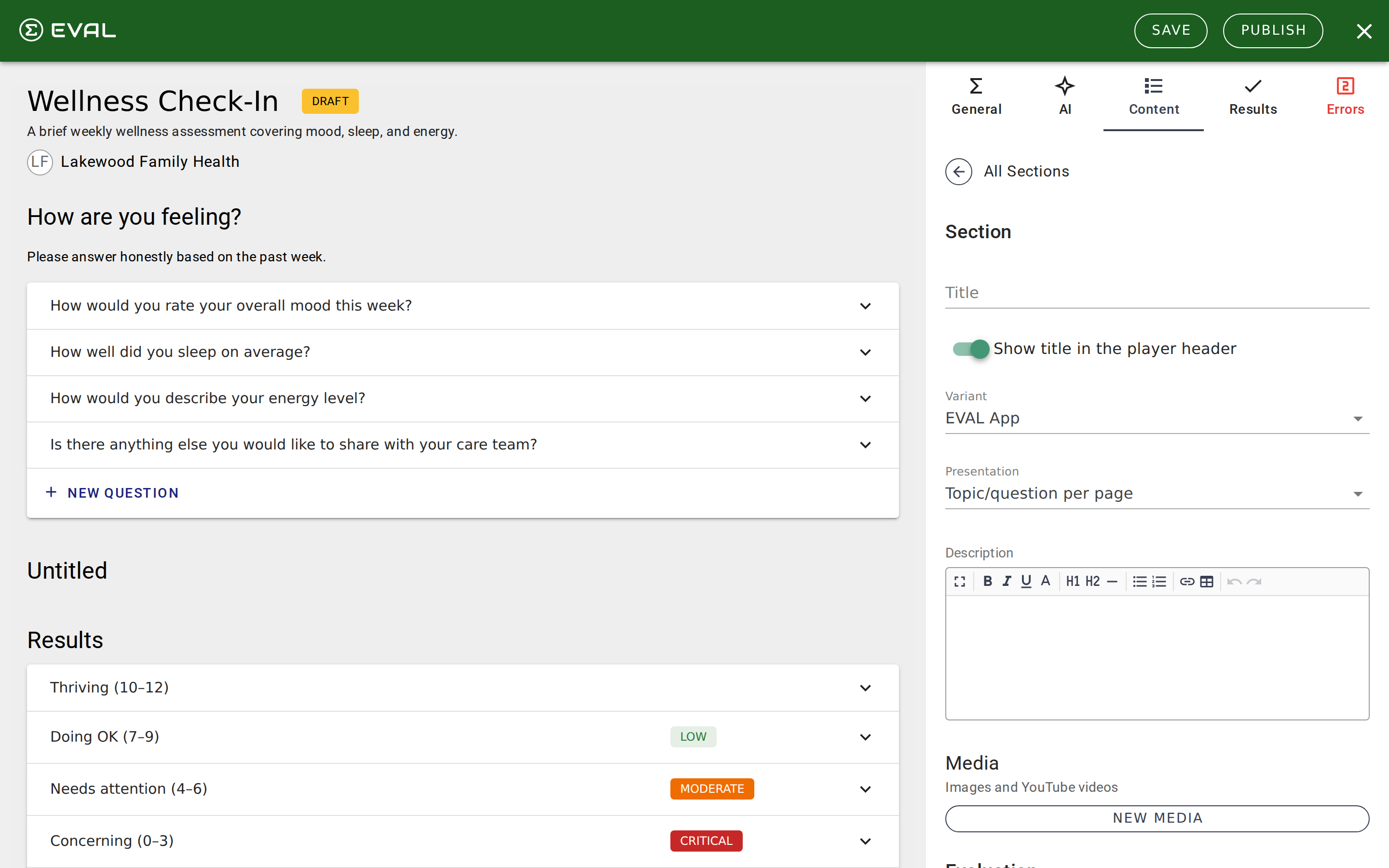
Embedded evaluations are added through the EVAL App section variant:
- Open the Builder in edit mode and navigate to the Content tab.
- Click New Section to create a new section.
- Set the Variant dropdown to EVAL App.
- In the Evaluation field that appears, use the Search Library autocomplete to find the evaluation you want to embed. Results show the evaluation name and its current revision number.
- Select an evaluation. EVAL loads the full evaluation content into the section, and the Builder's outline pane expands to show the embedded sections, questions, and results.
The embedded evaluation's content appears in the outline pane under the section, giving you visibility into what's included without leaving the Builder. The section header links to the source evaluation so you can open it in a separate tab for reference.
Limitations
No nested embedding — You cannot embed an evaluation that itself contains embedded evaluations. If you select an evaluation with its own EVAL App sections, EVAL shows an error explaining that nested embedding isn't supported. This keeps evaluation structures predictable and avoids circular references.
Revision pinning — The embedded evaluation captures a specific revision at the time you add it. Changes published to the source evaluation don't propagate to existing embeds. This is intentional — it prevents unexpected changes to evaluations already in clinical use.
Managing embedded evaluations
To remove an embedded evaluation, open the EVAL App section in the Content tab and click Remove. This clears the embedded content and returns the section to an empty EVAL App state where you can search for a different evaluation.
To update to a newer revision of the source evaluation, remove the current embed and re-add the evaluation from the library. The search results always show the latest published revision.
Embedding on external websites
EVAL provides iframe code for embedding evaluations directly on external websites. This is separate from the EVAL App section variant — it's for displaying an evaluation on your own web pages.
Generating embed code
Open any evaluation and click the Share button to open the Share dialog. Navigate to the Website Embed section, where you'll find:
- A theme selector with two options: Light (gray background) or Transparent (blends with your page)
- Generated HTML code with a copy button
The embed code includes an iframe pointing to /embed/{slug} with auto-resize JavaScript that adjusts the iframe height as patients navigate through the evaluation. The iframe starts at a minimum height of 500 pixels and grows or shrinks to match the content.
The embed layout
The /embed/{slug} route displays the evaluation in a minimal layout designed for iframe use:
- No sidebar navigation, top bar, or account menus
- The evaluation runs in its full interactive mode — patients can answer questions, navigate between sections, and see results
- A "Powered by EVAL" footer appears at the bottom with a link to the full evaluation page
Embed messaging
The embedded evaluation communicates with the parent page through browser messaging events, which your website can listen for to create custom integrations:
- Ready — Fires when the evaluation loads and is ready for interaction
- Resize — Sends the current content height so you can dynamically adjust the iframe
- Step changed — Reports the current step and total steps as patients navigate between sections
- Completed — Fires when the patient finishes the evaluation
The auto-resize code in the generated HTML snippet handles the most common use case — keeping the iframe the right height. The other events are available for advanced integrations where you need to track progress or trigger actions on your website.
Getting started
AI Builder
Use EVAL's AI assistant to create evaluations from a text description or refine existing evaluations through conversational chat.
Evaluations
Understand how published evaluations work in EVAL — from playing through questions and viewing results to managing revisions, permissions, and sharing.