

Results and scoring
What results do
Results are the outputs of your evaluation — the clinical scores, recommendations, and guidance that appear after someone completes it. Every evaluation needs at least one result to be meaningful. Without results, your evaluation captures data but doesn't do anything with it.
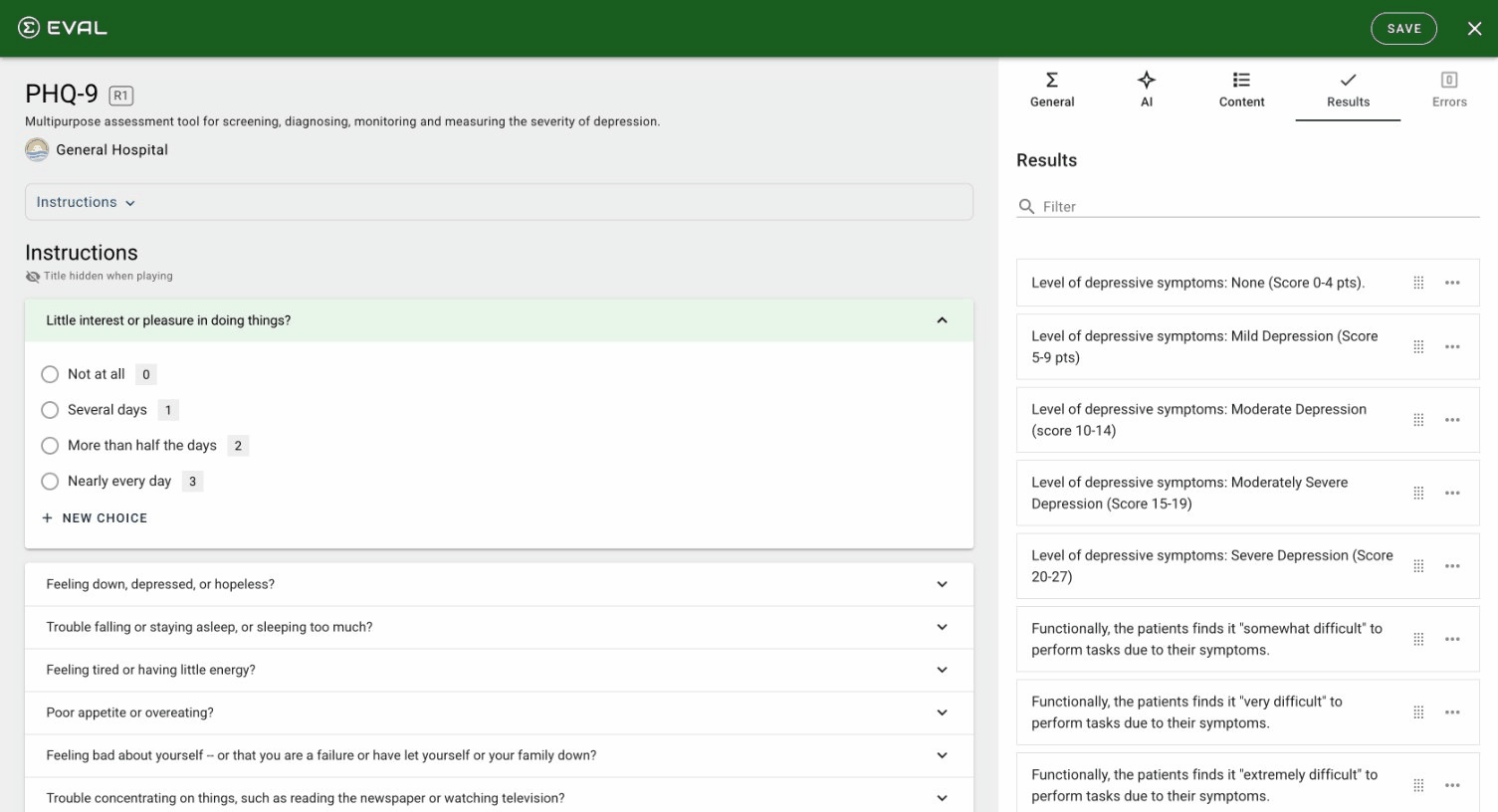
You define results on the Results tab of the Builder. Each result can either calculate a numeric score using spreadsheet formulas or display narrative text and guidance. Results can be conditional — appearing only when specific answers are given — which lets you create adaptive outputs that respond to the patient's responses.
Result variants
When you create a result, the Variant setting determines how it works:
Formula results calculate a value using spreadsheet-style expressions. Use these for clinical scoring instruments, risk calculators, BMI computations, or any result that needs arithmetic. A formula result references your evaluation's questions through keywords, runs a calculation, and produces a numeric output. You can optionally assign a unit of measure (like kg/m², mL/min, or points) that displays alongside the computed value.
Information results display narrative text and visual media without performing calculations. Use these for clinical recommendations, next-step instructions, patient education, or any output that doesn't need a computed score. An information result's description is a rich text field where you can format guidance, add links, and include media.
Configuring a result
Click any result in the list or click New Result to open the result editor. Every result has these settings:
Title identifies the result throughout EVAL — in the Builder, in patient charts, and in exported data. Each title must be unique within the evaluation.
Display To controls who sees the result. Practitioners Only keeps it visible to your clinical team but hidden from patients. Practitioners and Patients shows it to everyone, including patients viewing their results in the Patient Portal.
Description is a rich text field for explaining what the result means. For Formula results, use it to interpret the score ("A score above 10 suggests moderate depression"). For Information results, this is the main content — your clinical guidance, instructions, or recommendations.
Clinical Priority assigns a severity level that appears as a color-coded indicator in patient charts and Care Panels. The four levels — Critical, Urgent, Moderate, and Low — help practitioners quickly triage which results need immediate attention. This field is optional and can be left blank for results that don't need clinical prioritization.
Formula results
When you set the variant to Formula, the editor shows additional fields for defining your calculation:
Expression opens the formula editor — a dedicated workspace where you build your scoring logic using spreadsheet-style syntax. The formula editor lets you reference questions through keywords, create intermediate calculations with named expressions, and use hundreds of built-in functions like IF, SUM, ROUND, and AVERAGE.
Unit of Measure is an optional text label (like "points" or "mg/dL") that displays next to the computed value in results views.
For a detailed guide to writing formulas, including keywords, named expressions, operators, and functions, see Formula editor.
Media on results
Every result can have images or YouTube videos attached through the Media section — the same media system used on sections and questions. Each result supports up to 15 media items. Media is particularly useful on Information results where visual aids support the clinical guidance.
Visibility rules on results
The Visible When... section controls when a result appears. By default, results are always visible (always "triggered"). Add conditional rules to show results only when specific criteria are met — like displaying a severity interpretation only when the score falls in a certain range.
Results use the same rule system as sections and questions: OR logic between rules, AND logic within each rule. You can reference questions, choices, other results, or write custom formula conditions. For the full details, see Visibility rules.
Managing results
The results list shows each result as a card with a drag handle for reordering. Drag results to control the order they appear when someone completes the evaluation.
Each result's ⋯ menu offers Duplicate — creating a complete copy with all settings, formula, tests, and visibility rules preserved. The copy is named "Copy of original title." This is useful when you need similar results with minor variations, like different score range interpretations.
To delete a result, open it and scroll to the Danger Zone at the bottom of the editor.
Validating your results
Before publishing, use scenario tests to verify that your formulas produce the correct outputs for known inputs. Scenario tests let you define test cases with specific question answers and expected results, then run them to catch formula errors before they reach patients.
Getting started
Question types
Reference guide for all 13 question types in the EVAL Builder — from choices and numbers to signatures, addresses, insurance plans, and patient identity fields.
Formula editor
Write spreadsheet-style scoring formulas in the Builder: reference questions through keywords, build reusable named expressions, and call built-in functions.