

Media
What media does
Media lets you add visual context to your evaluation — clinical images, instructional diagrams, or YouTube videos that help patients and practitioners understand questions or interpret results. You can attach media to sections, questions, results, topics (in Information sections), and articles (within topics).
Each element supports up to 15 media items. When multiple items are attached, they display as a thumbnail gallery in the Player, letting users browse and enlarge content as needed.
Adding media
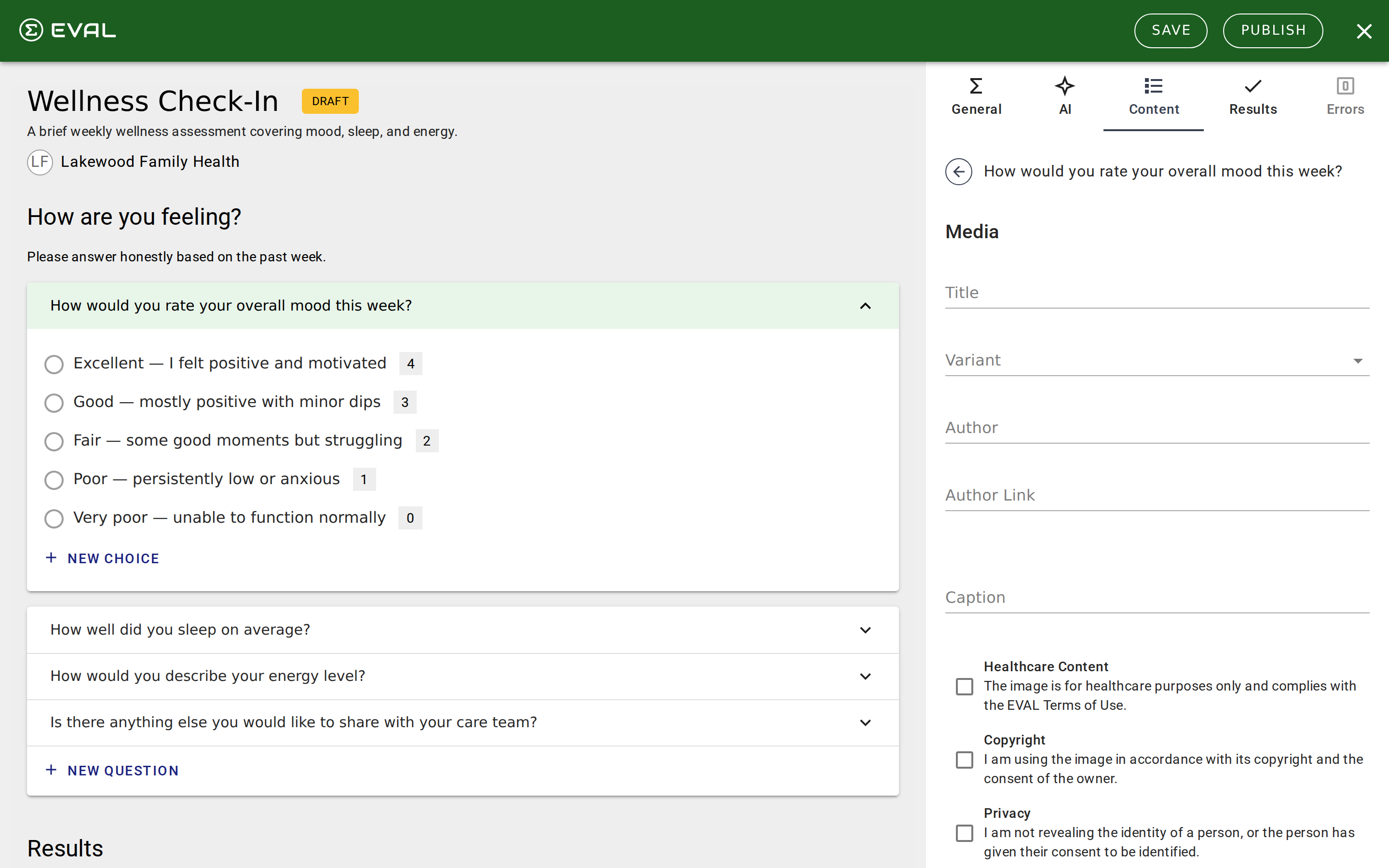
Open any section, question, result, topic, or article in the Builder's edit mode and scroll to the Media section. Click New Media to open the media form.
The form has five fields:
- Title (required) — A descriptive label for the media item, up to 100 characters.
- Variant (required) — Choose Image or YouTube to determine the media type.
- Author — The content creator's name, up to 150 characters.
- Author Link — A URL to the author's profile or the original source, up to 500 characters.
- Caption — Text displayed below the media in the Player, up to 200 characters.
Image uploads
When you select the Image variant, a drop zone appears where you can drag and drop an image file or click Browse File to use the file picker. Accepted formats are PNG, GIF, and JPEG, with a maximum file size of 5 MB.
The image is uploaded and stored by EVAL. After uploading, a preview appears in the form so you can verify it's correct. To change the image later, click Replace Image to upload a different file.
YouTube videos
When you select the YouTube variant, a YouTube URL field appears. Paste the video's URL and EVAL extracts the video ID to display an embedded preview. An optional Loop Video checkbox lets you set the video to repeat continuously in the Player.
Acknowledgment requirements
Before you can save a media item, you must confirm three acknowledgments by checking each box:
- Healthcare Content — The image is for healthcare purposes only and complies with the EVAL Terms of Use.
- Copyright — You're using the image in accordance with its copyright and the consent of the owner.
- Privacy — You're not revealing the identity of a person, or the person has given their consent to be identified.
All three checkboxes must be checked before the Create Media button becomes active. These acknowledgments exist because clinical media often involves sensitive content — confirming them ensures you've considered the legal and ethical requirements.
Managing media
Existing media items appear in a list below the Media heading on each element. Each item shows its title and variant type. You can:
- Reorder items by dragging the handle icon on the left side of each entry. The order determines the display sequence in the Player.
- Edit an item by clicking it. The same form opens with the current values, and you can modify any field or replace the image.
- Delete an item by scrolling to the Danger Zone section at the bottom of the edit form and clicking Delete This Media. A confirmation dialog asks you to verify before removing the item permanently.
How media displays in the Player
When a patient or practitioner reaches a section, question, or result with media, the content appears with a primary display area and — when multiple items exist — a thumbnail gallery alongside it. Desktop layouts show vertical thumbnails; mobile layouts show horizontal scrolling thumbnails.
Clicking any thumbnail switches the primary display. Clicking the primary image opens a fullscreen view with carousel navigation between all media items. Captions and author information appear below the media in both the standard and fullscreen views.
Getting started
Evaluations
Set up an evaluation's metadata in the Builder's Evaluation tab: title, slug, description, presentation format, and visibility before adding content.
Error resolution
Find and fix validation errors that prevent your evaluation from publishing — from missing fields and broken formulas to invalid rule references.