

Care Panels overview
What Care Panels do
A care panel is a workspace where you bring together a group of patients, their evaluation results, and their assessment schedules — all in one place. Instead of looking up patients one at a time, you can see your entire caseload, triage incoming results, and track who's overdue for follow-up.
Care Panels work for any scenario where you need to monitor a population over time. Clinical teams use them to run programs and service lines. Researchers use them to manage study cohorts and track protocol adherence. The same set of tools adapts to both workflows.
Common setups
Running a clinic program
Create a panel for each program or service line — "Behavioral Health Screening," "Post-Op Recovery," or "Diabetes Management." Add your patients, schedule recurring assessments, and use the summary cards to triage incoming results by urgency. Set up notifications so your team gets an email when a critical result comes in.
Managing a research cohort
Create a private panel for your study. Use public intake links to enroll participants remotely, set up scheduled assessments that match your protocol timeline, and export results to Excel when you're ready to analyze your data.
Screening populations
Set up a panel with a public intake link or QR code in your waiting room. Patients complete the screening on their own device, and results land in your panel ready for review — no login required.
Specialty service tracking
Create panels for specialty workflows like wound care, pain management, or medication reconciliation. Use assignments to route results through a triage process — nurse review first, then physician sign-off.
What you'll find in a panel
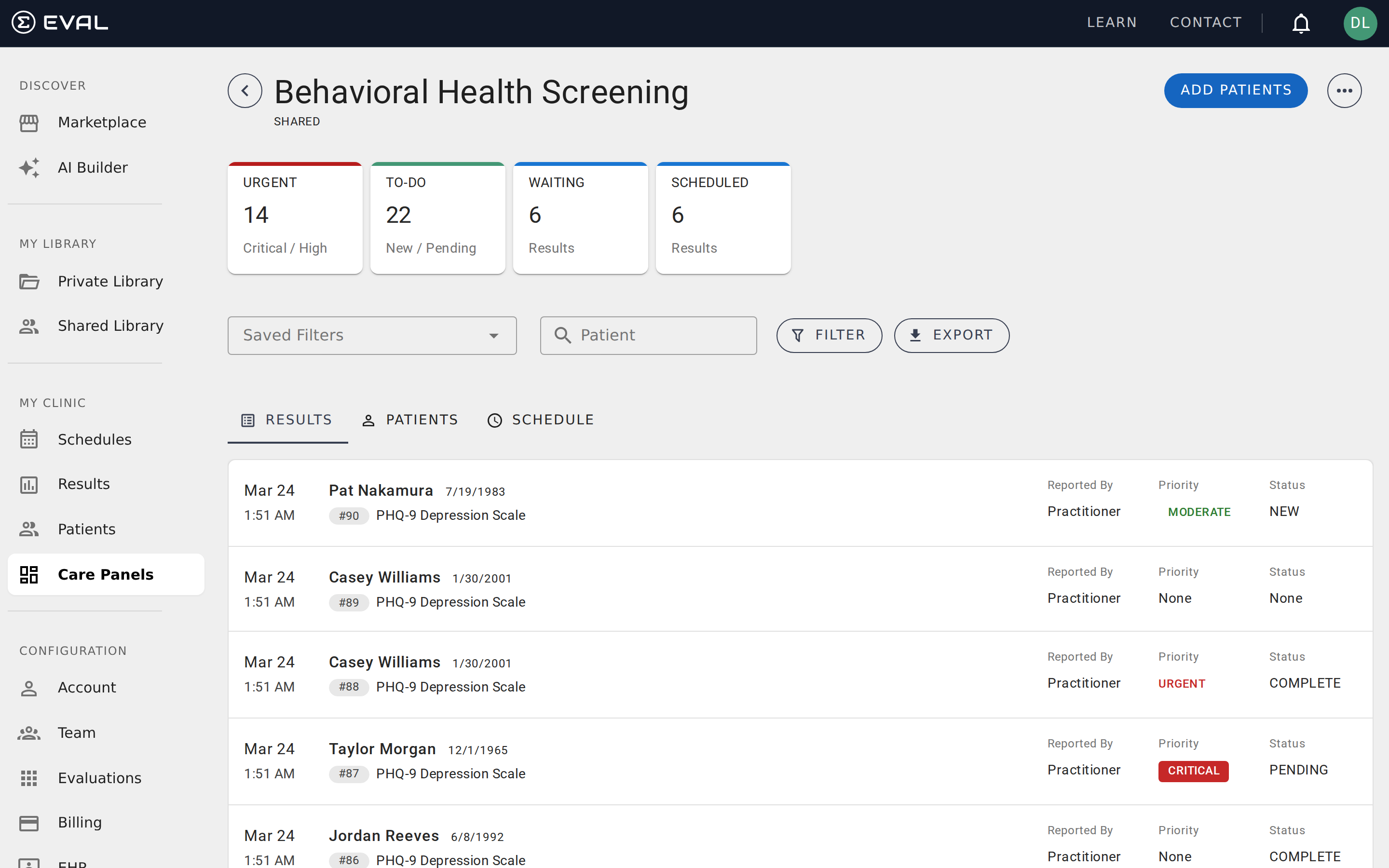
When you open a panel, you'll see four summary cards at the top giving you an at-a-glance picture of what needs attention:
- Urgent — Results with Critical or Urgent priority that are still unresolved (New or Pending status). Click this card to jump straight into triage.
- To-Do — Your total unresolved workload — all results with New or Pending status, regardless of priority.
- Waiting — Evaluations that have been sent to patients but not yet completed.
- Scheduled — Active scheduled evaluations for real patients (simulated patients are excluded).
Below the cards, three tabs organize your data:
- Results — Every evaluation result for patients in the panel. You can filter, search, and triage from here.
- Patients — Your patient roster. Add existing patients, create new ones, or import from your EHR.
- Schedule — All active and upcoming assessment schedules. See who's completed their evaluations and who's overdue.
The toolbar gives you access to saved filters, search, and data export. The overflow menu (three dots) opens configuration options like permissions, public intakes, notifications, and assignments.
Getting started
Setting up a new panel takes just a few minutes. Here's the typical path:
- Create a panel — Click New Panel from the panel list, give it a name, and choose whether it should be shared with your organization or kept private. See Creating and configuring panels.
- Add your patients — Open the Patients tab and click Add Patients to search for existing patients, create new ones, or import from your EHR. See Managing patients.
- Schedule assessments — Set up recurring evaluations so patients receive assessments on a regular cadence. See Scheduling assessments.
- Review results — As patients complete evaluations, results appear in the Results tab with priority and status indicators. See Tracking results.
Actions and sharing
Share evaluations via links and QR codes, clone evaluations, report content, and access all management actions from the Actions menu.
Creating and configuring panels
Create a care panel, choose Shared or Private visibility, set default evaluations, define workflow assignments, and edit or delete the panel later.