

Tracking results
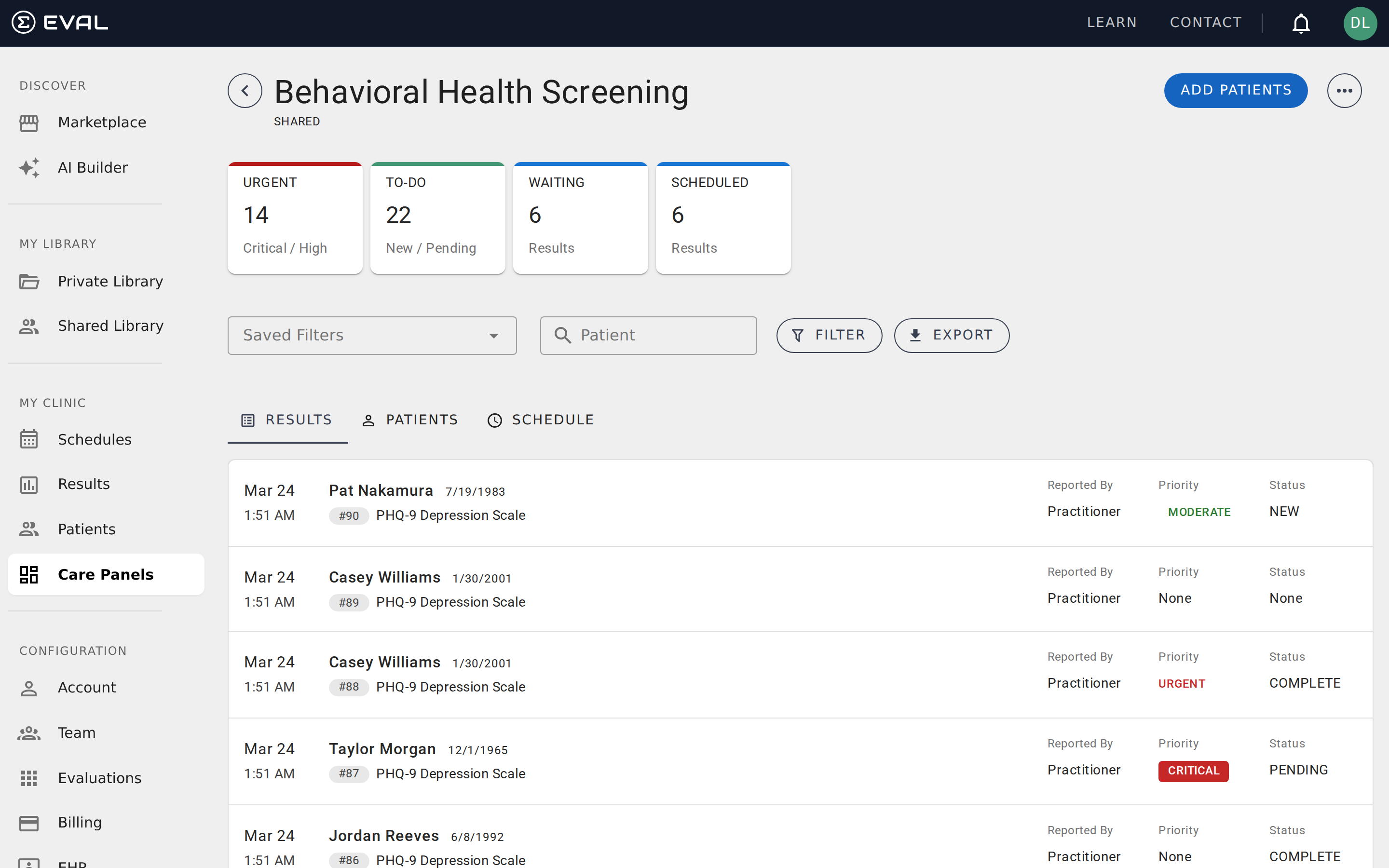
The results view
The Results tab is where you spend most of your time in a care panel. Every time a patient completes an evaluation, the result appears here — sorted by date with the most recent first. Each row shows the date submitted, the patient's name, the evaluation name, who reported it, and the result's priority and status.
Summary cards
At the top of the panel, four summary cards give you an at-a-glance picture of what needs attention:
- Urgent — Results with Critical or Urgent priority that haven't been resolved yet (New or Pending status). The card label shows "Critical / High" — "High" is another name for Urgent priority in this context. These need immediate attention.
- To-Do — All results with New or Pending status, regardless of priority. This is your total unresolved workload.
- Waiting — Evaluations that have been sent to patients but not yet completed. These are in-progress assessments you're waiting on.
- Scheduled — Active scheduled evaluations for real patients (simulated patients are excluded from this count).
Click any summary card to instantly filter the results list to that subset. This is the fastest way to jump into triage — click Urgent to see what needs attention right now, or click To-Do for your full queue.
Priority and status
Every result has a priority level and a status. Together, they tell you how urgent the result is and where it stands in your workflow.
Priority levels
Priority indicates clinical urgency. It's typically set automatically based on the evaluation's scoring logic, though it can be changed manually from the patient chart.
- Critical — Requires immediate attention. The patient's responses indicate a serious clinical concern.
- Urgent — Should be reviewed soon. The result is clinically significant but not immediately dangerous.
- Moderate — Routine review. The result is within expected ranges but still needs attention.
- Low — Informational. No immediate action needed.
- No priority — Some results arrive without a priority level. This happens when the evaluation doesn't have scoring formulas configured, or when a result is submitted without triggering a score-based priority assignment. Results with no priority still appear in your panel and can be triaged manually.
Status values
Status tracks where the result stands in your review process:
- New — Just submitted. No one has reviewed it yet.
- Pending — Someone has seen it but it's not resolved. Useful for results that need follow-up or a second opinion.
- Complete — Reviewed and resolved. No further action needed.
- Invalid — Marked as invalid — for example, a test submission, a duplicate, or a result with data quality issues.
You can change a result's status from the patient chart when you review it.
Reviewing a result
Click any result row to open that patient's chart, where you'll see the full evaluation response along with scoring details. From the chart, you can:
- Change the result's priority or status
- Assign it to a workflow stage (if you've set up assignments)
- View the patient's result history
- Add comments or notes
Results are reviewed one at a time from the patient chart. There is no bulk status or priority change — each result is triaged individually, which ensures deliberate clinical review.
Managing your queue
A few practical strategies for managing your results effectively:
Build a daily triage routine. Start each day by clicking the Urgent summary card to review critical and urgent results first. Then work through To-Do for everything else that needs attention.
Use saved filters for recurring views. If you regularly filter by specific criteria — say, all New results for a particular evaluation — save that filter so you can switch to it with one click.
Set up notifications for critical results. Don't rely on manually checking the panel. Configure notification rules to email your team when results match specific criteria, so urgent items get attention even when no one is actively looking at the panel.
Use assignments to distribute work. If multiple team members triage results, assignments let you route results through workflow stages so everyone knows who's responsible for what.
Keep your queue clean. Mark results as Complete or Invalid once you've acted on them. An accumulating backlog of New results makes it harder to spot genuinely new submissions. A quick end-of-day sweep to resolve lingering items keeps the panel useful for everyone on your team.
Behind the scenes
How priority is calculated
When a result is first submitted, EVAL's scoring engine automatically calculates a clinical priority from the evaluation's configured result formulas. If the evaluation has multiple scored results with different severity levels, the system uses the highest priority among them — for example, if one formula scores Moderate and another scores Critical, the result gets Critical priority. You can always override the auto-calculated priority manually.
The audit trail
Every action on a result is recorded in a permanent changelog that appears in the result's History tab. The system tracks: when the result was created, when it was updated (re-saved with modified answers), when it was signed, and every change to status, priority, or assignment. Each changelog entry records who made the change, their name and credentials, and the exact timestamp. Comments are also tracked — adding, editing, or deleting a comment creates its own history entry.
This audit trail cannot be edited or deleted. It serves as a complete chain of custody for the result, which is important for clinical compliance and quality assurance.
Real-time updates
Care panel views stay current without manual refreshing. When any team member creates, updates, or resolves a result, all other users viewing the same panel see the change immediately. This is powered by real-time push updates — so if a nurse triages a result from New to Complete, the physician looking at the same panel sees the status change instantly. The summary cards at the top of the panel (Urgent, To-Do, Waiting, Scheduled) also update in real time.
Creating and configuring panels
Create a care panel, choose Shared or Private visibility, set default evaluations, define workflow assignments, and edit or delete the panel later.
Managing care panel patients
Build your panel roster: add existing patients, create new or simulated records, import from your EHR, and remove patients without losing data.