

Notifications and alerts
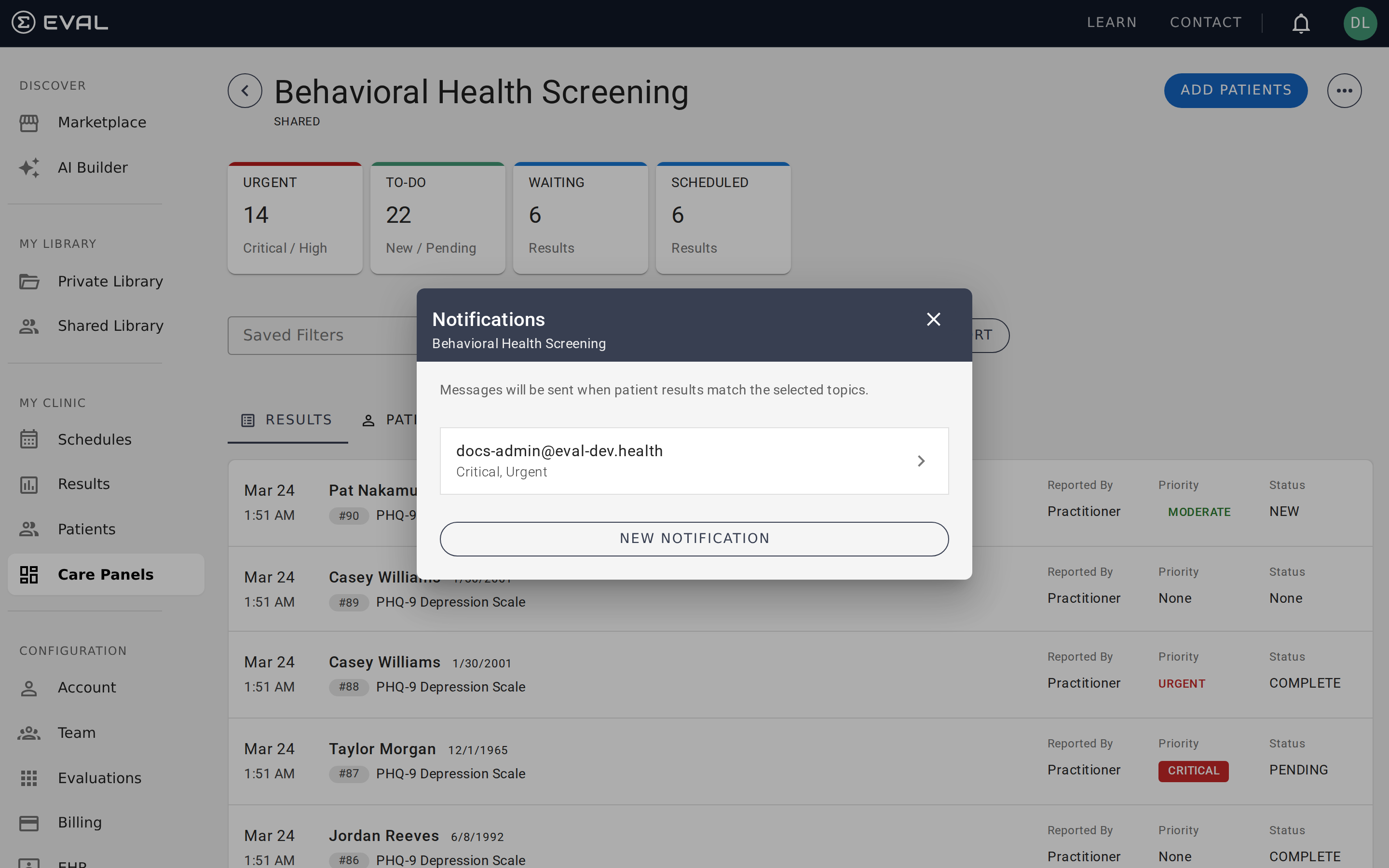
How notifications work
When a new result arrives in your panel, EVAL checks it against all notification rules you've configured. If the result matches a rule's criteria, an email is sent to the address specified in that rule. This happens automatically — your team gets alerted without anyone needing to be actively watching the panel.
You can create up to 50 notification rules per panel, each targeting a different email address with its own filter criteria. This lets you route alerts precisely: the nurse manager gets notified about urgent results, the physician gets notified about results assigned to "MD Review," and the research coordinator gets notified about all new submissions.
Creating a notification rule
Open the overflow menu and select Notifications. Click New Notification to set up a rule.
Start by entering the email address that should receive the alert. Then, optionally narrow the trigger by setting criteria on any combination of:
- Reported by — Who submitted the result
- Patient classification — Real or simulated patients
- Priority — Which priority levels trigger the notification
- Status — Which status values trigger the notification
- Panel assignment — Which workflow stage the result is in
- Evaluations — Which evaluations trigger the notification
The fewer criteria you set, the more results will trigger the notification. A rule with no criteria set (only an email address) will fire on every new result in the panel.
Matching logic
Notification rules use the same AND/OR logic as filters. Multiple selections within a single field combine with OR; criteria across different fields combine with AND.
Example
A clinic wants their care team notified whenever a critical or urgent result arrives that hasn't been reviewed yet. Here's how to set it up:
- Open Notifications from the overflow menu
- Click New Notification
- Enter the team lead's email address
- Under Priority, select Critical and Urgent (these combine with OR — the rule fires if the result is Critical or Urgent)
- Under Status, select New (this adds an AND condition — the result must also have New status)
- Leave all other criteria empty
- Save the notification
Now, whenever a patient submits a result that scores Critical or Urgent, and the result has New status (meaning no one has reviewed it yet), the team lead gets an email alert.
What the notification email contains
When a notification rule triggers, the email includes key information so the recipient can act quickly:
- The panel name and evaluation name — so you know which program and assessment the result belongs to
- The patient's name and result number
- The result's priority and status
- The assignment (if one is set)
- A link to review the result directly in EVAL
The email provides enough context to decide whether to open EVAL immediately or handle it later. Each qualifying result generates a separate email — there is no digest or batching. If five patients submit results that match your rule, you'll receive five individual emails.
When notifications trigger
Notification rules are evaluated when a result is first created or updated in the panel. The system checks the result against all your notification rules and sends an email for each rule that matches.
Behind the scenes
Understanding how the notification engine processes results helps you design rules that work reliably.
Cross-panel evaluation. When a result is created or updated, EVAL checks every panel the patient belongs to — not just the panel you're currently viewing. If a patient is enrolled in both a Depression Screening panel and a Behavioral Health panel, and both have matching notification rules, notifications fire independently for each panel.
Filter matching requires at least one criterion. The engine requires at least one active filter to be configured beyond just the email address. Within each filter field (priority, status, etc.), multiple selections match with OR logic. Across different fields, matching uses AND logic. The "Reported by" filter distinguishes patient-submitted results (from the portal or public intakes) from practitioner-entered results, and the patient classification filter separates real patients from simulated patients used for testing.
Asynchronous delivery. Notifications are queued as individual messages and delivered via email asynchronously. There is no batching or digest mode — ten matching results produce ten separate emails. Each email is assembled from a template that includes the panel name, evaluation name, result priority and status, assignment, and patient evaluation number.
Real-time panel updates. Separately from email notifications, EVAL uses real-time push updates to refresh the panel view in any browser that currently has the panel open. When a result is created, updated, or deleted, all connected team members see the change immediately without refreshing the page.
Managing rules
You can edit or delete notification rules from the Notifications dialog. Click any existing rule to modify its criteria or email address, or delete rules you no longer need.
Reviewing existing rules
Open the Notifications dialog to see all active rules for the panel. Each rule shows the target email address and the criteria it's filtering on. If a rule has no criteria, it's marked as a catch-all — it fires on every new result.
When to add more rules
As your workflow evolves, revisit your notification rules. A common pattern is to start with a single rule alerting a team lead to Critical results, then add rules as you identify more specific needs:
- A rule for each team member based on their assignment stage
- A rule for a specific evaluation that your research protocol requires close monitoring on
- A rule for a clinical supervisor who only needs to see Critical results with New status
Collecting responses with public intakes
Collect patient assessments without a login using public intake links, QR codes, and embeds, with automatic patient matching and record creation.
Common workflows
Follow end-to-end walkthroughs for clinical screening programs, research cohort studies, and waiting room screening using Care Panel features.