

Patient charts
What patient charts are
A chart is a patient's individual record in EVAL. When you click a patient's name — whether from a care panel, the Patients page, or an EHR launch — you open their chart. This is where you review evaluation results, run new assessments, update clinical information, and manage their portal connection.
Charts are the individual-level complement to Care Panels. Where Care Panels give you a population view for triage and monitoring, Charts give you the detailed view for a single patient — their full result history, scoring breakdowns, medical history, and demographics.
What you'll find in a chart
When you open a patient's chart, the header shows their name, age, gender, and date of birth. Simulated patients display an orange Simulated badge so you can always tell them apart from real patients.
Below the header, four tabs organize the patient's information:
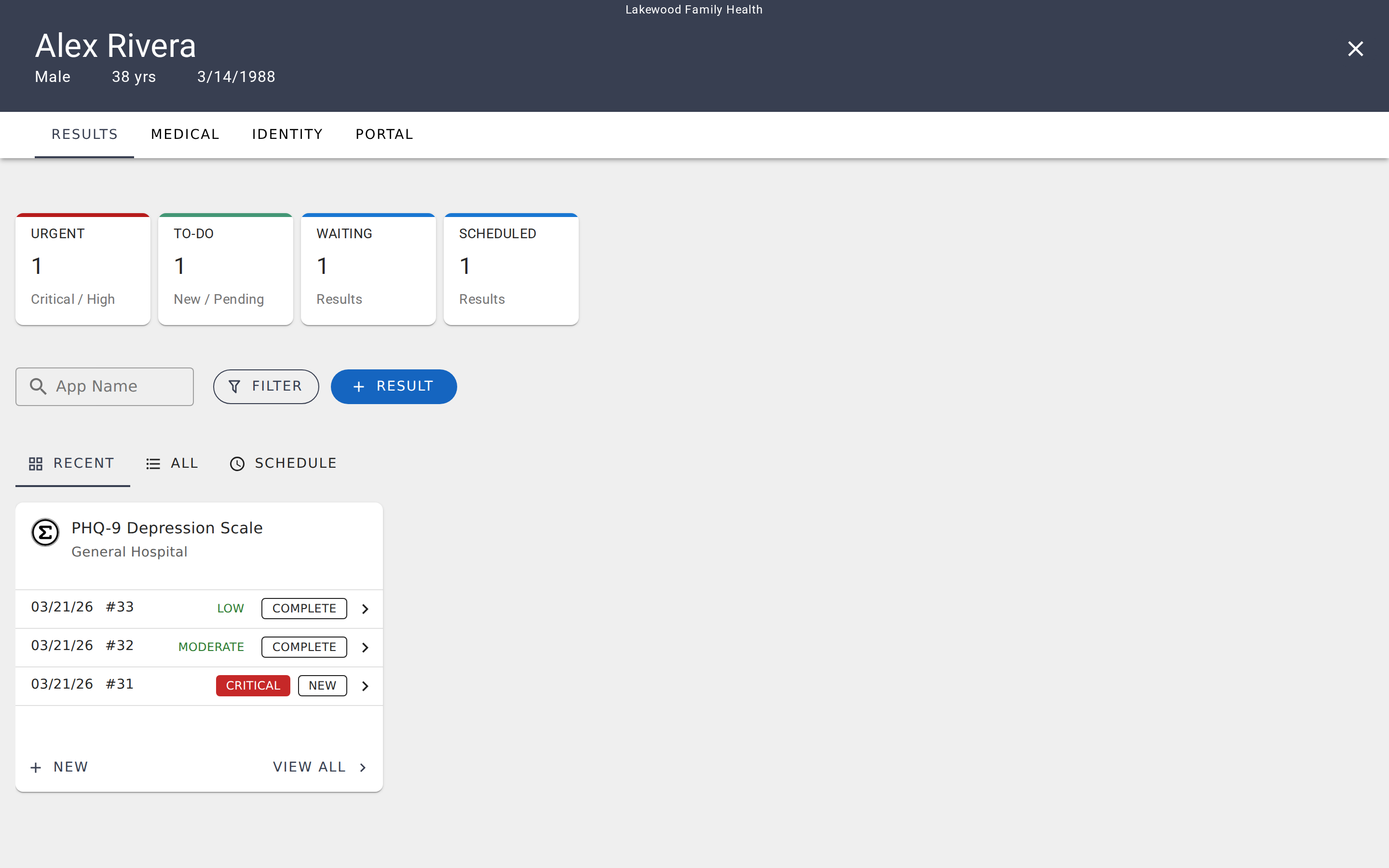
- Results — All evaluation results for this patient, organized by evaluation. This is where you review scores, run new assessments, and track progress over time.
- Medical — Clinical data including allergies, diagnoses, medications, lab results, vitals, and procedures. Especially useful when connected to an EHR.
- Identity — Personal information, addresses, communication preferences, identifiers, and classifications.
- Portal — Patient portal connection settings. Available for real patients only — this is where you manage how the patient accesses their own evaluations and results.
How to navigate to a chart
There are three common paths to open a patient's chart:
From a care panel. Click any result row in a care panel's Results tab, and you'll go directly to that patient's chart with the result open. This is the fastest path when you're triaging incoming results.
From the Patients page. Navigate to Patients in the sidebar, find the patient you're looking for, and click their name. This opens their chart starting on the Results tab.
From an EHR launch. If your organization uses an EHR integration, launching EVAL from a patient's record in your EHR opens their chart automatically with the patient already in context.
To close a chart and return to where you came from, click the X button in the upper-right corner of the chart header.