

Reviewing results
The Results tab
The Results tab shows every evaluation result for a patient — organized so you can quickly find what you need, whether that's the latest screening score or a result from three months ago. This is the tab you'll spend the most time in when reviewing individual patients.
At the top of the tab, summary cards give you the same at-a-glance overview you see in Care Panels, but scoped to this single patient:
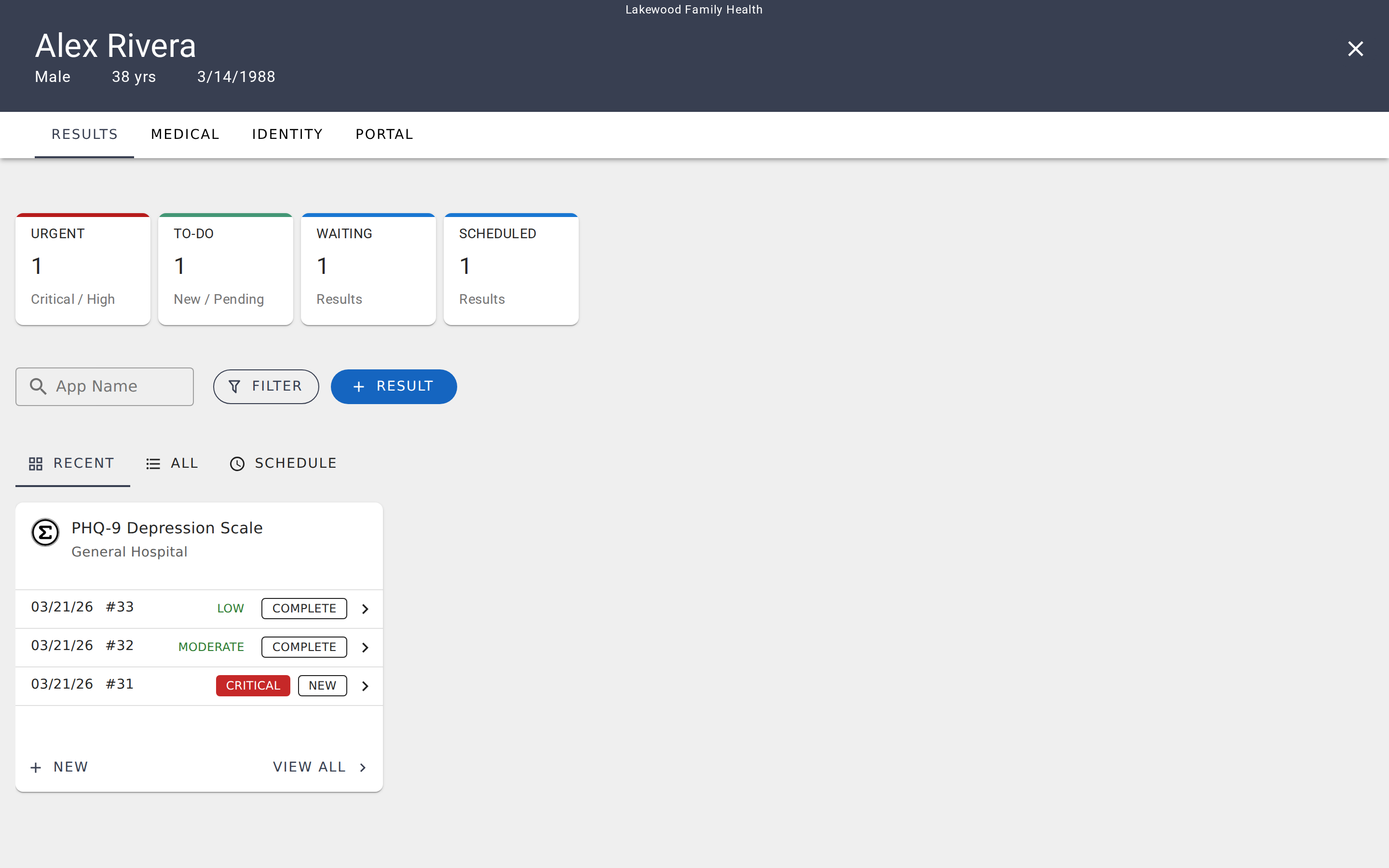
- Urgent — Results with Critical or Urgent priority that are still unresolved (New or Pending status).
- To-Do — All results with New or Pending status, regardless of priority. Your total unresolved count for this patient.
- Waiting — Evaluations sent to the patient that haven't been completed yet.
- Scheduled — Active scheduled evaluations (real patients only).
Click any summary card to instantly filter the results list to that subset — the same one-click triage workflow you use in Care Panels, but focused on a single patient.
Recent, All, and Schedule views
Below the summary cards, three tabs organize the patient's results in different ways.
Recent view
The Recent view organizes results into cards grouped by evaluation. Each card shows the evaluation name, a Patient badge if the evaluation is patient-facing, the publisher name, and the most recent results with their dates, priority, and status.
This is the best view for a quick check — you can see at a glance whether the patient's latest PHQ-9 is trending better or worse than the previous one. Each card also gives you quick actions:
- New — Start a new evaluation for this patient immediately.
- Schedule — Set up a recurring assessment (for patient-audience evaluations).
- View All — Switch to the full result list for that specific evaluation.
All view
The All view is a single chronological list of every result for this patient, regardless of which evaluation it came from. Each row shows:
- Date and time — When the result was submitted.
- Result number — A sequential identifier (e.g., #1, #2, #3) for each result.
- Evaluation name — Which evaluation was completed.
- Reported by — Whether the result was submitted by a practitioner or the patient. If the result has a panel assignment, the assignment stage name appears here as well (e.g., "Ready for Doctor").
- Priority — The clinical urgency level. Critical and Urgent show in red; "None" appears when no priority has been set.
- Status — Where the result stands in your review process (New, Pending, Complete, Invalid).
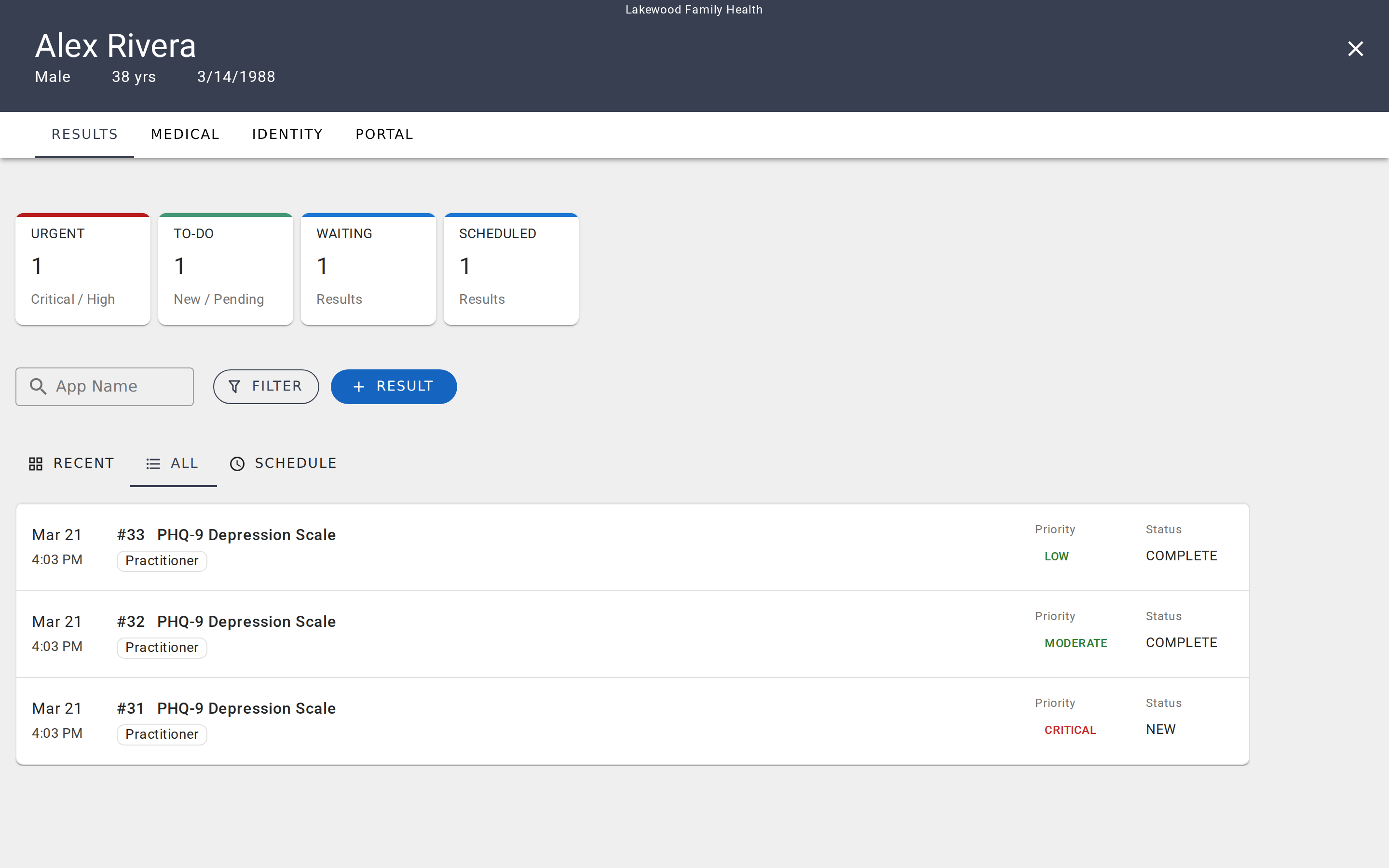
Click any result row in either view to open the full evaluation response with scoring details, comments, and history.
Schedule view
The Schedule tab shows evaluations that are actively scheduled for this patient. On the left, you'll see waiting results — evaluations that have been sent but not yet completed. On the right, active schedules display the evaluation name and recurrence pattern (e.g., "Repeats every day").
This tab connects to Scheduling assessments at the care panel level. Schedules created from a care panel appear here in the patient's chart, and vice versa.
Searching and filtering
Above the results list, a search field lets you filter by evaluation name. Type part of a name — "PHQ" or "anxiety" — and the list updates instantly to show only matching evaluations.
For more specific filtering, click the Filter button to open the filter drawer. You can filter by:
- Evaluation — Narrow to specific assessments.
- Priority — Show only results at a particular urgency level.
- Status — Focus on New, Pending, Complete, or Invalid results.
- Assignment — Filter by panel assignment, if the patient belongs to care panels with assignments configured.
These filters work the same way as Care Panel filters — the only difference is they're scoped to this one patient instead of an entire panel.
Starting a new evaluation
Click the Result button (or the New button on a Recent card) to start a new evaluation for this patient. You'll be taken to the evaluation player, where you complete the assessment and save the result. See Running an evaluation for the full workflow.
Understanding priority and status
Priority and status work the same way across EVAL — whether you're looking at a result in a care panel or in a patient's chart. Priority indicates clinical urgency (Critical, Urgent, Moderate, Low, or no priority), and status tracks your review progress (New, Pending, Complete, Invalid).
The canonical definitions for all priority levels and status values are in Tracking results. From a patient's chart, you can change both the priority and status of any result when you open it.
Real-time updates
Results update in real time. If a patient completes an evaluation while you have their chart open — for example, through a public intake or the patient portal — the new result appears automatically without you needing to refresh the page. The summary card counts update as well, so your triage numbers are always current.