

Patient identity and demographics
What the Identity tab shows
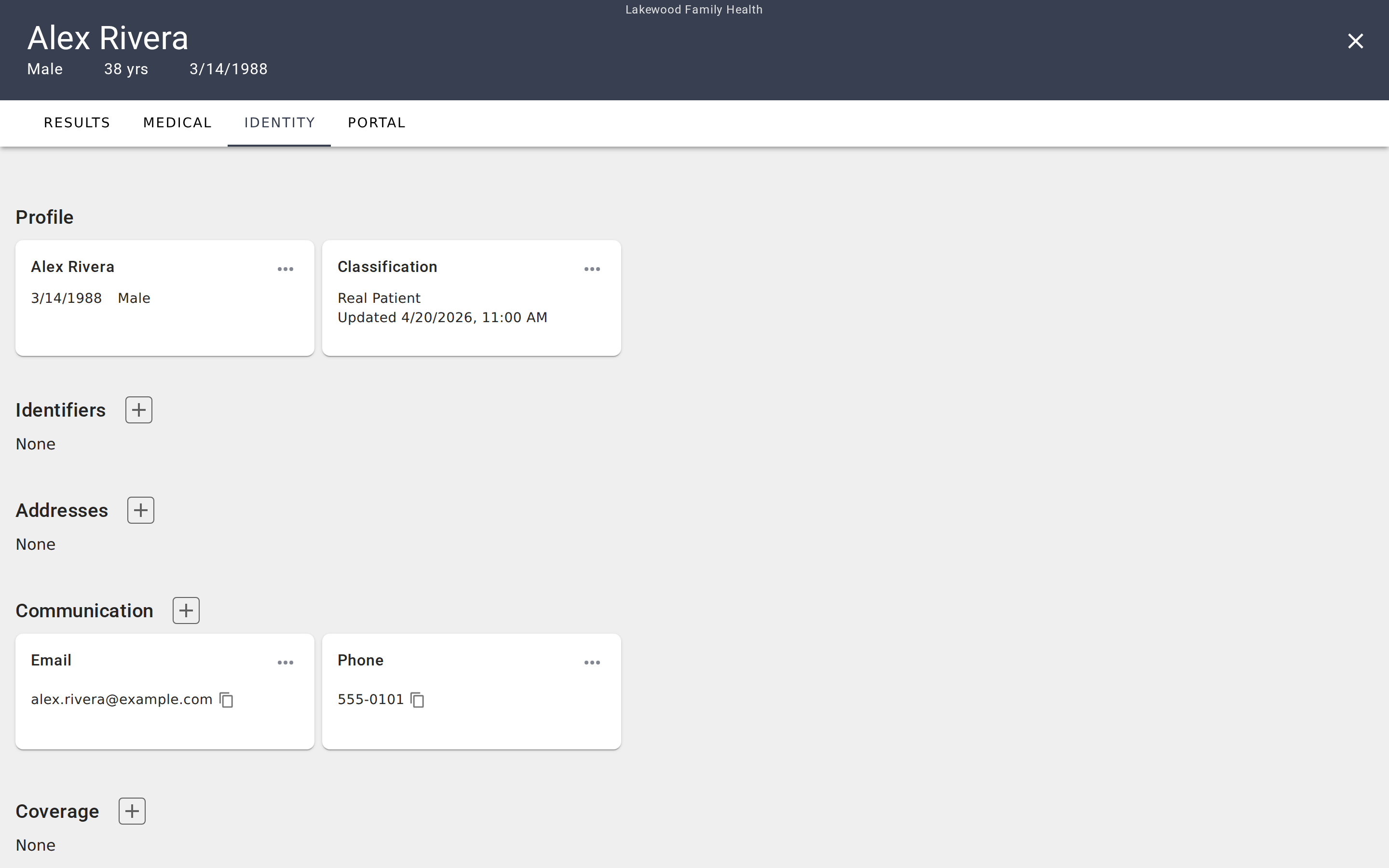
The Identity tab is where you manage everything about who a patient is — their name, date of birth, gender, contact information, addresses, and external identifiers like medical record numbers. While the Results tab focuses on evaluation outcomes and the Medical tab captures clinical data, the Identity tab holds the demographic foundation that ties everything together.
The tab is organized into six sections, each displayed as a group of cards:
- Profile — Name, date of birth, gender, and race.
- Classification — Whether this is a real patient or a simulated record.
- Identifiers — External IDs like medical record numbers (MRNs) and integration keys.
- Addresses — Home and mailing addresses.
- Communication — Phone numbers, email addresses, and other contact methods.
- Insurance — Health plan carriers, policies, and plan holder details.
At the bottom of the page, a Danger Zone section provides access to patient deletion.
Profile
The Profile card shows the patient's name, date of birth, and gender. Click the ⋯ menu and select Edit to update these details. The profile dialog includes fields for first name, middle name, last name, birth date, gender, and race. Gender options are Male, Female, Other, and Unknown.
The patient's name and birth date appear in the dark header bar at the top of every chart tab, so updates here are reflected across the entire chart immediately.
Classification
Every patient in EVAL is classified as either a Real Patient or a Simulated Patient. This classification determines how EVAL handles the record:
- Real patients represent actual people. Their records contain genuine demographic information and are subject to privacy protections.
- Simulated patients are system-generated records used for testing, training, and demonstration. EVAL generates a fictional name and birth date based on the age range you select.
Click the ⋯ menu on the Classification card to switch between classifications. The card also shows when the classification was last updated.
Identifiers
Identifiers connect a patient's EVAL record to external systems. Click the + button to add an identifier. Each identifier has a type and a value:
- Medical Record Number (MRN) — The patient's record number in your clinic's primary system. This is the most common identifier type and is essential for EHR integrations.
- External Key — A generic identifier for linking to other systems, research databases, or custom integrations.
To edit or remove an identifier, click the ⋯ menu on its card and choose Edit or Delete. Deleting an identifier asks for confirmation before removing it. If your organization uses an EHR integration, adding the patient's MRN is what allows EVAL to match records between systems.
Addresses
The Addresses section stores physical locations for the patient. Click + to add an address. Each address includes a type (Home or Mailing), street lines, city, postal code, state or province, and country. Country is the only required field — all others are optional, so you can record as much or as little location detail as you have.
Existing addresses can be edited or deleted from the ⋯ menu on each card.
Communication
Communication cards hold the patient's contact information. Click + to add a new contact method. The available types are:
- Phone — Landline number, formatted automatically.
- Mobile Phone — Cell number, also formatted automatically.
- Email — Validated for email format.
- WhatsApp — A WhatsApp-compatible number.
- Other — Any other contact method.
Each card displays the contact type and value, with a copy-to-clipboard icon for quick access. Edit or remove entries from the ⋯ menu.
Insurance
The Insurance section stores the patient's health plan coverage. Each card records the insurance carrier name, policy number, group number, member ID, and the plan holder's name, birth date, and relationship to the patient. A patient can have more than one active plan on file — a primary and a secondary, for example — and each one appears as its own card.
Click + to add a coverage record. Existing entries can be edited or deleted from the ⋯ menu on each card, with a confirmation step before any deletion.
Coverage also arrives automatically from evaluations. When a patient completes a form that includes an Insurance Plan question linked to the patient chart, the submitted insurance is added here as a new entry. These submissions are additive — existing records are never overwritten, so you can review and remove outdated entries if a patient resubmits their insurance with a correction.
EHR-connected patients
When a patient's record originates from an EHR integration, the Identity tab behaves differently. All sections become read-only — you can view the patient's demographics, identifiers, addresses, communication entries, and insurance, but the + buttons and ⋯ edit menus are hidden. Changes to these records must be made in the source EHR, and EVAL reflects those updates on the next sync.
A banner at the top of the tab shows which EHR system the patient is connected to, when data was last refreshed, and a Refresh button to pull the latest information on demand.
Danger Zone
At the bottom of the Identity tab, the Danger Zone section lets you schedule a patient record for deletion. EVAL uses a soft-delete model — clicking Schedule Delete does not remove the record immediately. Instead, the patient is hidden from your active patient list and permanently deleted after 30 days.
Deleting a patient requires typing the confirmation phrase "delete patient" before the action proceeds. This safeguard prevents accidental deletions.
If a patient has been scheduled for deletion, the Danger Zone changes to show the number of days remaining before permanent removal and a Restore link to cancel the deletion and bring the patient back to your active list.
Getting started
Medical data types
Reference for each medical data type — diagnoses, medications, allergies, vitals, labs, and procedures — including fields, statuses, and coding systems.
Patient portal connections
Invite patients and caregivers to access the Patient Portal, manage connection permissions, and track invitation status.