

Running an evaluation
Starting an evaluation
To run an evaluation for a patient, open their chart and click the Result button in the Results tab. You can also click New on any evaluation card in the Recent view to start that specific evaluation. Either way, the evaluation player opens within the chart — you stay in the patient's context throughout the process.
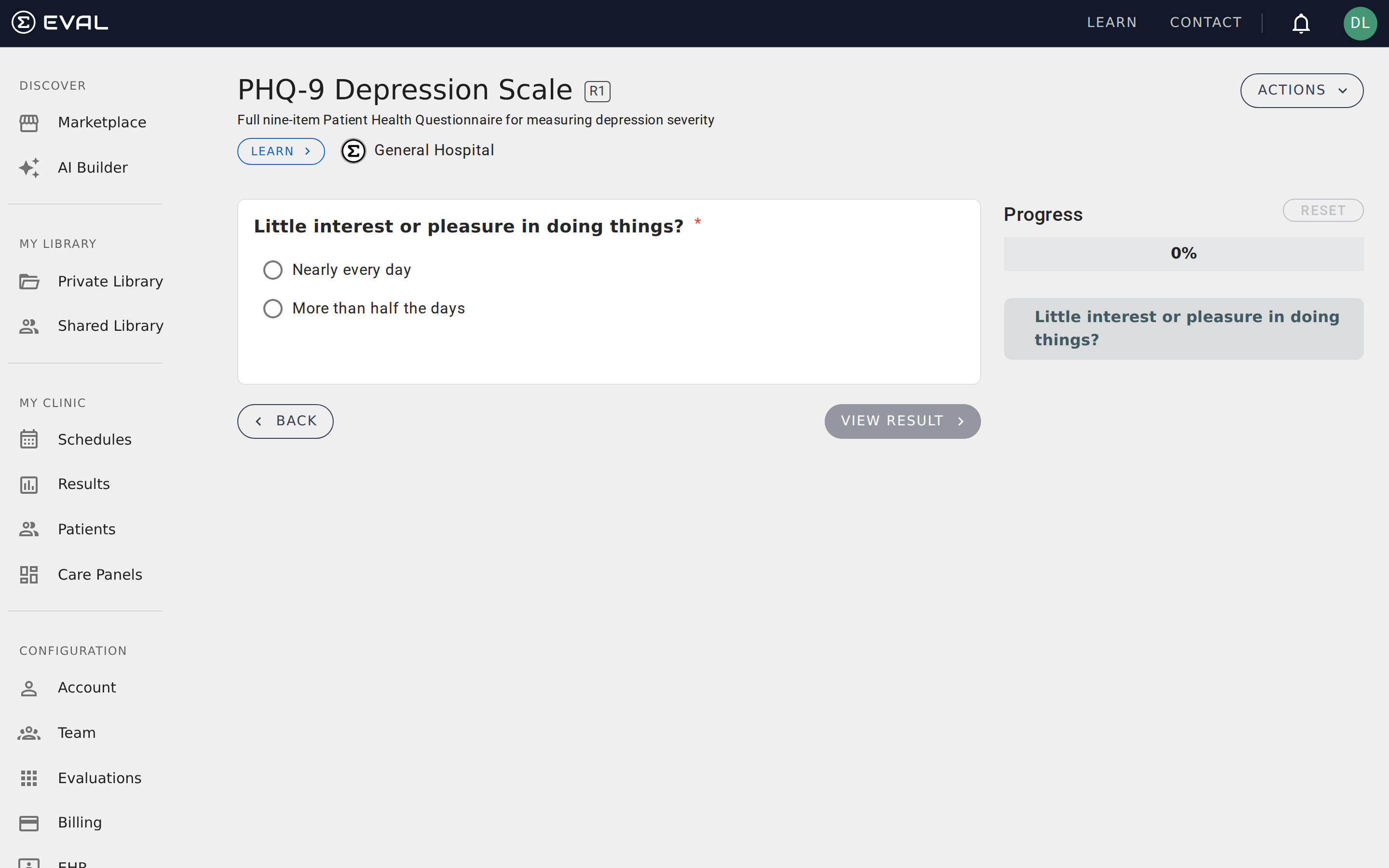
The player presents the evaluation's questions one section at a time. Answer each question, and scoring calculations run automatically based on the evaluation's configured formulas. If the evaluation has visibility rules, some questions may appear or disappear based on your earlier answers.
Pre-fill from the chart
Chart-linked questions pre-fill from the patient's record. Edits to the first linked field of each type save to the chart on submit; later same-type fields stay local. Submitted insurance adds a new coverage record without overwriting existing ones.
Completing and saving
When you finish the last question, the evaluation displays a summary of the results — scores, calculated values, and any priority level determined by the scoring logic. Below the summary, you'll see controls to set the result's priority and status before saving.
Priority and status
The evaluation's scoring formulas may automatically suggest a priority level based on the patient's responses. You can accept this suggestion or override it manually using the Priority dropdown. The same applies to Status — new results default to New, but you can set them to Pending or Complete if you've already reviewed the result during administration.
If the patient belongs to any care panels with assignments configured, you'll also see an Assignment dropdown. This lets you assign the result to a specific workflow stage — for example, routing it to a nurse review queue or a physician sign-off step.
The save dialog
Click Save to open the save dialog. This is your last step before the result is recorded in the patient's chart.
The dialog shows your name, credentials (if configured), and the current date and time — confirming who is saving this result and when.
Comment. An optional text field where you can add clinical notes, observations, or context about this evaluation. Comments are visible to anyone who reviews this result later and appear in the result's activity log.
Sign and lock this result. A checkbox that, when selected, locks the result after saving. Signing means:
- Your name and timestamp are permanently attached to the result as the signer.
- No one can change the evaluation answers after signing — the clinical data is frozen.
- Priority, status, assignments, and comments can still be updated by anyone with access.
- Only the original signer can re-edit the answers if needed.
Click Save (or Save & Sign if you've checked the signature box) to record the result. The result immediately appears in the patient's Results tab, in any care panels they belong to, and in the organization-wide Results page.
Viewing a completed result
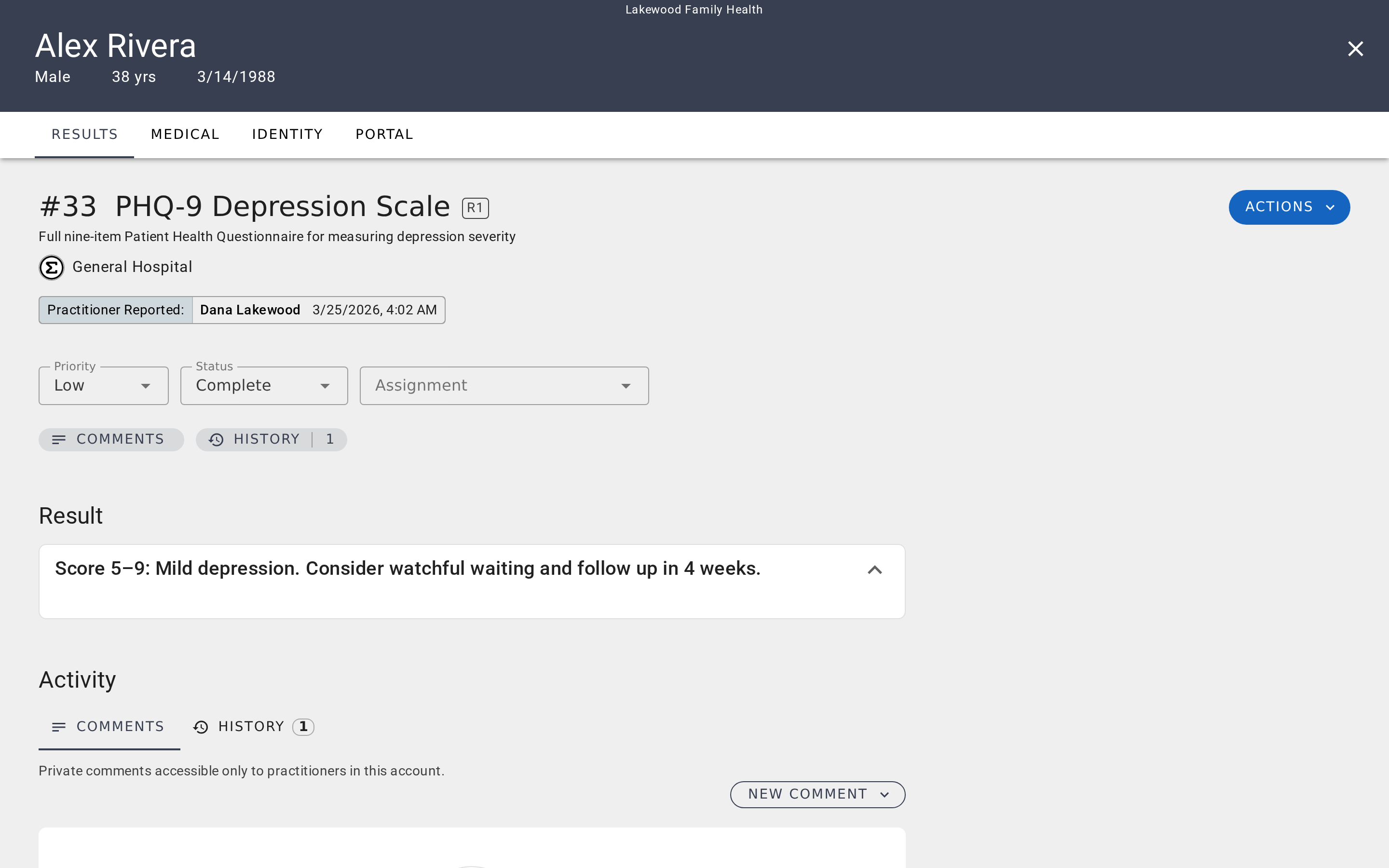
After saving, or when you click any existing result from the Results tab, the evaluation player opens in view mode. You'll see the complete evaluation with all questions, answers, and calculated scores — but the fields are read-only.
Reported by badge
At the top of the result, a badge indicates who submitted it and when:
- Patient Reported — The patient completed this themselves through the patient portal or a public intake.
- Practitioner Signed — A practitioner completed and signed this result. Shows the signer's name and credentials.
- Practitioner Reported — A practitioner completed this result without signing.
Priority, status, and assignment
Below the evaluation summary, the priority, status, and assignment dropdowns remain editable even on completed results. You can update these at any time to reflect your review — for example, changing a result from New to Complete after you've reviewed it, or escalating the priority if clinical judgment warrants it.
Actions on a completed result
Click the Actions button on a completed result to access additional options:
- Download — Export the result as a PDF. Opens a download dialog where you can choose formatting options. Useful for printing, sharing with colleagues, or filing in external systems.
- Edit Result — Re-opens the evaluation in edit mode so you can modify answers. If the result was previously signed, editing will require you to re-sign when saving.
- Delete Result — Permanently removes the result from the patient's chart. You'll be asked to confirm before deletion.
Comments
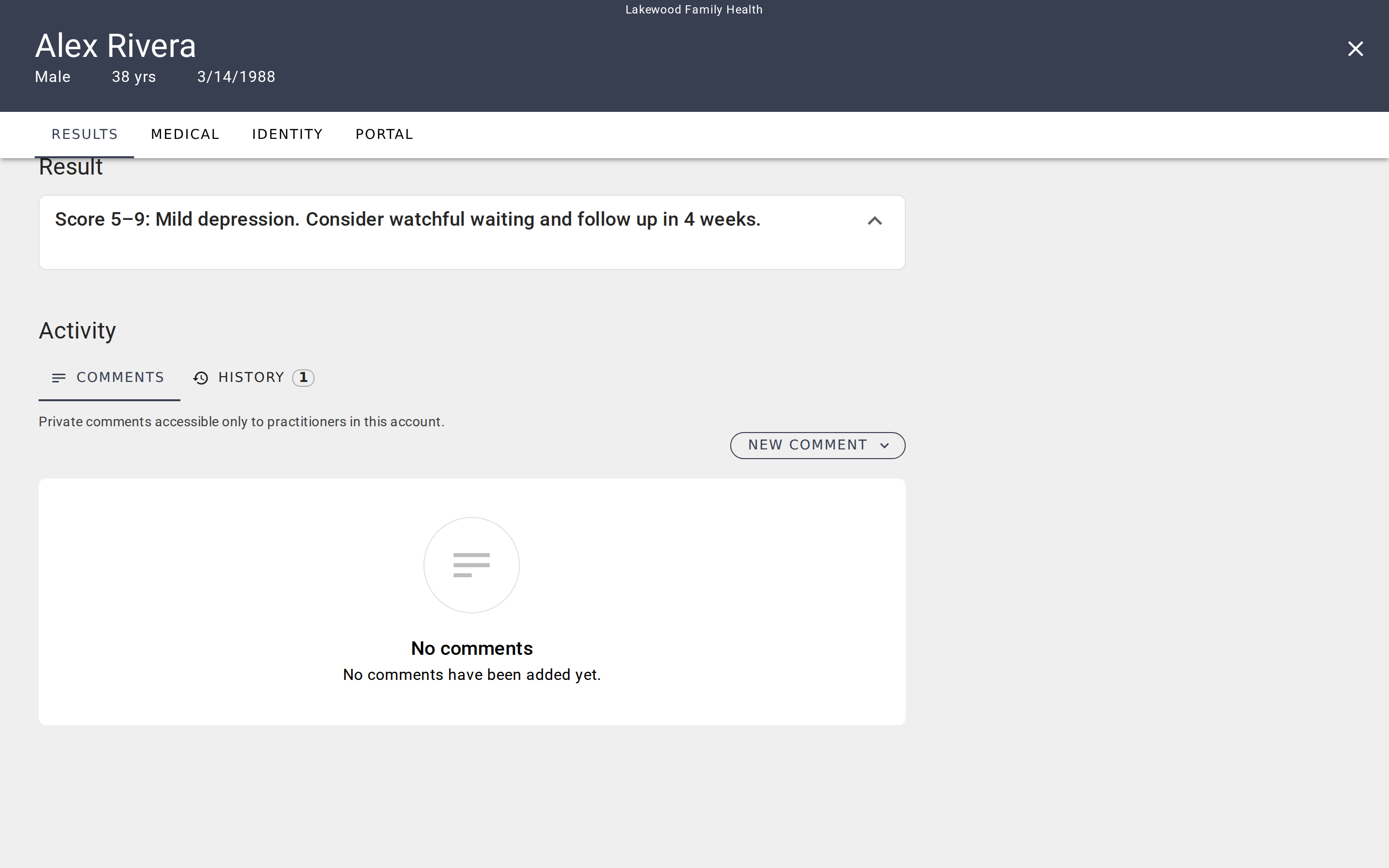
The Comments section below the evaluation lets you and your team add notes to a result — clinical observations, flags for colleagues, or follow-up decisions.
Comments are private to practitioners — patients cannot see them, even through the portal. Each comment shows who wrote it, their credentials, and when it was posted. You can edit or delete your own comments but not others'.
History
The History tab provides a complete audit trail of everything that has happened to a result since it was created. Each entry shows who made the change, when, and what was modified — including saves, re-saves, priority changes, status updates, assignment changes, and signature events.
History entries cannot be edited or deleted. They serve as a permanent record of the result's lifecycle, which is important for clinical compliance and quality assurance workflows.
Working with results across the platform
Results flow through the rest of EVAL automatically:
- Care Panels show the same results with the same priority and status. Changes sync immediately in both directions.
- The Results page (under My Clinic) provides an organization-wide view. Status and priority changes here update charts and panels too.
- Notifications fire based on notification rules configured on care panels.
- The patient portal shows results to the patient if their portal account is connected.
What happens when you save
When you click Save (or Save & Sign), several things happen beyond just storing the result.
What gets recorded
EVAL persists the complete evaluation state: every answer, all calculated scores, the evaluation revision identifier (linking the result to the specific version used), and the result's priority, status, and assignment. The system records who created the result, their credentials, and the exact timestamp.
The history log
Every save creates a changelog entry — "Created" for the first save, "Updated" for subsequent saves, "Signed" for signature events. Status, priority, and assignment changes each create their own entries. All entries include the user's full name, credentials, and timestamp, forming the permanent audit trail visible in the History tab.
Signature rules
A result can be signed up to five times. After the first signature, only the original signer can edit the evaluation answers — other team members can still change priority, status, assignment, and comments, but the clinical data is locked. Each additional save by the signer requires re-signing.
Side effects of saving
Saving triggers three downstream processes:
- Panel notifications — Notification rules on any care panel the patient belongs to are evaluated against the result. Every matching rule sends an email.
- Real-time updates — Team members viewing a care panel that includes this patient see the result appear instantly.
- Schedule advancement — If submitted for a scheduled assessment, the schedule engine recalculates next occurrence dates automatically.
Who can edit and delete
Only the result's creator (or an Account Administrator) can update or delete it. This prevents accidental modification by team members who didn't administer the assessment.
Reviewing results
View evaluation results in a patient's chart, check priority and status, and track progress across assessments over time.
Medical information
View and manage a patient's clinical data — diagnoses, medications, allergies, vitals, labs, procedures, and vital status — including EHR sync behavior.