

Patients overview
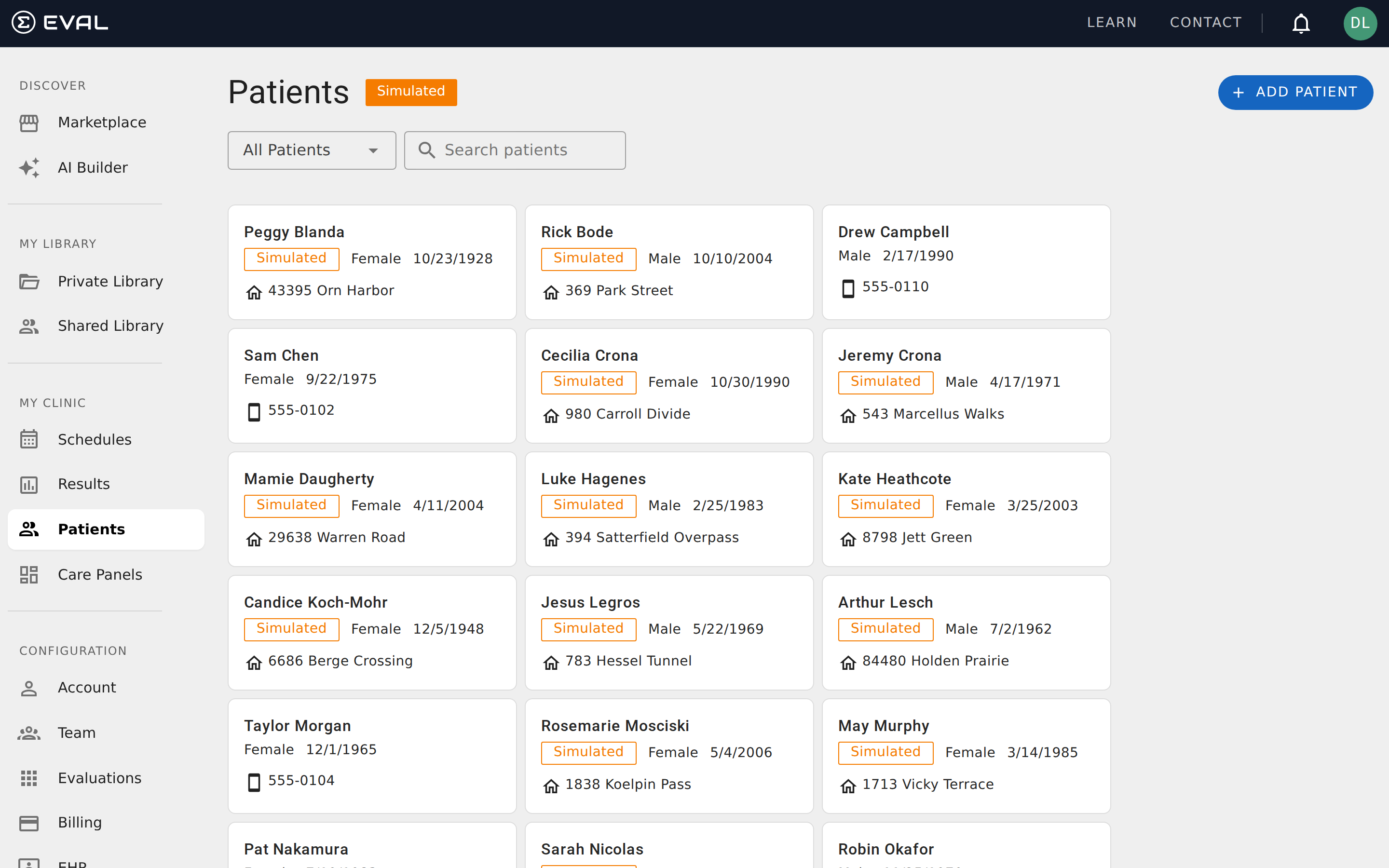
The Patients page gives you a single view of every patient record in your organization, regardless of which Care Panel they belong to. Instead of switching between panels to find someone, you can search across all patients, review recently viewed records, and manage deleted patients — all from one place.
You'll find Patients in the sidebar under My Clinic.
Finding patients
The search bar at the top of the page filters patients as you type. Enter any part of a patient's name, and the list narrows instantly — no need to press Enter. This is especially helpful when your organization has hundreds or thousands of patient records and you need to locate someone quickly.
Viewing patient lists
A dropdown next to the search bar lets you switch between three views of your patient records.
All Patients shows every active patient record in your organization. This is the default view when you open the Patients page. Patient cards appear in a grid, each showing the patient's name, gender, date of birth, and one contact detail — an address, phone number, or email, whichever is available first. Patients created for testing purposes display an orange Simulated badge.
Recent shows patients whose charts you've recently viewed. This is a quick way to return to a patient you were just working with without remembering their name or searching for them.
Deleted shows patients that have been soft-deleted. These records are scheduled for permanent deletion after a retention period, but they can still be restored. See Managing patients for details on the delete and restore process.
Click any patient card to open their full chart, where you can view results, medical information, identity details, and portal settings.
Adding a patient
Click + Add Patient in the upper right corner to create a new patient record. EVAL guides you through a search-first workflow designed to prevent duplicate records — you'll search your existing patients before creating someone new.
The creation flow offers up to three paths depending on your organization's setup:
New Patient Record creates a patient directly in EVAL. You'll enter the patient's first name, last name, date of birth, and gender. This is the standard path for organizations that manage patient demographics within EVAL.
New Simulated Patient creates a test patient with fictional data. You only need to specify an age range and gender — EVAL generates the rest. Simulated patients are clearly marked throughout the application so they're never confused with real patient records.
Import from EHR pulls a patient's demographics from your connected electronic health record system. This option only appears if your organization has an active EHR integration. See EHR integrations for setup details.
Getting started
Common workflows
Follow end-to-end walkthroughs for clinical screening programs, research cohort studies, and waiting room screening using Care Panel features.
Managing patients
Create, search, delete, and restore patient records in EVAL, including real patients, simulated test patients, and EHR imports.