

Question types
Overview
EVAL offers 13 question types, each designed for a specific kind of data capture. When you create or edit a question, the Input Variant dropdown organizes them into three groups: general data capture, person information, and contact information.
This page covers the type-specific configuration for each variant. For the common fields shared by all questions (title, description, optional toggle, media, visibility rules), see Questions.
General question types
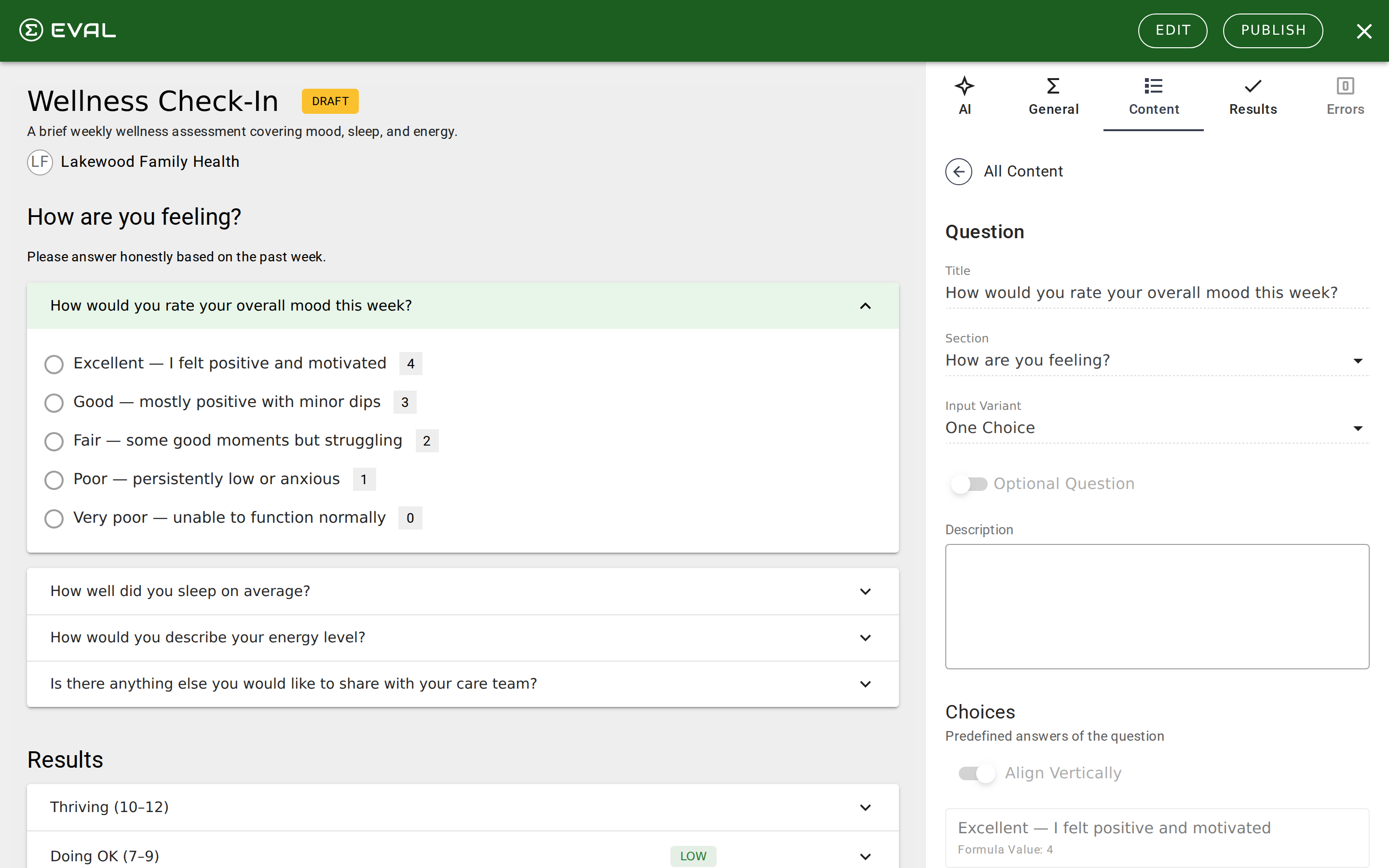
One Choice
Presents a list of answer options where the user selects exactly one. This is the most common question type — used for screening questions, severity ratings, yes/no questions, and any situation where only one answer is valid.
Each choice has a title (what the user sees) and an optional formula value (used in scoring calculations). The Align Vertically toggle controls whether choices stack vertically or display horizontally. You can add, reorder, duplicate, and delete choices from the choice list.
Multiple Choices
Same as One Choice, but the user can select more than one answer. Useful for symptom checklists, medication lists, or any question where multiple responses apply.
Multiple Choices adds the Exclusive toggle on individual choices. When a choice is marked as exclusive, selecting it deselects all other choices — perfect for "None of the above" or "Not applicable" options that should stand alone.
Number
Captures a numeric value within an optional range. Use this for vital signs, lab values, pain scales, or any measured quantity.
The Number type adds a Number Constraints section with:
- Whole Numbers Only — Restricts input to integers (no decimals).
- Minimum and Maximum — Set the valid range. EVAL validates that the user's entry falls within these bounds.
Units of Measure let you define measurement units for the question. The first unit you add becomes the base unit (used in formula calculations). Additional units require a conversion value — for example, if your base unit is kilograms, you might add pounds with a conversion value of 2.205.
Date
Captures a date or date and time. The Date type adds two toggles:
- Include Time — When enabled, the input captures both date and time instead of just a date.
- Visual Date Picker — When enabled, users can select from a calendar widget instead of typing the date manually.
Text
Captures free-text responses. The Text type adds a Text Length setting that controls how much the user can write:
- Short Answer — A single-line input with a 300-character limit.
- Moderate Answer — A multi-line input with a 1,000-character limit.
- Long Answer — A larger text area with a 2,000-character limit.
Person information types
These question types capture structured personal data. Each one includes a Link to Patient Chart toggle — when enabled, the answer is stored as part of the patient's chart. When the evaluation runs inside a patient chart or an authenticated patient portal session, linked questions also pre-fill from the existing chart data, so respondents don't re-type what's already on file.
Person Name
Captures a first name, middle name, and last name in structured fields. Use this when you need a patient's or caregiver's name in a standardized format rather than a free-text entry.
Gender
Presents a predefined list of three gender options: Male, Female, and Other. The choices are fixed — you cannot add, remove, or modify them. This ensures consistent gender data collection across evaluations.
Birth Date
Captures a date of birth in a structured date input. Like all person information types, it can be linked to the patient's identity record.
Signature
Captures an electronic signature where the signer types their name or initials. The Signature type adds a Signature Style radio with two options: Full Name (the default) is a wide input used for primary consent and authorization signatures, and Initials is a narrow input capped at a few characters, used for "initial each item" attestation patterns common in healthcare consent forms.
An optional Agreement Statement field (up to 1,000 characters) adds text displayed above the signature field — typically consent language or an attestation statement that the signer agrees to by signing. The statement works with either signature style.
Insurance Plan
Captures a patient's insurance coverage in a single bundled question. The Insurance Plan type collects the insurance carrier name, policy number, group number, and member ID, plus the plan holder's name, birth date, and relationship to the patient (self, spouse, parent, and so on).
When the question is linked to the patient chart, the plan holder's information pre-fills from the patient's own record during an authorized session — the carrier, policy, group, and member fields stay empty for the respondent to fill in. Submitted insurance is added to the patient's Insurance records — see Patient identity and demographics for how those records are managed. Existing insurance on the chart is never overwritten; new submissions create new records.
Contact information types
These types capture structured contact data. Like person information types, each includes the Link to Patient Chart toggle.
Address
Captures a full mailing address with structured fields for street (two lines), city, state/province, postal code, and country.
Phone Number
Captures a phone number with area code and country code validation.
Captures and validates an email address format.
Choosing the right type
For most clinical evaluations, you'll primarily use One Choice, Multiple Choices, and Number — these handle the vast majority of clinical data capture. The person information and contact information types are most useful in patient intake forms, enrollment questionnaires, insurance collection, and any evaluation that needs to gather or verify demographic data.
When building a standard screening tool or validated instrument, stick to the general types. When building intake forms or registration flows, combine general types with person and contact types to create a complete data collection experience.
Getting started
Questions
Add questions to your evaluation to capture patient data — configure titles, choices, descriptions, visibility rules, and media for each question type.
Results and scoring
Define what happens after someone completes your evaluation — calculate clinical scores with formulas or display guidance with information results.