

Build a PHQ-9 depression screener
The PHQ-9 (Patient Health Questionnaire-9) is one of the most widely used depression screening tools in clinical practice. In this tutorial, you'll build a fully functional PHQ-9 evaluation in EVAL — complete with nine scored questions, a total score formula, severity categories, and conditional result display. By the end, you'll have a published evaluation ready to assign to patients.
This tutorial covers the core Builder workflow: creating an evaluation, adding sections and questions, writing scoring formulas, configuring results with visibility rules, and publishing.
Prerequisites: An EVAL account on any plan (including Community). No existing evaluations or patients required.
Time: 20–30 minutes.
Create the evaluation
Navigate to Private Library in the sidebar and click + New Eval. Enter the following details on the General tab:
- Title: PHQ-9 Depression Screen
- Description: Patient Health Questionnaire for screening and measuring severity of depression. Scores range from 0 to 27.
EVAL generates a URL slug automatically from the title. You can customize it, but the default works fine for this tutorial. See General settings for details on the other fields.
Add the screening section
Switch to the Content tab and click Add Section. Name it "Depression Screening" — this section will contain all nine PHQ-9 questions. A single section is appropriate here because the PHQ-9 presents all questions on one page without branching.
See Sections for more on when to use multiple sections.
Create the nine questions
Inside the Depression Screening section, add nine One Choice questions. Each question asks how often the patient has been bothered by a specific problem over the last two weeks. The PHQ-9 uses the same four response options for every question:
- Not at all (value: 0)
- Several days (value: 1)
- More than half the days (value: 2)
- Nearly every day (value: 3)
The nine question stems are:
- Little interest or pleasure in doing things
- Feeling down, depressed, or hopeless
- Trouble falling or staying asleep, or sleeping too much
- Feeling tired or having little energy
- Poor appetite or overeating
- Feeling bad about yourself — or that you are a failure or have let yourself or your family down
- Trouble concentrating on things, such as reading the newspaper or watching television
- Moving or speaking so slowly that other people could have noticed — or the opposite, being so fidgety or restless that you have been moving around a lot more than usual
- Thoughts that you would be better off dead, or of hurting yourself in some way
For each question, add the four choice options and assign the numeric values (0, 1, 2, 3). Mark each question as required so the score calculation always has complete data.
Add the total score formula
Switch to the Results tab and click Add Result. Choose Formula Result and name it "Total Score." Open the Formula Editor and enter a formula that sums all nine question values:
Q1 + Q2 + Q3 + Q4 + Q5 + Q6 + Q7 + Q8 + Q9
Reference each question by its variable name (shown in the Formula Editor's autocomplete). The total score will range from 0 to 27. See Formula Editor for the full expression syntax.
Add severity category results
The PHQ-9 maps total scores to five severity categories. Add five Information Results that display the appropriate category based on the score. Name each result after its severity level and add a visibility rule so only one displays at a time:
- Minimal depression — visible when Total Score is 0–4
- Mild depression — visible when Total Score is 5–9
- Moderate depression — visible when Total Score is 10–14
- Moderately severe depression — visible when Total Score is 15–19
- Severe depression — visible when Total Score is 20–27
For each information result, write a brief clinical description. For example, the "Moderate depression" result might say: "A score of 10–14 suggests moderate depression. Consider treatment with pharmacotherapy and/or psychotherapy."
Add a visibility rule to each result by clicking its settings and configuring a condition based on the Total Score value. See Visibility rules for how to set up these conditions.
Test with scenarios
Before publishing, verify your scoring logic using scenario testing. Create at least three test scenarios:
- All zeros — Patient selects "Not at all" for every question. Expected total: 0. Expected category: Minimal depression.
- All threes — Patient selects "Nearly every day" for every question. Expected total: 27. Expected category: Severe depression.
- Mixed responses — A realistic mix of responses. Verify the total and category are correct.
Run each scenario and confirm the results match your expectations. See Scenario testing for details on creating and running scenarios.
Preview and publish
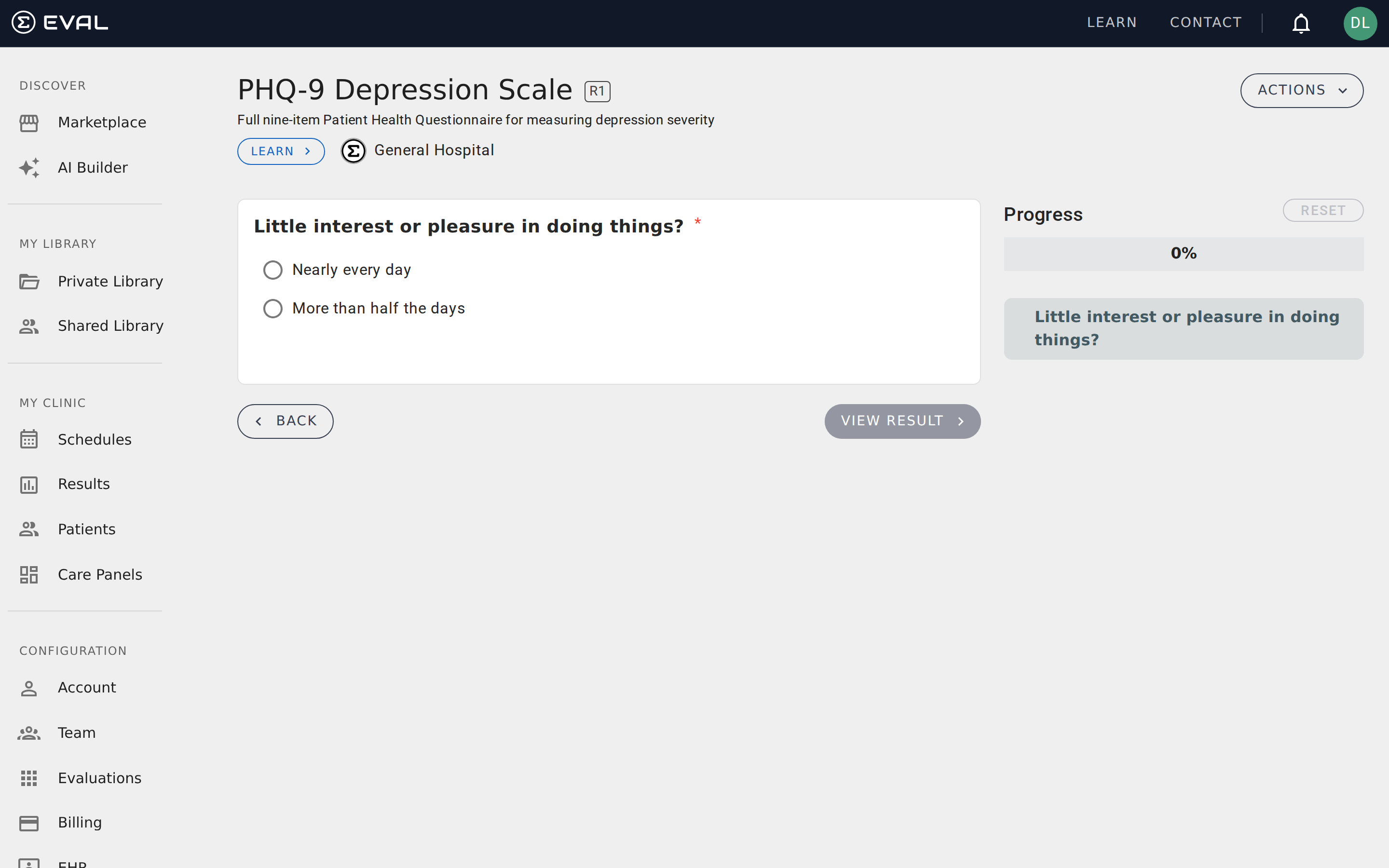
Click Preview to walk through the evaluation as a patient would experience it. Verify that questions display correctly, the response options are clear, and the results show the right severity category for your test answers.
When everything looks right, click Publish. Your PHQ-9 is now available in your Private Library and can be assigned to patients, added to Care Panels, or deployed through schedules.
What's next
Now that your PHQ-9 is published, you can:
- Assign it to a patient — Open a patient's chart and run the evaluation from the Results tab. See Running an evaluation.
- Add it to a Care Panel — Set the PHQ-9 as a default evaluation on a Care Panel to track depression scores across a patient population. See Creating and configuring panels.
- Schedule recurring screenings — Create a schedule that automatically assigns the PHQ-9 to patients at regular intervals. See the scheduled assessment tutorial.
- Share with your team — Adjust permissions to make the evaluation available to your entire organization. See Permissions.
101: Basic Evaluation with Visibility Rules
Build a branching clinical decision support evaluation in the EVAL Builder, following a five-step methodology with the URECA algorithm as a worked example.
Set up a care panel
Create a care panel for a patient population, add patients, schedule assessments, configure notifications, and review incoming results.