

Sections
What sections do
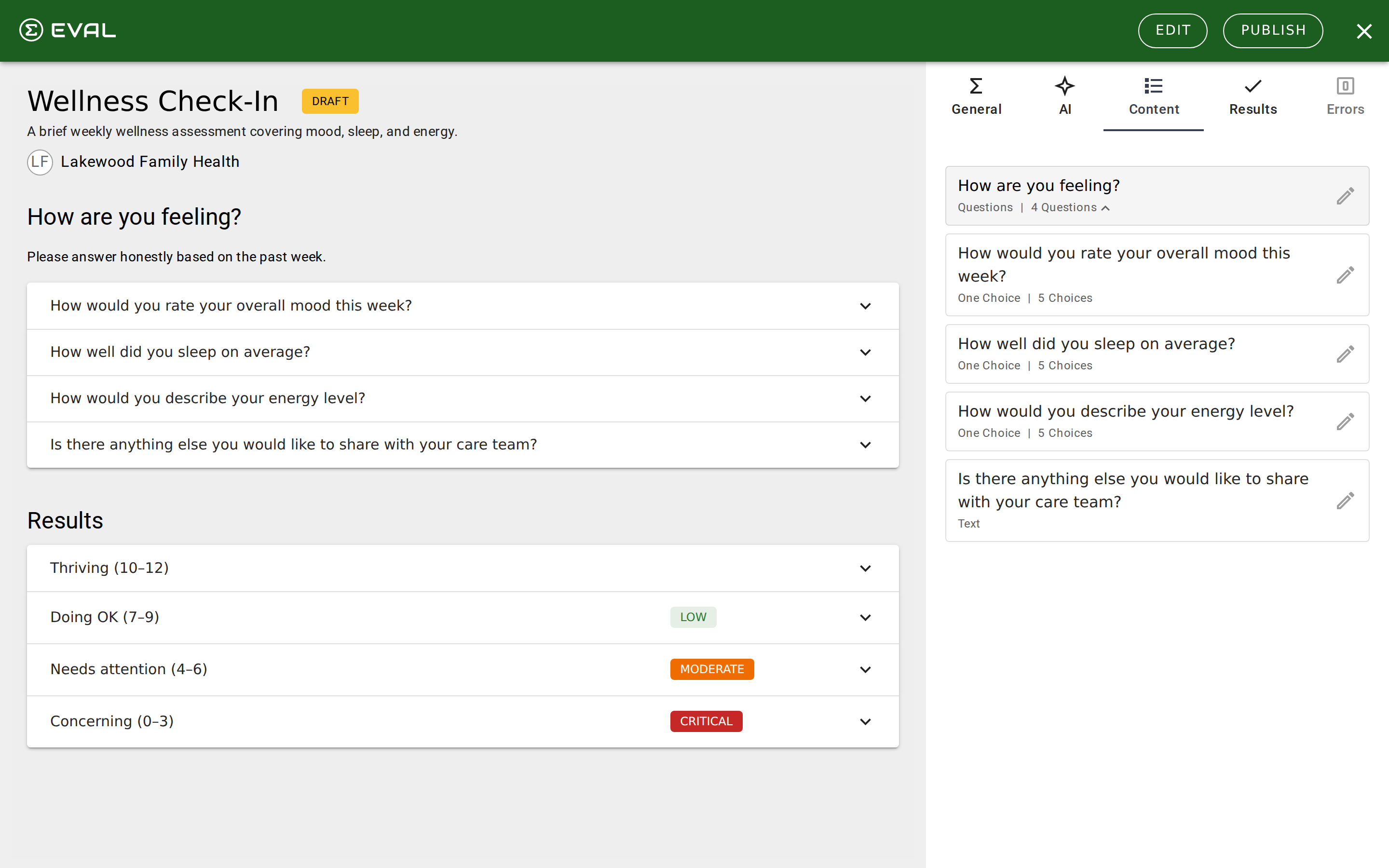
Sections are the top-level containers that organize your evaluation's content. Every evaluation has at least one section, and most have several — each grouping related questions or educational content into a logical unit that makes sense to the person completing the evaluation.
When someone completes your evaluation, they move through sections in order. How that movement feels depends on the section's presentation setting: all content on a single page, or one item at a time in a step-by-step flow.
Section variants
The Variant setting determines what kind of content a section holds. You choose the variant when creating the section, and it shapes the entire editing experience:
Questions is the most common variant. The section contains questions that capture data — clinical scores, patient responses, demographic information, or anything else you need to collect. Most sections in most evaluations use this variant.
Information turns the section into an educational container. Instead of questions, it holds topics — each of which can contain articles with rich text content, media, and their own visibility rules. Use Information sections for consent forms, patient education, clinical guidelines, or reference material that the user reads but doesn't respond to.
EVAL App lets you embed an existing evaluation from your library inside this section. This is powerful for building composite assessments — you can embed a validated instrument like the PHQ-9 inside a larger intake evaluation. The embedded content appears seamlessly within your evaluation but its questions and scoring remain linked to the original.
Presentation modes
Single page shows all of the section's content at once, stacked vertically. This works well for short sections where the user benefits from seeing everything in context — like a quick screening with three questions.
Item per page presents each question (or topic/article) on its own page, creating a wizard-like flow. Users advance through items one at a time with navigation controls. This is better for longer sections, timed assessments, or when you want to prevent users from skipping ahead.
Configuring a section
Click the ✏ edit icon on a section card to open its editor. The section detail view shows:
- Title — The heading that appears when users complete the evaluation (up to 100 characters). The Show title in the player header toggle controls whether it appears prominently.
- Description — Rich text instructions or context shown above the section's content.
- Media — Attach images (PNG, GIF, JPEG up to 5 MB) or YouTube videos that appear alongside the section content. Each section can hold up to 15 media items.
- Visible When... — Conditional rules that control when this section appears. The first section is always visible; subsequent sections can be shown or hidden based on answers to earlier questions.
Topics and articles
When a section uses the Information variant, it contains topics instead of questions. Each topic has a title, description (rich text body), and can hold nested articles for deeper content.
Topics and articles each support media attachments and visibility rules, just like questions. You can create up to 30 topics per section and 30 articles per topic. The Display title toggle on each topic and article controls whether its heading is shown to users.
Managing sections
Every section's ⋯ menu provides three actions:
- Move — Reorder the section using the up/down arrow dialog.
- Duplicate — Copy the section with all its contents (questions, topics, media, and rules). The copy is named "Copy of original title."
- Delete — Remove the section permanently. A confirmation dialog protects against accidental deletion.
The Danger Zone at the bottom of the section editor also provides a delete option for the section you're currently editing.
Getting started
Content tab
Build your evaluation's structure on the Content tab — create sections, add questions, organize topics, and control what's visible with conditional rules.
Questions
Add questions to your evaluation to capture patient data — configure titles, choices, descriptions, visibility rules, and media for each question type.