

Formula editor
What the formula editor does
The formula editor is where you write the logic that powers your evaluation's calculations. It's used in two places: formula results (to compute clinical scores) and visibility rule conditions (to write true/false logic that controls when elements appear). The same editor and syntax work in both contexts.
EVAL's formula engine supports standard spreadsheet syntax — if you've written formulas in Excel or Google Sheets, you already know the basics. You reference your evaluation's questions through keywords, build expressions with arithmetic and functions, and EVAL computes the result in real time.
The three components
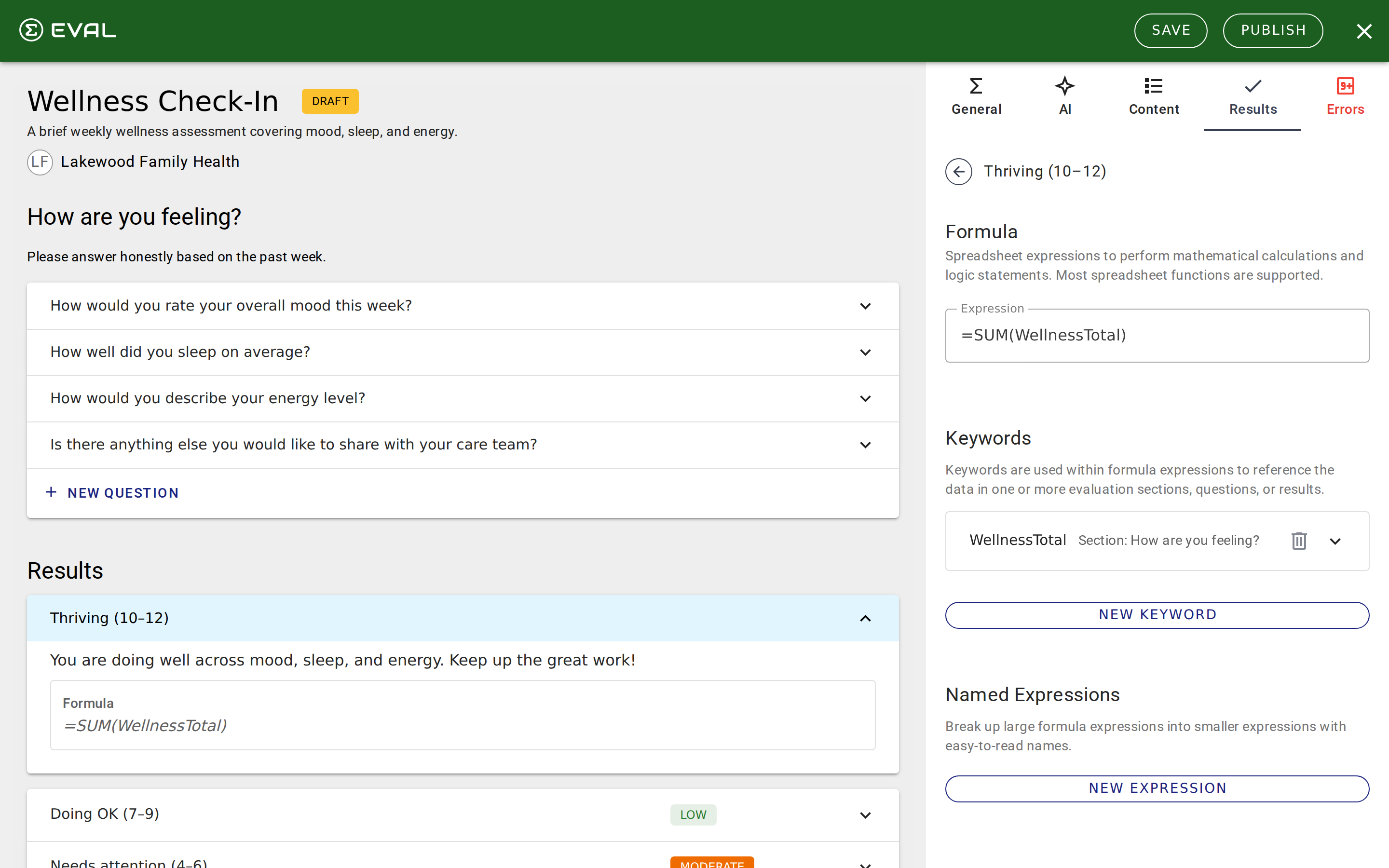
The formula editor has three sections that work together to define your logic. When you open the formula editor by clicking the Expression field on a formula result, you'll see all three sections in one view: the Expression at the top, Keywords in the middle, and Named Expressions at the bottom.
Expression
The expression is your main formula — the calculation that produces the final output. You write it in a text area using standard spreadsheet syntax. For formula results, the expression produces a numeric value (or text). For visibility rules, it must evaluate to true or false.
Expressions can reference keywords and named expressions by name, use arithmetic operators, call built-in functions, and return text or numbers. The expression field supports up to 2,000 characters.
Keywords
Keywords connect your formula to the data in your evaluation. Each keyword has a name (letters and underscores only — like PainScore or Patient_Age) and one or more sources that link it to specific elements in your evaluation. Click a keyword to expand it and see its configuration.
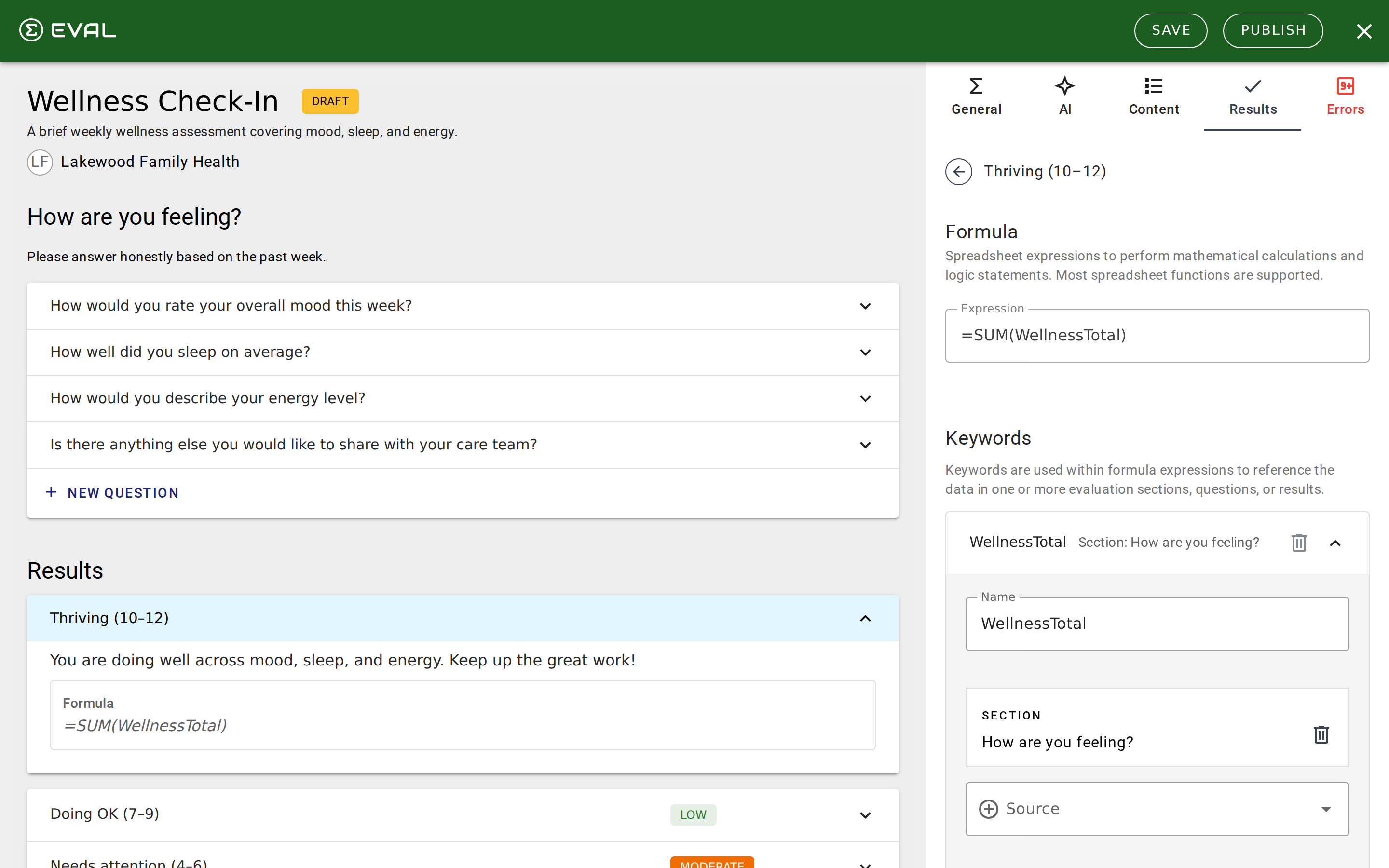
Sources can reference:
- Questions — The answer value (numeric, text, date, or selected choice)
- Choices — A specific answer option within a question (returns the formula value if selected, nothing if not)
- Sections — All questions in a section as a range (useful for aggregate functions like SUM)
- Results — The computed value of another result (enabling result chaining)
Use the Source dropdown to browse your evaluation's structure and select the element each keyword references.
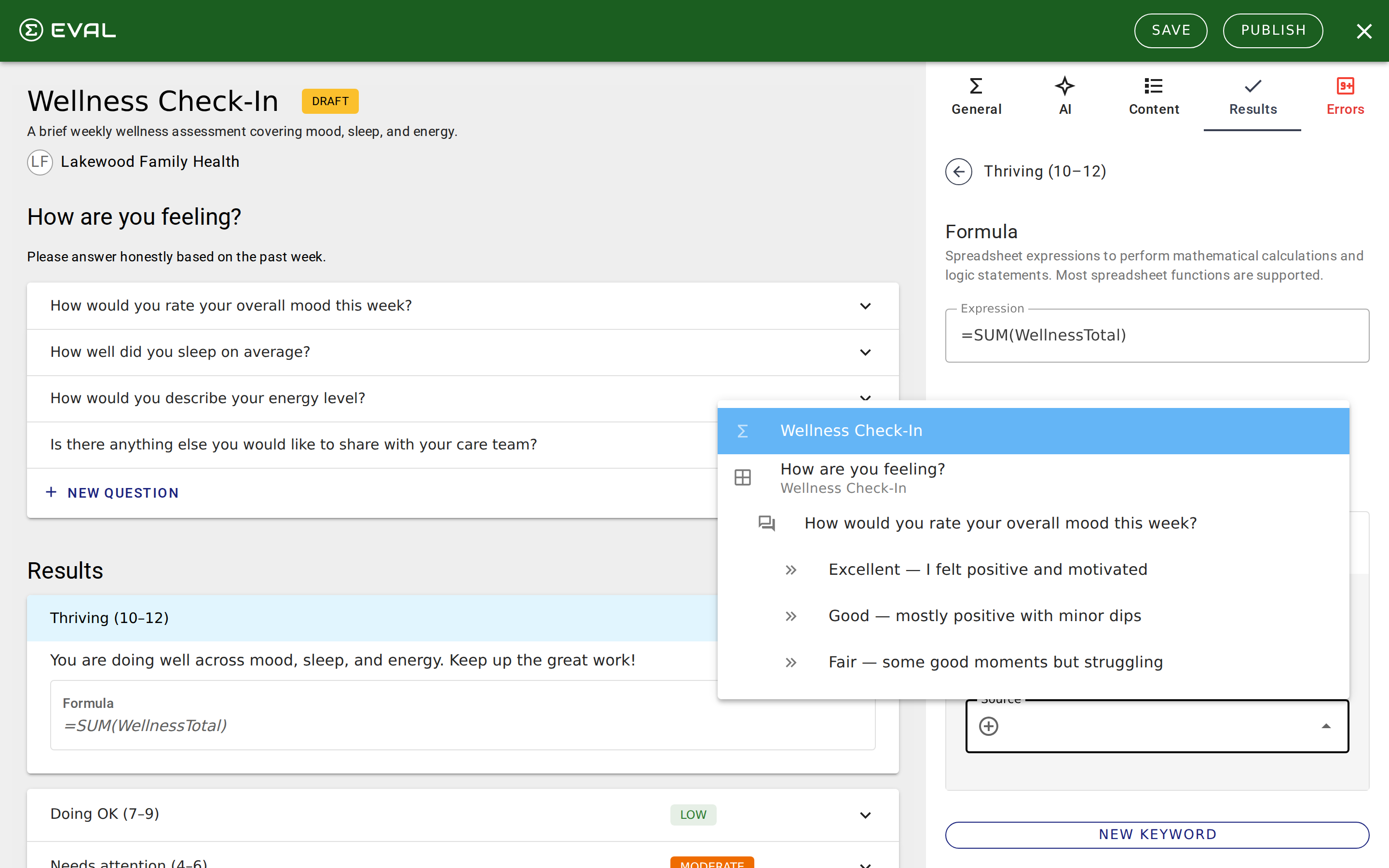
When a keyword has multiple sources, it becomes a range — letting you use aggregate functions like =SUM(MyKeyword) or =AVERAGE(MyKeyword).
PatientAge is clearer than Q1, and SeverityScore is better than Result_A. Your future self (and anyone maintaining this evaluation) will appreciate it.Named expressions
Named expressions let you break complex formulas into smaller, reusable pieces. Instead of writing one long expression, you create intermediate calculations with meaningful names, then reference them in your main expression.
Each named expression has a name (same letter-and-underscore rules as keywords), an expression (up to 2,000 characters), and an optional comment for documentation. Named expressions are validated independently — if one has an error, it's flagged separately from the main expression.
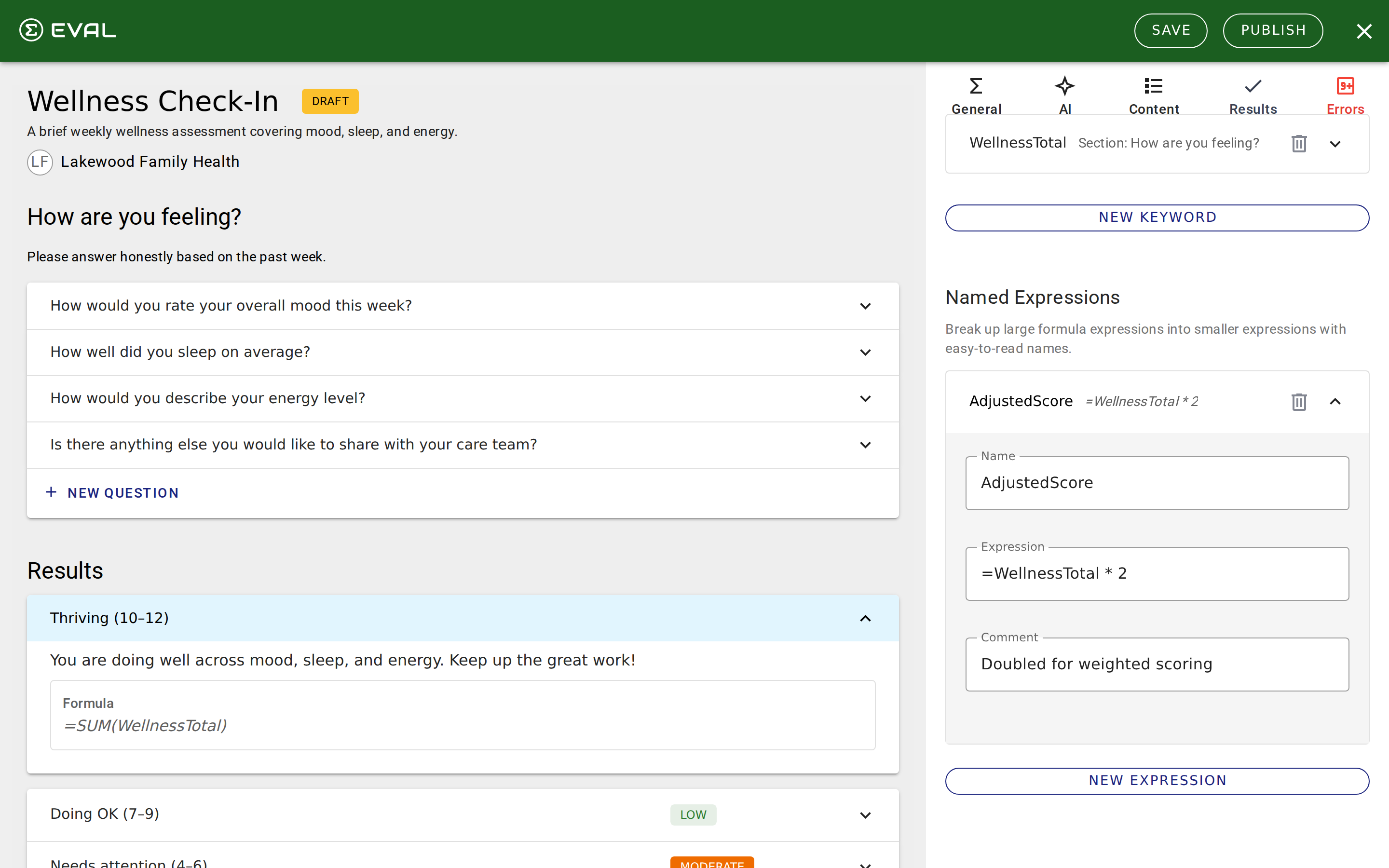
For example, a GFR calculator might have named expressions for GenderCoefficient, AgeAdjustment, and CreatinineRatio — each computing an intermediate value that the main expression combines into the final GFR.
Writing expressions
Operators
EVAL supports all standard spreadsheet operators:
- Arithmetic:
+(add),-(subtract),*(multiply),/(divide),^(power) - Comparison:
=(equals),<>(not equal),<,>,<=,>= - Text:
&(concatenate strings) - Grouping: Parentheses
()for controlling evaluation order
Built-in functions
The formula engine is powered by a full spreadsheet calculation engine, giving you access to hundreds of built-in functions. The most commonly used in clinical evaluations include:
Logic: IF(condition, then, else), AND(), OR(), NOT(), IFS(), SWITCH(), IFERROR()
Math: SUM(), ROUND(), ROUNDUP(), ROUNDDOWN(), ABS(), MIN(), MAX(), MOD(), SQRT(), POWER()
Statistics: AVERAGE(), MEDIAN(), COUNT(), COUNTA(), COUNTIF(), SUMIF()
Text: CONCATENATE(), LEFT(), RIGHT(), MID(), LEN(), UPPER(), LOWER(), TRIM(), TEXT()
Information: ISBLANK(), ISERROR(), ISNUMBER(), ISTEXT()
Most functions you'd use in Excel or Google Sheets work here. If you're unsure whether a specific function is supported, try it — the editor validates your expression and shows an error if the function isn't recognized.
Example formulas
A simple sum of question scores:
=SUM(Q1_Score, Q2_Score, Q3_Score)
A conditional score interpretation:
=IF(TotalScore >= 20, "Severe", IF(TotalScore >= 10, "Moderate", "Mild"))
A BMI calculation:
=Weight / (Height * Height)
A percentage calculation:
=ROUND((CorrectAnswers / TotalQuestions) * 100, 1)
How question data flows into formulas
When a keyword references a question, the formula receives the question's answer value. How that value looks depends on the question type:
- Number questions provide their numeric value directly
- One Choice questions provide the selected choice's formula value (or the choice title if no formula value is set)
- Multiple Choices questions provide an array of selected formula values (useful with aggregate functions)
- Date questions provide a date serial number (compatible with spreadsheet date functions)
- Text, Email, Phone questions provide the text string
Validation and errors
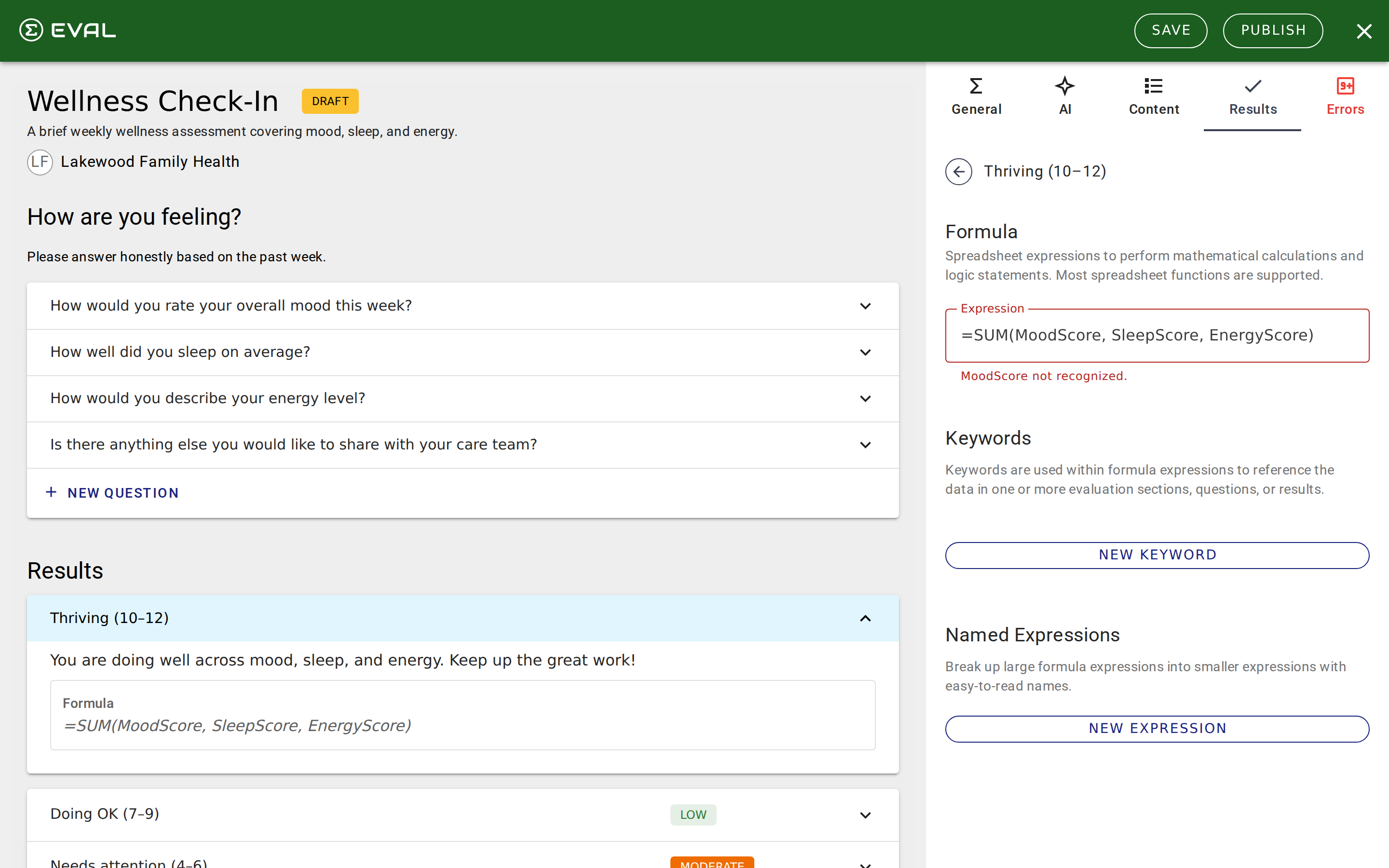
The formula editor validates your expression in real time as you type (with a brief delay). If there's a problem, an error message appears in red below the expression field. The Errors tab in the top navigation also lights up red when validation issues are present.
Common validation errors include:
- Unrecognized references — The expression uses a name that doesn't match any keyword or named expression
- Circular reference — An expression cannot reference itself, either directly or through a chain of named expressions and keywords
- Syntax errors — Invalid function names, mismatched parentheses, or malformed expressions
- Boolean requirement — In visibility rule formulas, the expression must evaluate to
trueorfalse
In the example below, the expression references MoodScore but no keyword with that name has been created yet. The error text identifies the unrecognized reference, and the Errors tab turns red to indicate the formula isn't valid.
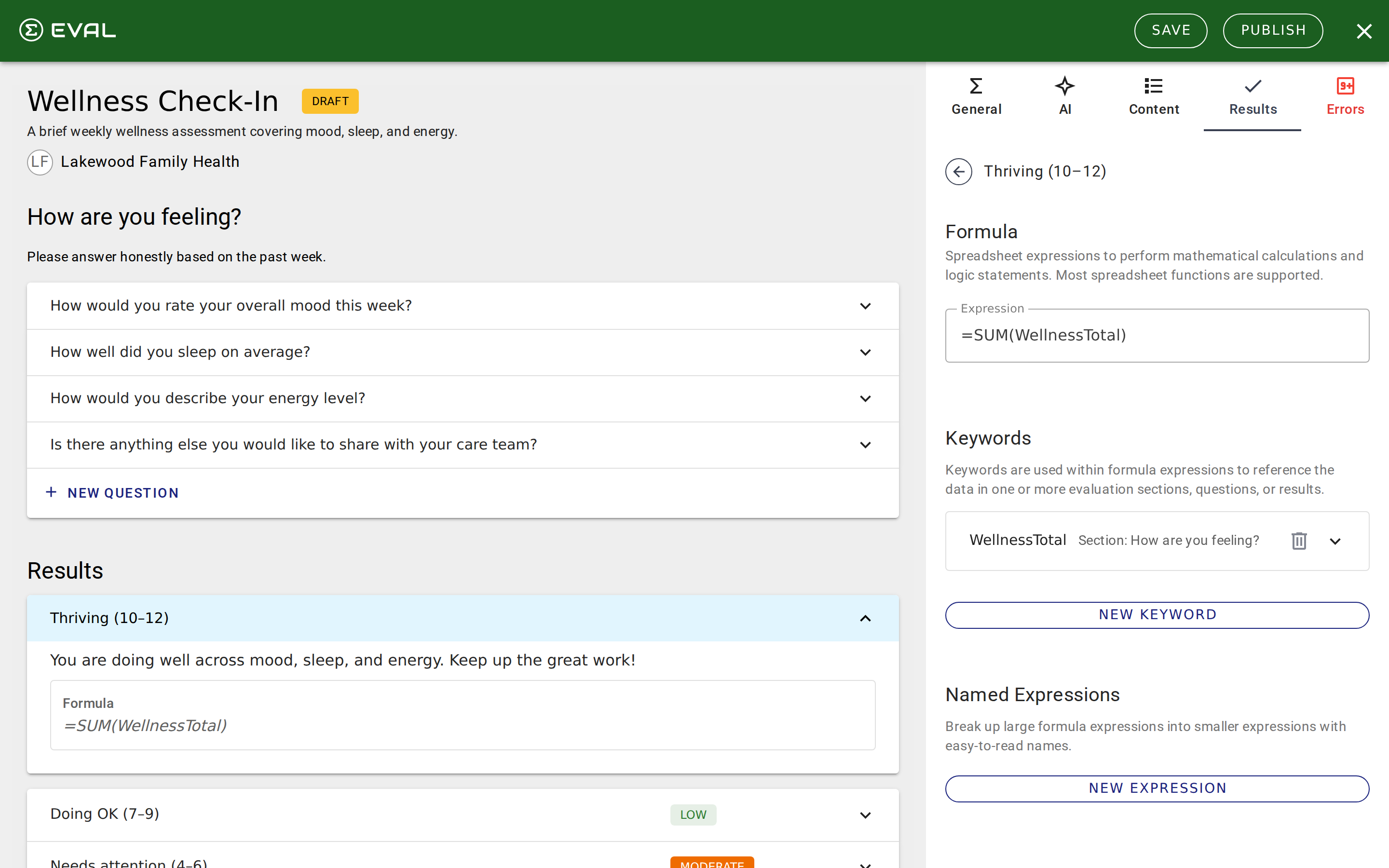
Each named expression is validated independently, so you can pinpoint exactly where a problem exists in complex formulas. Once all keywords are properly configured and the expression is syntactically correct, the error indicator disappears.
How the formula engine works
Understanding how EVAL evaluates your formulas helps you write more effective expressions and troubleshoot unexpected results.
The spreadsheet model
Formulas are evaluated using a full spreadsheet calculation engine. When you save a formula, EVAL builds an internal spreadsheet: your main expression goes in cell A1, each keyword maps to a data row below it, and named expressions become spreadsheet-level named references. The engine then evaluates cell A1 — just like a spreadsheet recalculating a formula cell.
This is why spreadsheet functions like SUM(), IF(), and COUNTIF() work exactly as they do in Excel — the formula engine supports the same operator precedence, function library, and cell reference model.
How keywords become data
Each keyword is resolved to a spreadsheet row by looking up its sources in the current evaluation state. For a question source, the engine reads the answer value. For a choice source, it reads the choice's formula value only if that choice is selected — unselected choices contribute nothing. For a section source, every question in the section is flattened into a cell range, enabling aggregate functions like =SUM(SectionKeyword).
When a keyword has a single source, the named reference points to one cell. With multiple sources (or a multi-select question or section), it becomes a range — which is why aggregate functions work automatically.
Date handling
Date questions are converted to Excel-compatible serial numbers before entering the spreadsheet. This means date arithmetic functions like DATEDIF() and DAYS() work as expected. The serial number represents days since the standard spreadsheet epoch, matching Excel and Google Sheets date behavior.
Validation with simulated data
When you validate a formula, EVAL generates simulated test data: random numbers within each question's min/max range, the first choice selected for choice questions, sample text for text fields, and today's date for date questions. This lets the engine check syntax and function validity without requiring actual evaluation responses.
Caching
The engine caches compiled spreadsheet instances based on each formula's static structure. When the same formula is re-evaluated with different answers — as happens during live evaluation play — only the data cells are updated rather than rebuilding the entire spreadsheet. This makes real-time formula evaluation fast even with complex scoring logic.
#NAME? errors in formulas that reference optional choices — the formula evaluates cleanly whether or not the choice is selected.Getting started
Results and scoring
Define what happens after someone completes your evaluation — calculate clinical scores with formulas or display guidance with information results.
Scenario testing
Validate your evaluation's formulas and visibility rules by defining test cases with known inputs and expected outputs before publishing.