

Visibility rules
What visibility rules do
Visibility rules make your evaluation respond to the person completing it. Instead of showing every section, question, and result to everyone, you define conditions that control which elements appear based on earlier answers or computed results. A well-designed evaluation feels shorter and more relevant because it only asks questions that matter for each patient's situation.
You can attach visibility rules to sections, questions, individual choices, topics, articles, and results — almost every element in your evaluation. When a rule's conditions are met, the element appears; when they aren't, it stays hidden.
How rule logic works
Rules use a combination of OR and AND logic:
- Within a rule, all conditions must be true (AND logic). If a rule has three conditions, all three must be satisfied for the rule to trigger.
- Between rules, any one rule being true is enough (OR logic). If an element has three separate rules, it appears when any single rule's conditions are all met.
In practice, this means: show this element if (Condition A AND Condition B) OR (Condition C AND Condition D). This covers most clinical scenarios — from simple single-condition rules to complex multi-path logic.
Adding a rule
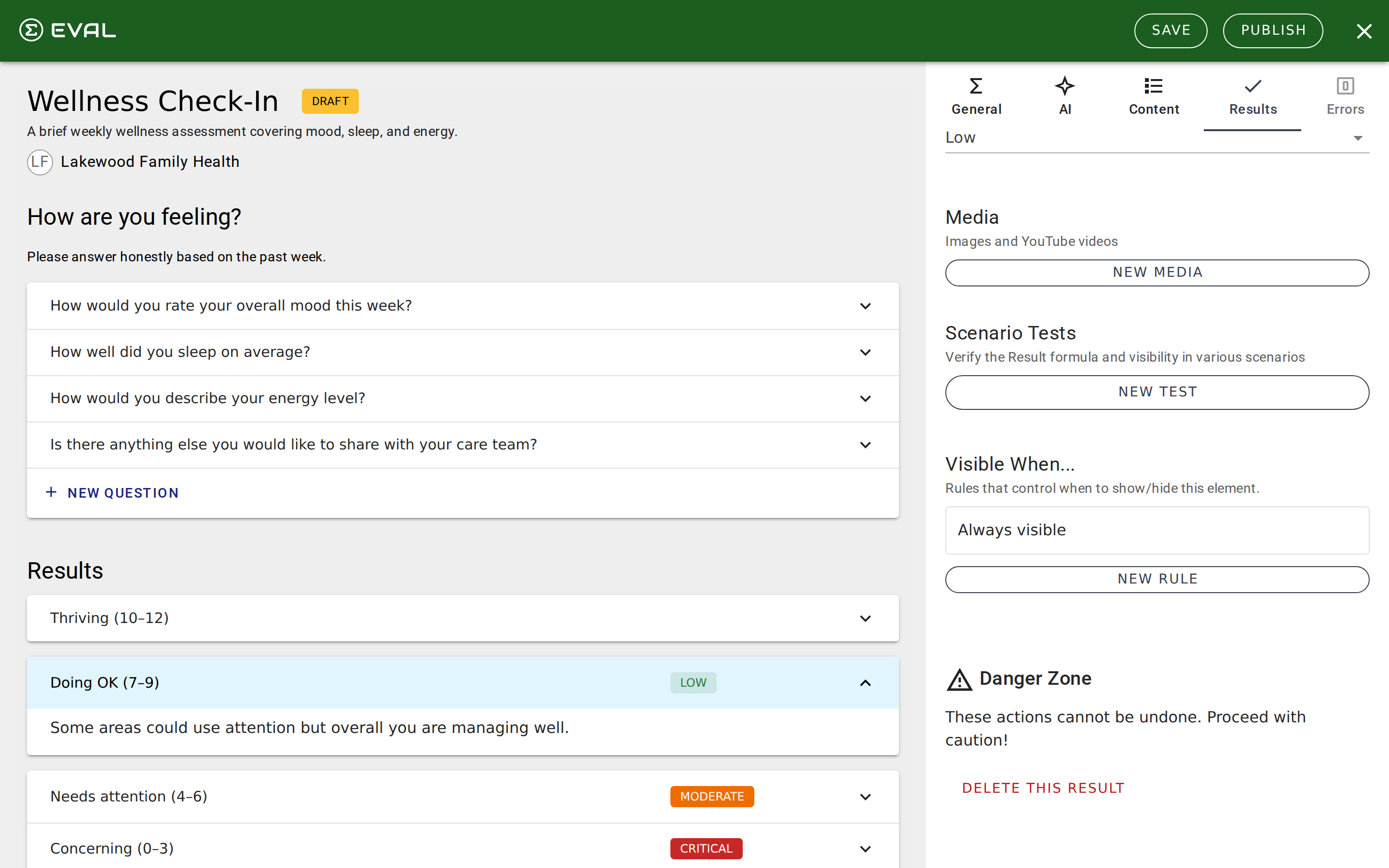
Open any section, question, or result in the Content or Results tab and scroll to the Visible When... section. When no rules exist, it shows "Always visible." Click New Rule to open the rule editor.
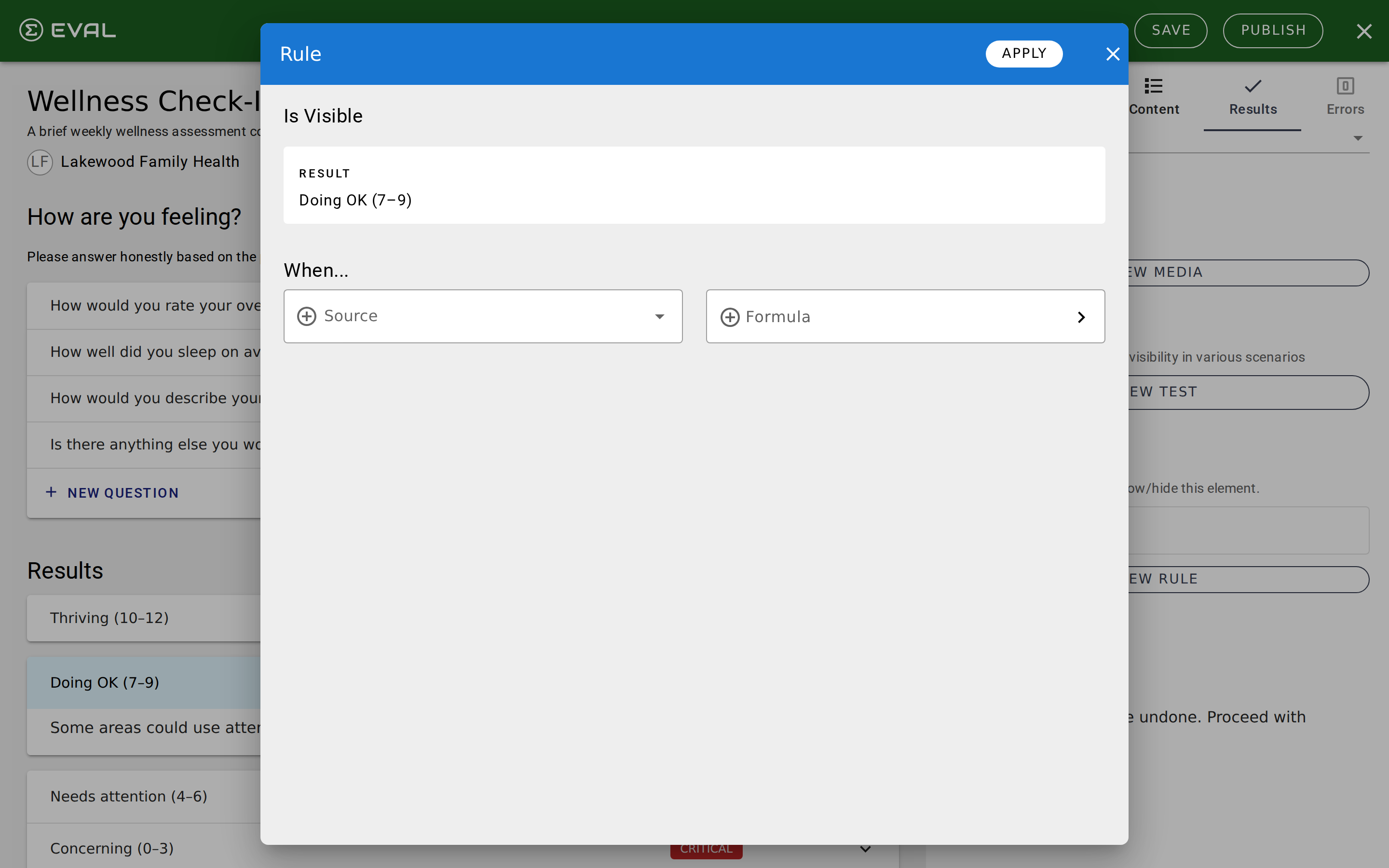
The rule editor has two parts: an "Is Visible" header showing which element this rule controls, and a "When..." section where you define the conditions that must be true.
You can add conditions in two ways:
Source conditions reference a specific element in your evaluation. Use the source autocomplete to select a section, question, choice, or result. The rule is satisfied when that element meets its condition — for example, when a specific choice is selected, when a question is answered, or when a result is triggered.
Formula conditions use a custom expression that must evaluate to true or false. Click the Formula button to open a formula editor within the rule dialog. This uses the same formula syntax as result formulas — keywords, named expressions, and spreadsheet functions — but the expression must return a boolean value. Use formula conditions when your logic needs arithmetic comparisons, complex combinations, or references that source conditions can't express.
Source condition behavior
When you add a source condition, what "satisfied" means depends on what you reference:
- Question — The question is visible and has been answered
- Choice (single select) — The choice is visible and selected
- Choice (multiple select) — The exact specified choices are selected
- Section — The section is visible and all its questions are answered
- Result — The result is triggered (selected by its own rules)
Managing rules
Each rule appears as a card in the Visible When... section, with "- OR -" separators between rules. Click any rule to reopen the editor and modify it. Within the editor, you can delete individual conditions using the trash icon, or delete the entire rule using the Delete button in the toolbar.
If you remove all conditions from a rule, the rule is automatically deleted. When all rules are removed, the element returns to "Always visible."
Where rules can be applied
Rules work on six element types: sections, questions, choices, topics (in Information sections), articles (within topics), and results. The rule system is identical across all types — the same editor, the same AND/OR logic, and the same source and formula condition options.
For results, visibility rules determine whether the result is "triggered" — and for formula results, the formula only computes when the result is triggered. This lets you create conditional scoring that only runs when relevant.
How rules are evaluated at runtime
Understanding how the rule engine works at runtime helps you design reliable visibility logic and avoid subtle issues.
Default visibility
Any element with at least one visibility rule is hidden by default. It only appears when one of its rules evaluates to true. Elements without rules are always visible. This means adding your first rule to an element changes its behavior from "always shown" to "hidden unless a rule triggers."
The evaluation cycle
When a patient answers a question or selects a choice, the rule engine identifies all rules whose conditions reference that element. For each affected rule, it checks whether all conditions are satisfied (AND logic). If any single rule evaluates to true (OR logic across rules), the target element becomes visible; otherwise it stays hidden. This cascade propagates: if showing a section reveals new questions, those questions' own rules are also re-evaluated.
Multi-select exact matching
For multiple-choice questions, source conditions use exact match logic. If a rule references choices A and B on a multi-select question, the rule triggers only when exactly A and B are selected — not when A alone is selected, and not when A, B, and C are all selected. This strict matching ensures precise conditional branching.
Formula conditions
Formula conditions are evaluated using the same spreadsheet engine as result formulas. The formula must return a boolean (true or false). Keywords in formula conditions reference the live evaluation state, so the formula result updates in real time as the patient answers questions. This enables arithmetic comparisons (like =PainScore > 7) that source conditions alone can't express.
The first section rule
The first section in an evaluation is always forced visible after rule evaluation, regardless of any rules attached to it. The first question in the first section is also forced visible. This guarantees the evaluation always has an entry point — without it, rules could theoretically hide everything, leaving the patient with a blank screen.
Getting started
Scenario testing
Validate your evaluation's formulas and visibility rules by defining test cases with known inputs and expected outputs before publishing.
Publishing
Release your evaluation for clinical use — resolve errors, write revision notes, acknowledge safety requirements, and manage the revision lifecycle.