

Questions
What questions do
Questions are how your evaluation captures data. Every piece of information collected — a symptom selection, a pain score, a patient's name, or an electronic signature — comes from a question. You add questions to sections, configure their settings, and EVAL handles the presentation and data capture.
EVAL provides 13 question types organized into three groups: general data capture, person information, and contact information. Each type has its own input format and optional configuration. See Question types for a detailed reference of all 13 types.
Adding and editing questions
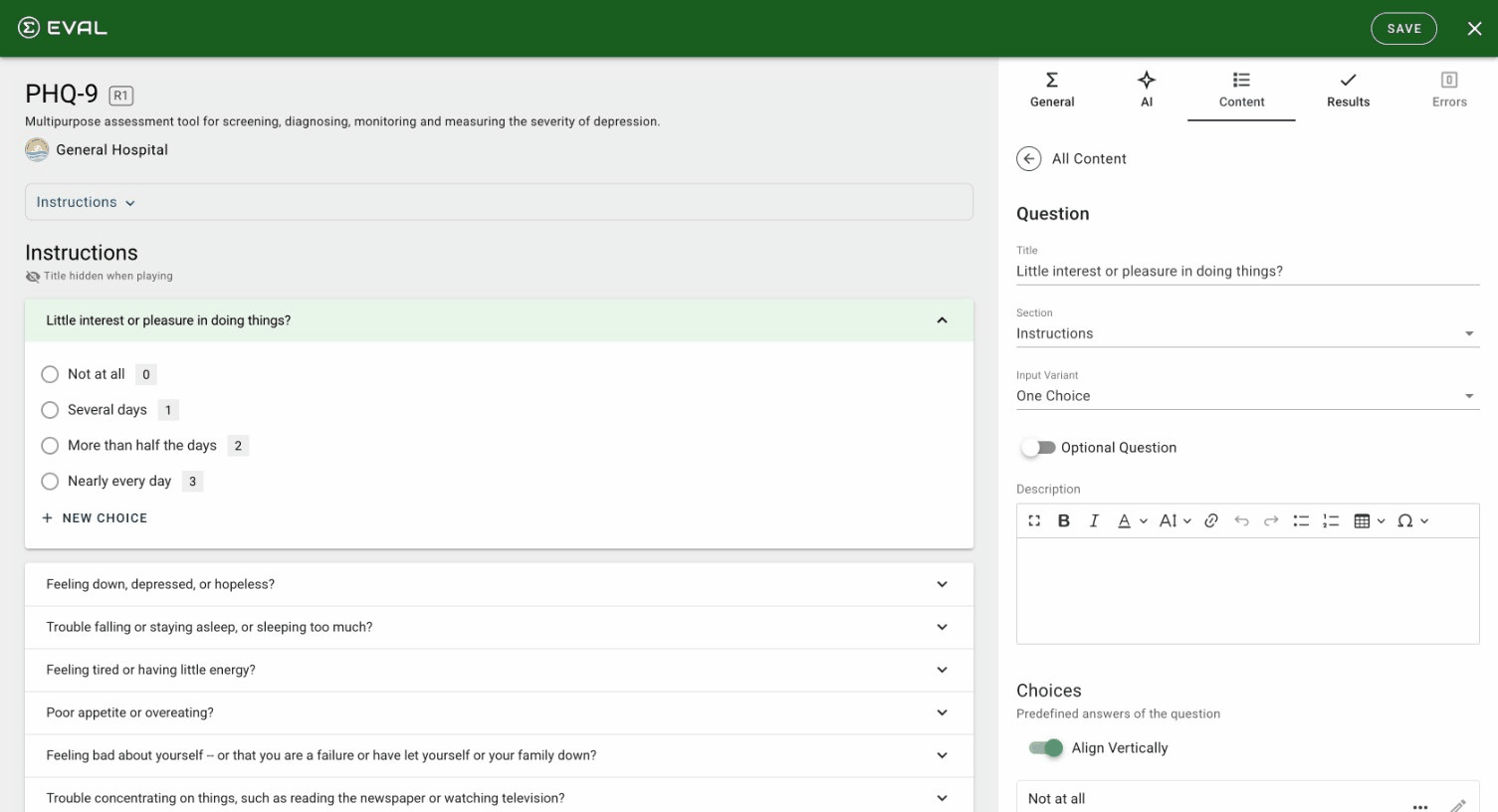
In the Content tab, click + New Question at the bottom of any section to create a question. New questions default to One Choice and open immediately in the question editor.
The question editor shows these common fields for every question type:
Title is the question text that users see (up to 300 characters). Write clear, specific questions — "Rate your pain level on a scale of 0 to 10" is better than "Pain."
Section is a dropdown showing which section this question belongs to. You can move a question between sections by changing this value.
Input Variant determines the question type. Changing the variant reconfigures the editor to show type-specific options — for example, switching to Number reveals min/max constraints, while switching to Text reveals a length setting.
Optional Question is a toggle that controls whether the question must be answered. By default, questions are required (the toggle is off). Turn it on to make the question optional.
Description is a rich text field for helper text, instructions, or context that appears below the question title. Use it for measurement instructions, definition clarifications, or scoring guidance.
Working with choices
For One Choice and Multiple Choices questions, the Choices section appears with a list of predefined answer options. Each choice has:
- Choice Title — The text the user sees (up to 250 characters).
- Formula Value — A short value (up to 30 characters) used in scoring formulas. For example, a choice titled "Severe Pain" might have a formula value of "3" so formula calculations can reference it numerically.
- Exclusive — Only available on Multiple Choices questions. When enabled, selecting this choice deselects all others (like a "None of the above" option).
Click New Choice to add an answer option. Each choice's ⋯ menu lets you Move (reorder with up/down arrows), Duplicate, or Delete it.
The Align Vertically toggle at the top of the choices list controls whether choices display in a vertical stack or horizontal layout in the player.
Media on questions
Every question can have images or YouTube videos attached through the Media section. Click New Media to add:
- Images — Upload PNG, GIF, or JPEG files up to 5 MB. EVAL requires you to confirm that the content complies with healthcare guidelines, copyright, and privacy before uploading.
- YouTube videos — Paste a YouTube URL. You can optionally enable video looping.
Each media item has a title, optional caption, and optional author credit. Questions can hold up to 15 media items, and you can drag them into your preferred order.
Visibility rules on questions
The Visible When... section controls when a question appears. By default, questions are always visible. You can add rules that reference other questions, choices, or results to create adaptive evaluations — showing follow-up questions only when relevant.
For example, you might show a "Describe your symptoms" text question only when the patient selects "Yes" to "Are you currently experiencing symptoms?"
Rules combine with OR logic between rules and AND logic within each rule. For the full details on building visibility rules, see Visibility rules.
Managing questions
Every question's ⋯ menu in the question list provides:
- Move — Reorder the question within its section or move it to another section.
- Duplicate — Copy the question with all choices, media, and rules.
- Delete — Remove the question permanently after confirmation.
The Danger Zone at the bottom of the question editor provides a delete option for the question you're currently editing.
Pre-filling from earlier answers
Long forms often ask for the same information more than once — a patient's name in demographics and again as the insurance holder, an address on the intake page and again in a follow-up section. The Copy Answer From Question list in the question editor lets you pre-populate a question from one or more earlier questions of the same type. When the respondent reaches the configured question with it still empty, EVAL copies the first non-empty answer from the list into the field, and the respondent can edit it freely from there.
The picker only shows earlier questions of the same type as the one you're editing — a Person Name question can copy from other Person Name questions, an Address copies from other Addresses, and so on. Entries in the list are ordered. EVAL walks the list top to bottom and uses the first source that has an answer; the row menu on each entry lets you reorder, replace, or remove it.
A common use is filling an emergency contact name from the patient name, or filling secondary insurance holder fields from primary insurance. For questions linked to the patient chart, the chart already supplies a value in authorized sessions, so Copy Answer From Question mostly helps in public intakes and on questions that aren't linked to the chart.
Getting started
Sections
Use sections to structure your evaluation: group questions, present educational topics and articles, or embed an existing evaluation as a building block.
Question types
Reference guide for all 13 question types in the EVAL Builder — from choices and numbers to signatures, addresses, insurance plans, and patient identity fields.