

Error resolution
What the Errors tab does
The Errors tab is your evaluation's quality check. It scans your entire evaluation in real time and flags anything that would prevent it from working correctly — missing required fields, formula problems, broken rule references, and content gaps. You must resolve all errors before you can publish.
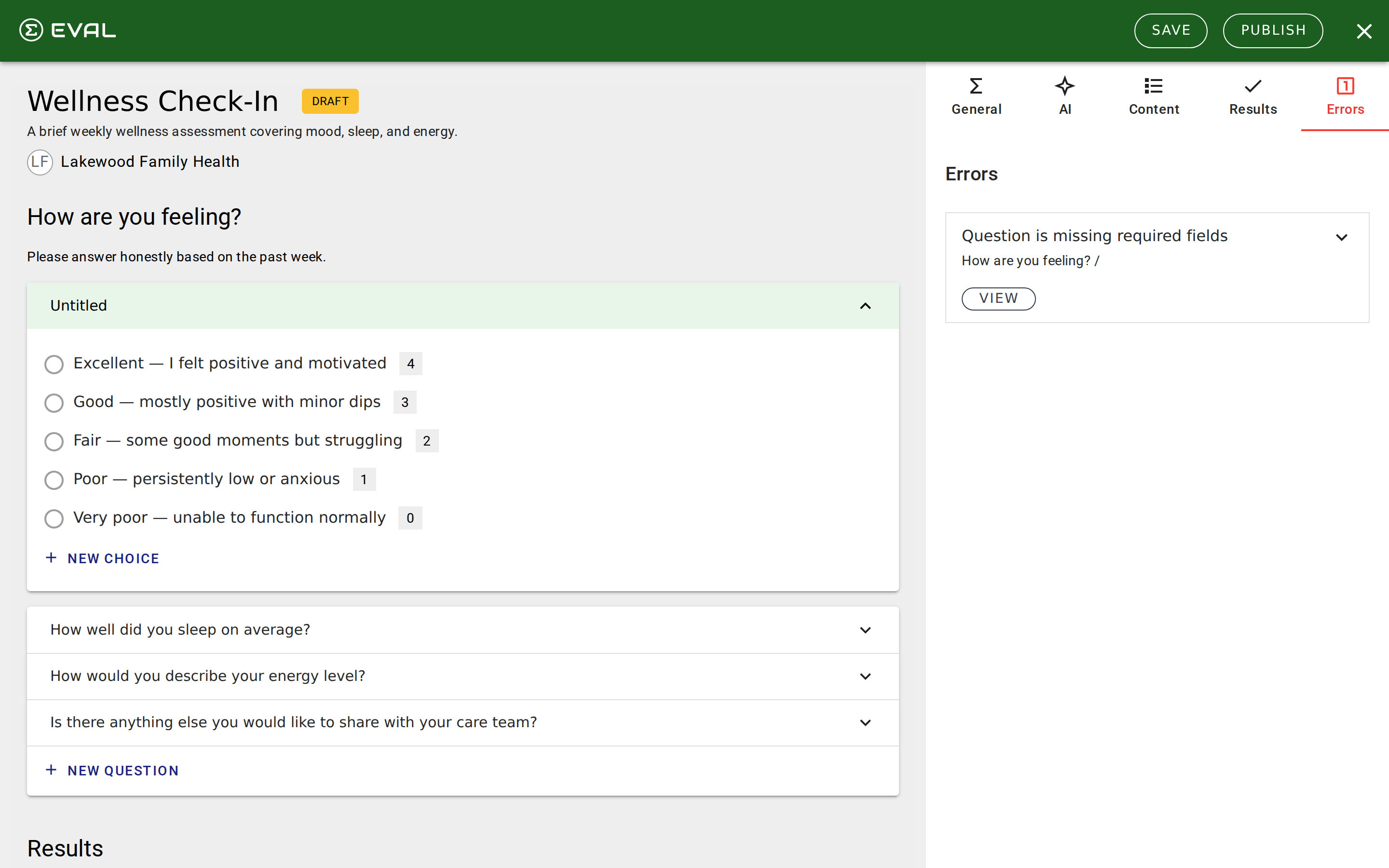
The tab appears in the Builder's detail pane (rightmost tab) with a numbered badge showing the current error count. When errors exist, the badge and tab label turn red. When everything is clean, the tab shows "No errors."
How validation works
Validation runs automatically as you build, with a brief delay after each change. It checks two layers: your evaluation's profile (metadata on the General tab) and its content (sections, questions, results, formulas, and rules). The checks run in the background without blocking your editing.
Each error includes a title summarizing the problem, a location breadcrumb showing where it is (like "Acuity / High Acuity Symptoms / Blue lips or tongue"), and an expandable message with details. Click View on any error to jump directly to the element that needs attention.
Errors also appear inline on the element that caused them — so when you're editing a question or result, any validation issues for that specific element appear right there without switching to the Errors tab.
Common errors and how to fix them
Content errors
Section is missing questions — A Questions-variant section has no questions in it. Either add questions or delete the empty section.
Section is missing content — An Information-variant section has no description, media, or topics. Add content or remove the section.
Section is missing an evaluation — An EVAL App section doesn't specify which evaluation to embed. Select an evaluation or change the section variant.
Question is missing a choice — A choice-based question (One Choice or Multiple Choices) has no answer options. Add at least one choice.
Choice is missing a title — A choice exists but has no display text. Enter a title for the choice.
Required field errors
Question is missing required fields — A question is missing its Title or Input Variant. Fill in both fields.
Result is missing required fields — A result is missing its Title, Variant, or Description. Complete all three.
Section is missing required fields — A section has no Title. Add one.
App is missing results — Your evaluation has no results. Add at least one result.
Formula and rule errors
Result formula error — A formula expression has invalid syntax, unrecognized functions, or broken references. Open the formula editor and check the expression for errors.
Formula keyword title error — A keyword name contains invalid characters. Keywords must use only letters and underscores (like PainScore or Total_Value).
Rule formula must equate to TRUE/FALSE — A formula-based visibility condition produces a number or text instead of a boolean. Wrap your expression in a comparison or use IF().
A rule has a condition with an invalid target — A visibility rule references a section, question, choice, or result that no longer exists or references itself. Open the rule and update or remove the broken condition.
Test and validation errors
Result test failed — A scenario test's result wasn't triggered when it should have been. Check the test's question answers and the result's visibility rules.
Result formula test failed — A scenario test produced a different value than expected. The error shows both the expected and actual values so you can diagnose the discrepancy.
Profile and media errors
Literature is missing url / title / authors — A literature reference on the General tab is incomplete. Fill in all required fields or remove the entry.
Attribution is missing name — An attribution entry has no name. Add the name or remove the attribution.
Media does not have copyright access or is not anonymous — A media item hasn't had its required acknowledgments confirmed. Open the media item and confirm the copyright and privacy acknowledgments.