

Content tab
What the Content tab does
The Content tab is where your evaluation takes shape. It's the workspace for creating the sections that organize your evaluation, the questions that capture data, and the topics that present educational content. Everything your patients or practitioners see when they complete the evaluation is built here.
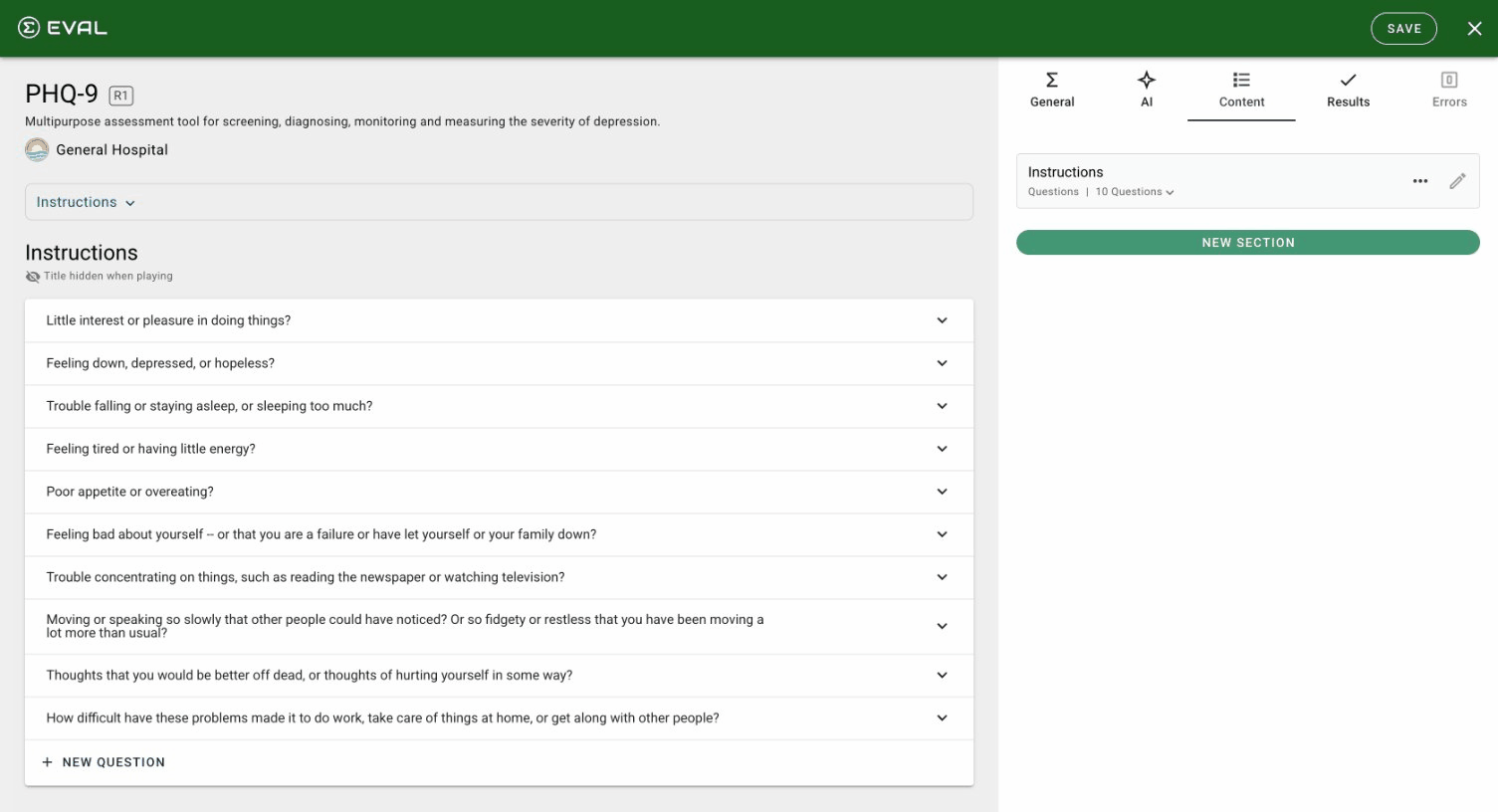
Working with the section list
When you open the Content tab, the detail pane shows all your evaluation's sections. Each section card displays its name, variant type, and a count of its contents (questions, topics, or an embedded evaluation).
Click New Section to add a section. EVAL creates it immediately with default settings and opens the section editor — there's no separate creation dialog. Sections default to the Questions variant with question-per-page presentation.
Every section card has a ⋯ menu with three options:
- Move — Reorder sections using up and down arrows in the move dialog.
- Duplicate — Create a complete copy of the section, including all questions, topics, media, and visibility rules.
- Delete — Remove the section after confirming in a dialog.
Click the ✏ edit icon on any section card to open its detail editor.
Section settings
Each section has a set of configuration fields:
Title is the section's heading, shown to users when they complete the evaluation. The Show title in the player header toggle controls whether it appears prominently in the header bar.
Variant determines what kind of content the section holds:
- Questions — The most common type. The section contains questions that capture data from the person completing the evaluation.
- Information — The section contains topics and articles for presenting educational or reference content, with no data capture.
- EVAL App — Embed an existing evaluation from your library inside this section. Useful for reusing validated instruments within a larger assessment.
Presentation controls how content flows when someone is completing the evaluation:
- Single page — All content appears on one page, stacked vertically.
- Item per page — Each question (or topic/article) gets its own page, creating a step-by-step experience.
Description is a rich text field for section-level instructions or context, displayed above the section's content.
Media, visibility, and deletion
Three additional sections appear below the main settings:
Media lets you attach images or YouTube videos to the section. Click New Media to add an image (PNG, GIF, or JPEG up to 5 MB) or a YouTube video URL. Media appears alongside the section's content in the player.
Visible When... controls when this section appears. By default, sections are always visible. You can add conditional rules that reference other questions, choices, or results to show or hide the section dynamically. The first section in an evaluation is always visible and cannot have rules.
Danger Zone at the bottom provides a permanent delete option for the section and all its contents.
Getting started
General tab
Configure your evaluation's profile on the General tab — set the title, description, audience, slug, and add literature references and attributions.
Sections
Use sections to structure your evaluation: group questions, present educational topics and articles, or embed an existing evaluation as a building block.