

Getting started: clinical providers
This guide walks you through your first hour with EVAL as a clinical provider. By the end, you'll have explored the Marketplace, added an evaluation to your library, created a patient record, run your first assessment, and set up the tools you need for ongoing patient management.
Each step links to the detailed documentation so you can go deeper whenever you need to.
Understand the navigation
After signing in, take a moment to orient yourself. The left sidebar is your primary navigation tool, organized into four sections: Discover (Marketplace and AI Builder), My Library (your evaluations), My Clinic (patients, schedules, results, and Care Panels), and Configuration (admin settings, visible only if you have an administrative role).
The top bar has a notification bell for alerts and your avatar for accessing your profile and signing out. See Navigating EVAL for the complete map.
Browse the Marketplace
Click Marketplace in the sidebar to explore pre-built clinical evaluations. The Marketplace contains validated instruments like the PHQ-9, GAD-7, and hundreds of other assessments published by healthcare organizations worldwide. Use the search bar to find evaluations by name, specialty, or organization.
Click Read More on any evaluation to preview its questions, results, and scoring logic before adding it to your library. See Marketplace for details.
Add evaluations to your library
When you find an evaluation you want to use, click the menu on its card and select Add to Library. The evaluation appears in your Private Library (or Shared Library if an administrator has made it organization-wide). Your library is where you manage all the evaluations available to your practice.
You can also create new evaluations from scratch in the Builder, or use the AI Builder to generate a starting point from a description of what you need.
Create your first patient
Navigate to Patients in the My Clinic section of the sidebar. Click New Patient and enter the patient's basic demographics — name, date of birth, and any identifiers your practice uses. EVAL creates a patient chart where all their evaluation results, medical information, and portal connections are stored.
If your organization has an EHR connection, patient records may sync automatically. See Patients for details on creating and managing patient records.
Run an evaluation
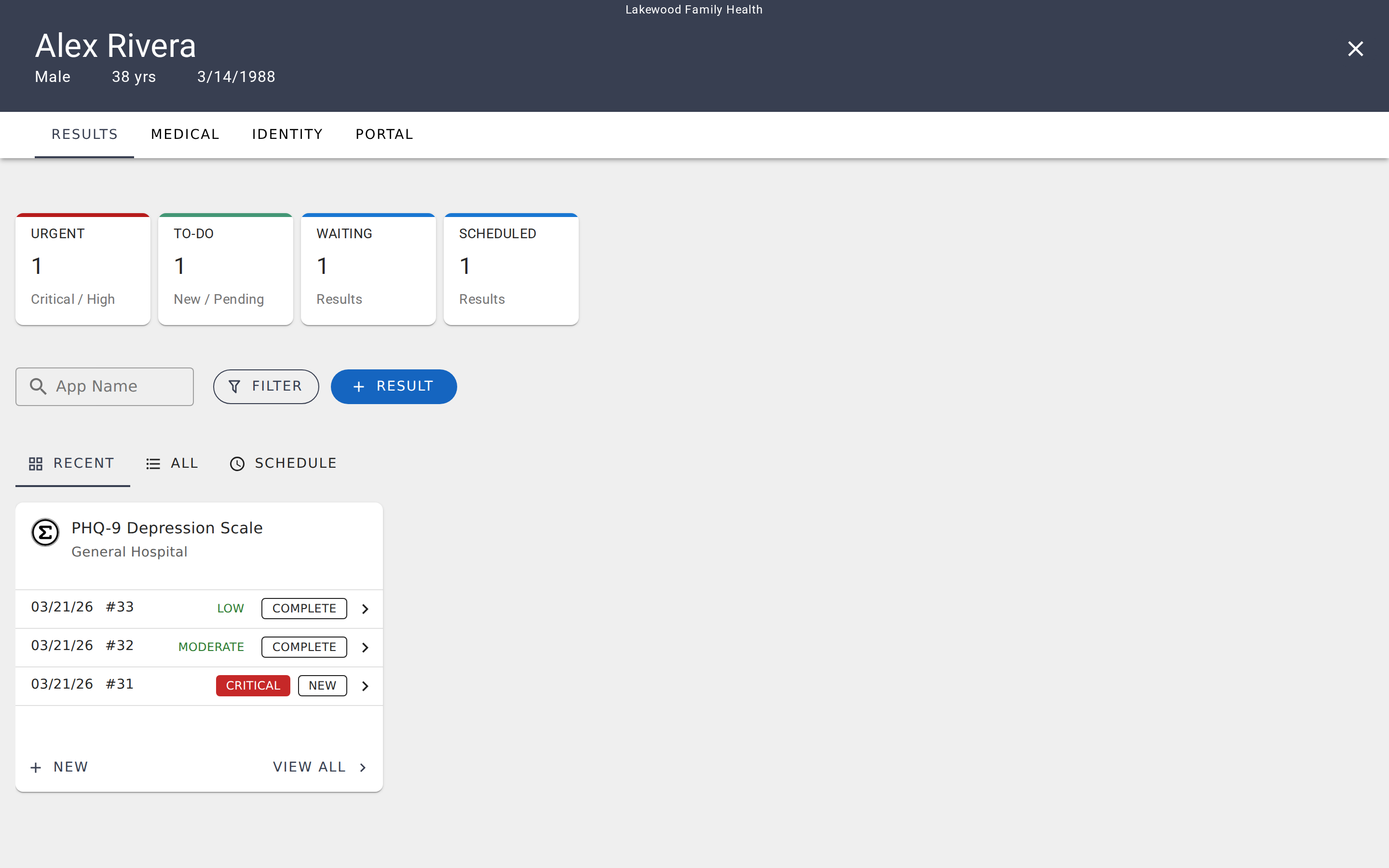
Open a patient's chart by clicking their name in the Patients list. Navigate to the Results tab and click Run Evaluation. Select an evaluation from your library, complete the questions (either with the patient or on their behalf), and submit.
The result appears immediately in the patient's chart with a priority level based on the scoring logic. See Running an evaluation for the full walkthrough.
Review results and track outcomes
After running evaluations, results appear in three places: the patient's chart (individual history), the Results page in the sidebar (aggregated across all patients), and any Care Panels the patient belongs to.
Each result shows the evaluation name, score, priority level, submission date, and review status. Click a result to see the full response detail, and mark it as reviewed or reported once you've acted on it. See Reviewing results for details.
Schedule recurring assessments
For ongoing monitoring, create a schedule that automatically sends evaluations to patients on a recurring basis. In a patient's chart or from a Care Panel, set up a schedule by choosing an evaluation, a frequency (daily, weekly, monthly, or custom), a delivery channel (email, text message, or patient portal), and a date range.
EVAL sends reminders automatically and tracks completion. See Scheduling assessments.
Set up a Care Panel
Once you have several patients to track, create a Care Panel to manage them as a group. Navigate to Care Panels in the sidebar and click New Panel. Add patients, assign evaluations, and configure alerts.
Care Panels give you a unified view of results, schedules, and patient status across your entire population — making it easier to triage urgent results and identify patients who need attention. See Care Panels for the complete guide.
Connect your EHR (optional)
If your organization uses Epic, Cerner, Athena, or another supported EHR system, connecting it to EVAL synchronizes patient demographics, enables SMART on FHIR app launch, and lets you push assessment results back to the clinical chart. EHR connections require an administrative role and are available on Clinical Team (as an add-on) and Enterprise plans.
See Integrations for setup instructions.
Account types and plans
Compare EVAL's Researcher, Starter, Clinical Team, and Enterprise plans to find the right fit for your organization's clinical and research needs.
Getting started: building evaluations
A step-by-step onboarding path for evaluation builders — from creating your first evaluation to publishing it on the Marketplace.