

Getting started: administrators
This guide walks you through setting up your organization's EVAL account as an administrator. By the end, you'll have configured your organization's profile, invited your team, assigned roles, set up billing, and connected your EHR system if applicable.
The Configuration section of the sidebar is only visible to users with the Account Administrator or Account Maintenance role. If you don't see it, contact your organization's current administrator to request the appropriate role.
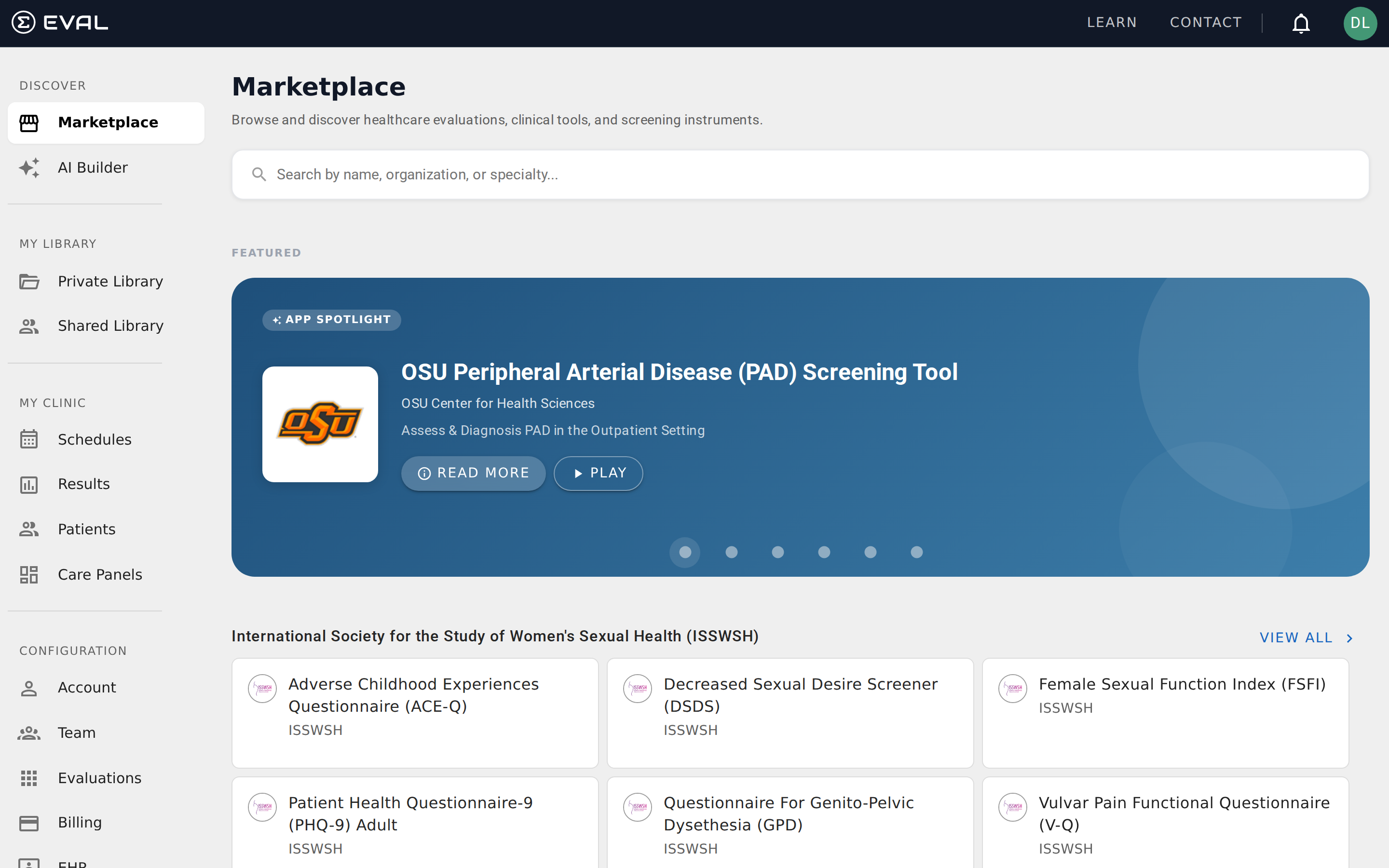
Access the Configuration section
Sign in with an Account Administrator account. The Configuration section appears at the bottom of the left sidebar with seven items: Account, Team, Evaluations, Billing, EHR, API Keys, and Settings. If you were assigned the Account Maintenance role instead, you'll see everything except Billing.
See Account Administration for an overview of what each area does.
Complete your organization profile
Click Account in the Configuration section. This is your organization's public identity in EVAL — the name, address, logo, and contact information that appear throughout the platform and on patient-facing communications.
Upload your organization's logo (it appears on the patient portal, public intake forms, and email notifications), enter your address and contact details, and verify everything is accurate. This information is visible to patients when they interact with your evaluations.
See Organization profile.
Invite team members and assign roles
Click Team to manage your organization's users. Click Invite to add new team members by email address. Each invitation includes a role assignment:
Account Administrator has full access to everything, including billing. Limit this to the people who genuinely need financial and administrative control.
Account Maintenance can access all configuration areas except billing. Good for clinical leads and operations managers.
Account User can use clinical features (Library, Charts, Care Panels, Results) but cannot access any Configuration pages. This is the right role for most clinical staff.
See Managing team members and Roles and permissions.
Configure billing
Click Billing to set up your subscription. You'll see your current plan, payment methods, and transaction history. If you're on the 14-day Clinical Team trial, this is where you'll enter payment information before the trial ends.
Add a payment method (credit card or bank account), review your per-user pricing, and confirm your subscription details. EVAL charges monthly based on the number of active staff members (patients are not counted).
See Billing and subscriptions.
Manage evaluations
Click Evaluations to see every evaluation in your organization. This view shows all evaluations across all team members, with their licensing information (Free Open Source, proprietary, etc.) and usage status.
From here you can manage which evaluations are available to your organization, review licensing terms, and configure clinical priority settings that affect how results are triaged across the platform.
See Managing evaluations.
Connect your EHR system (optional)
If your organization uses an EHR system, click EHR to set up the connection. EVAL supports Epic, Cerner, Athena, and several other systems through FHIR-based integration. Connecting your EHR eliminates manual data entry for patient demographics and lets clinicians launch evaluations directly from their existing workflows.
The connection wizard walks you through service discovery (finding your EHR's FHIR endpoint), entering credentials, and configuring patient synchronization. Once connected, patient demographics sync automatically, and you can launch EVAL directly from clinical workflows using SMART on FHIR.
EHR integration is available as an add-on on Clinical Team plans and is included with Enterprise. See Integrations for the complete setup guide.
Set up API keys (optional)
If your organization needs programmatic access to EVAL — for custom integrations, data pipelines, or third-party tools — click API Keys to generate API credentials. Each key can be scoped to specific permissions and has an expiration policy.
See API keys for details.
Configure account settings
Click Settings to adjust account-wide preferences. This includes clinical priority definitions (which determine how evaluation results are triaged), default notification settings, and other organizational preferences that apply across your entire account.
Review the default settings and adjust them to match your organization's clinical workflows. Priority levels in particular affect how results appear in Care Panels and the Results page, so align them with your team's triage process before clinicians start using the platform.
See Settings.
Getting started: building evaluations
A step-by-step onboarding path for evaluation builders — from creating your first evaluation to publishing it on the Marketplace.
Getting started: patient portal
A step-by-step onboarding path for patients — from receiving your invitation to completing evaluations, viewing results, and managing your account.