

Navigating EVAL
The EVAL clinician platform uses a persistent left sidebar for navigation, a top bar for global actions, and an avatar menu for your personal settings. This page maps out every element so you always know where to find what you need.
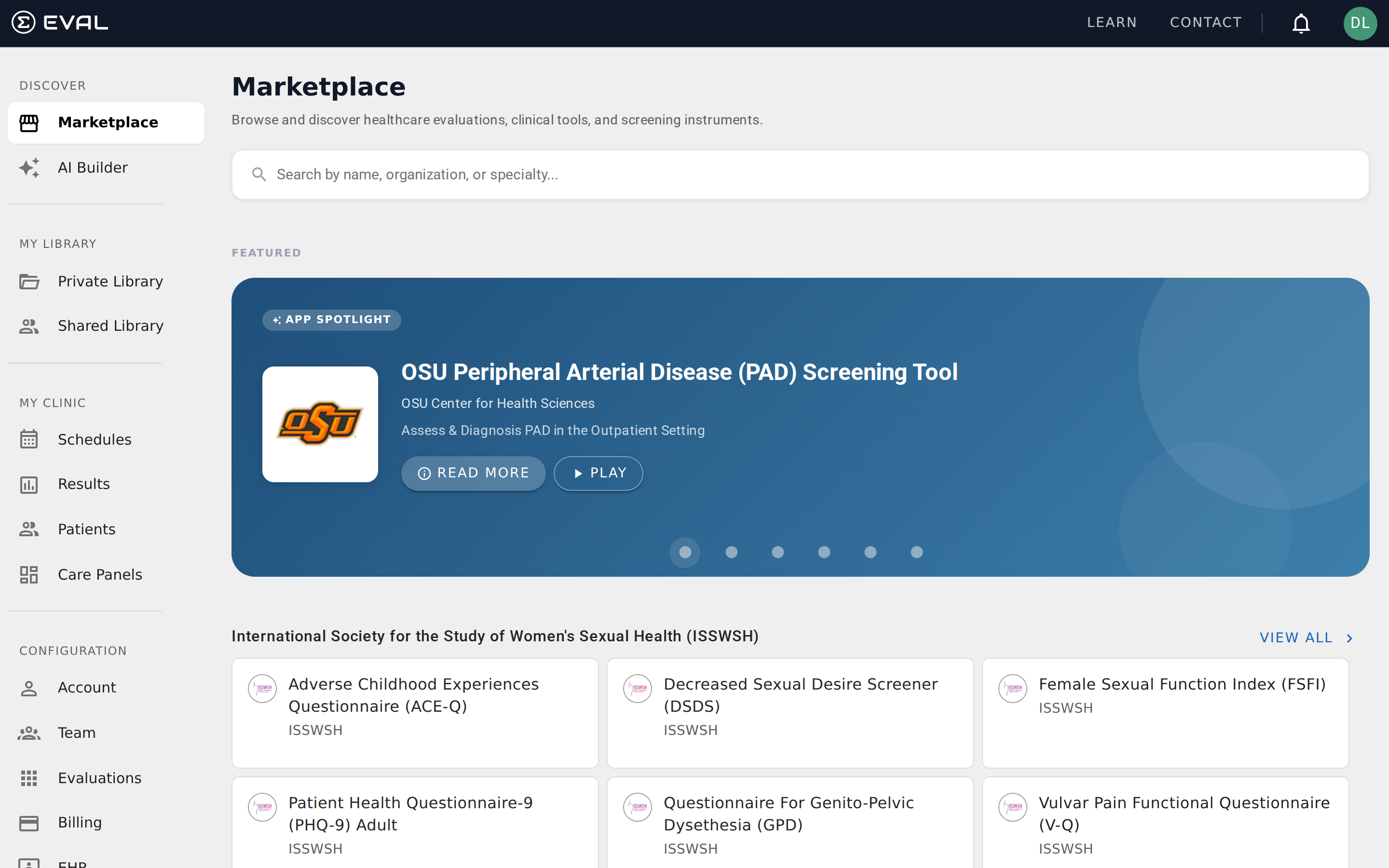
The sidebar
The sidebar is your primary navigation tool. It's always visible on the left side of the screen and is organized into four sections, each serving a different purpose.
Discover
The Discover section is where you find new evaluations and create them with AI assistance.
Marketplace takes you to the public catalog of clinical evaluations shared by healthcare organizations across the EVAL community. You can browse by specialty, search by name, preview evaluations before adding them, and explore curated collections. See Marketplace.
AI Builder opens an AI-assisted tool that helps you create new evaluations from a description of what you need. Describe your clinical use case and the AI generates a starting point with sections, questions, and scoring logic that you can refine in the Builder.
My Library
My Library is where you manage the evaluations your organization owns or has access to.
Private Library shows evaluations that belong to you personally — evaluations you've created, imported from the Marketplace, or been given individual access to. This is your personal workspace. See Library.
Shared Library shows evaluations that are available to everyone in your organization. When an administrator shares an evaluation with the entire account, it appears here. This is useful for standardized assessments that your whole team uses.
My Clinic
My Clinic contains the features you use for day-to-day clinical and research work — managing patients, tracking results, and coordinating assessments.
Schedules shows all scheduled assessments across your patients and Care Panels. You can see upcoming, overdue, and completed assessments in one view, filter by panel or patient, and manage individual schedules. See Schedules.
Results provides an aggregated view of evaluation results across all your patients and panels. Use filters to focus on specific evaluations, priority levels, or time periods. See Results.
Patients is where you create, search, and manage patient records. Every patient in your organization's EVAL account appears here, and you can open any patient's chart directly from the list. See Patients.
Care Panels shows your curated patient groups. Each panel has its own results feed, patient roster, schedule management, and data export tools. If you work with specific patient populations — a clinic program, research cohort, or care team caseload — this is where you manage them. See Care Panels.
Configuration
The Configuration section is only visible to users with administrative roles (Account Administrator or Account Maintenance). It contains your organization's settings and management tools.
Account shows your organization's profile — name, address, contact information, and branding settings. See Account Administration.
Team is where administrators add, remove, and manage team members and their security roles. See Managing team members.
Evaluations provides an account-wide view of all evaluations in your organization, with licensing information and management tools. See Managing evaluations.
Billing manages your subscription, payment methods, and transaction history. See Billing and subscriptions.
EHR is where you configure connections to electronic health record systems like Epic, Cerner, and Athena. See Integrations.
API Keys lets you generate and manage API keys for programmatic access to EVAL's data and workflows. See API keys.
Settings contains account-wide preferences like clinical priority definitions and notification defaults. See Settings.
The top bar
The top bar runs across the top of every page and contains global actions that are always available.
EVAL logo (far left) — Clicking the logo takes you to the Marketplace, which serves as the platform's landing page.
Learn — Opens the EVAL documentation site (what you're reading now) in a new tab.
Contact — A dropdown with options for reaching the EVAL support team.
Notification bell — Shows a count of unread notifications. Click it to open the notification panel, where you can see alerts about patient results, schedule completions, and other updates. The types of notifications you receive depend on your notification preferences.
Avatar — Your profile photo (or initials if you haven't uploaded a photo) in the top-right corner. Clicking it opens the avatar menu.
The avatar menu
Clicking your avatar opens a dropdown showing your name and organization, with two options:
My Profile takes you to your personal profile page where you manage your contact information, security settings, notification preferences, and profile visibility. See My Profile.
Sign Out logs you out of your EVAL session and returns you to the sign-in screen.
Footer
The footer at the bottom of every page includes links to EVAL's Privacy Policy, Terms of Service, Contact page, and Help resources, along with a copyright notice.
Navigating the documentation
This documentation site uses its own sidebar navigation (separate from the EVAL platform). Documentation sections mirror the application's sidebar structure:
- Discover — Marketplace and AI Builder for finding and creating evaluations.
- My Library — Library, Builder, and Evaluations for managing your evaluation content.
- My Clinic — Schedules, Results, Patients, and Care Panels for day-to-day clinical workflows. Patient charts (individual records, results, and medical data) are accessed within the Patients section.
- Patient Engagement — The Patient Portal and practitioner workflows for delivering evaluations to patients.
- Configuration — Account Administration, Integrations, and profile settings.
- Learning — Guides, tutorials, and troubleshooting.
Each section starts with a hub page that introduces the topic and routes you to specific pages within that section.
Key concepts
Learn the core vocabulary behind EVAL — evaluations, revisions, sections, questions, results, formulas, Care Panels, schedules, and more.
Account types and plans
Compare EVAL's Researcher, Starter, Clinical Team, and Enterprise plans to find the right fit for your organization's clinical and research needs.